


This guide explains how to create notice groups and configure supported energy, power, current and offline alerts in IAMMETER Cloud.
Before configuring a rule, decide whether you need a persistent Cloud notification, a local alarm record or a temporary browser warning:
For an overview of these options, see Energy Monitoring Alerts & Automation.
Software alerts provide monitoring information and notifications. They do not replace circuit breakers, over-current protection, interlocks or other electrical protection required for an installation.
In this guide, you will learn how to:
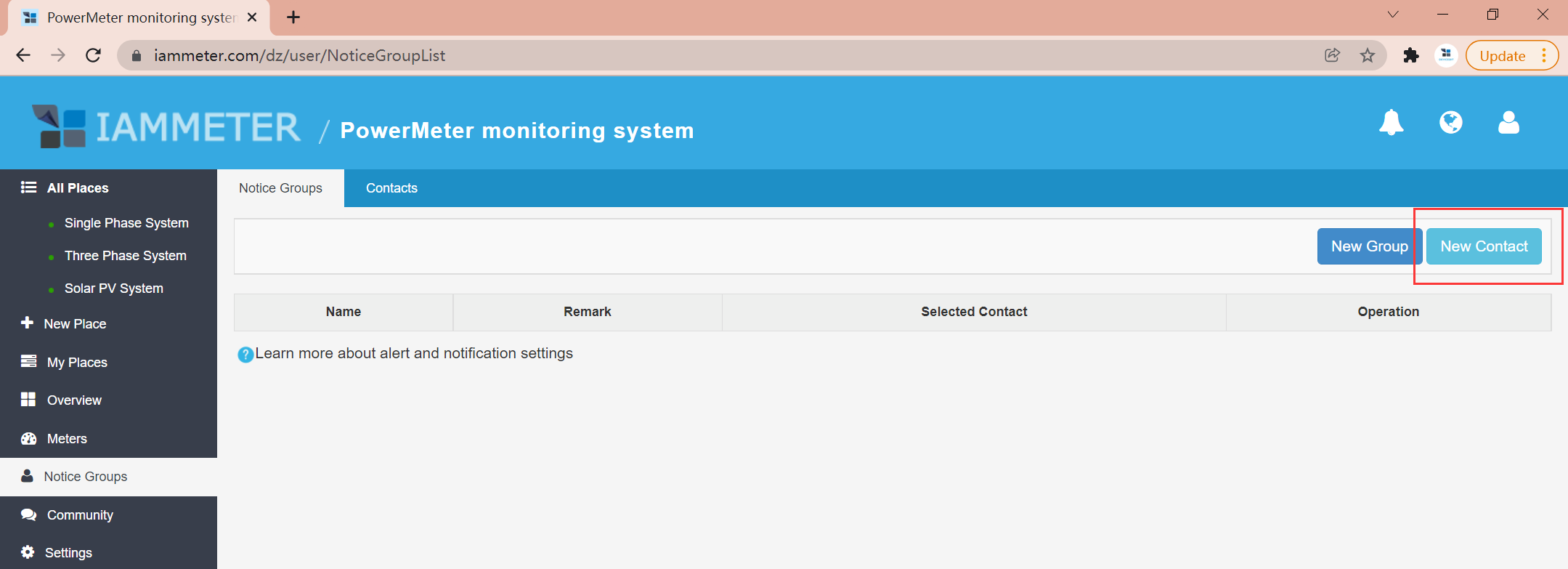
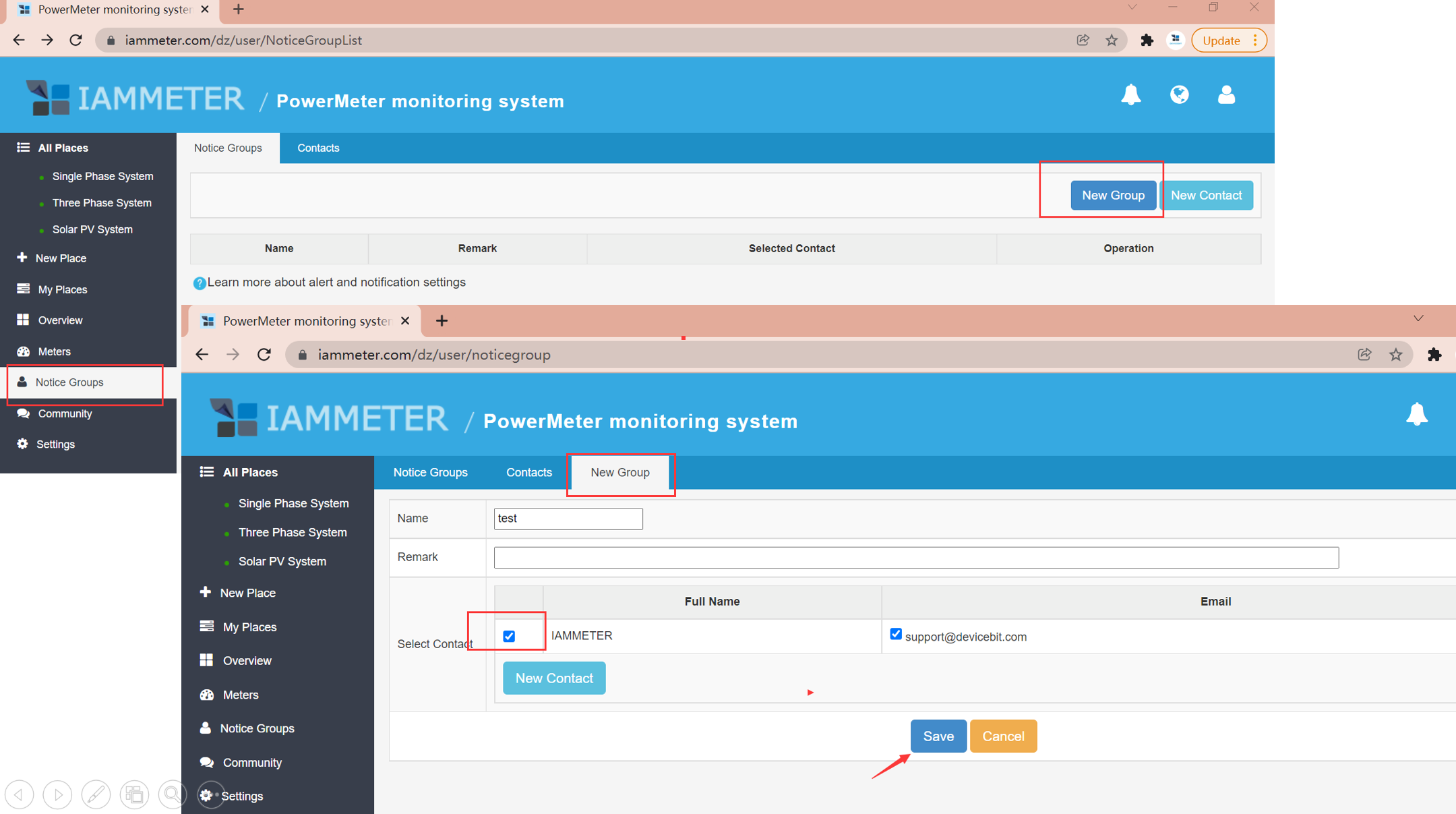
Before setting alerts, create a Notice Group. A notice group contains the contacts who should receive alerts and reports.
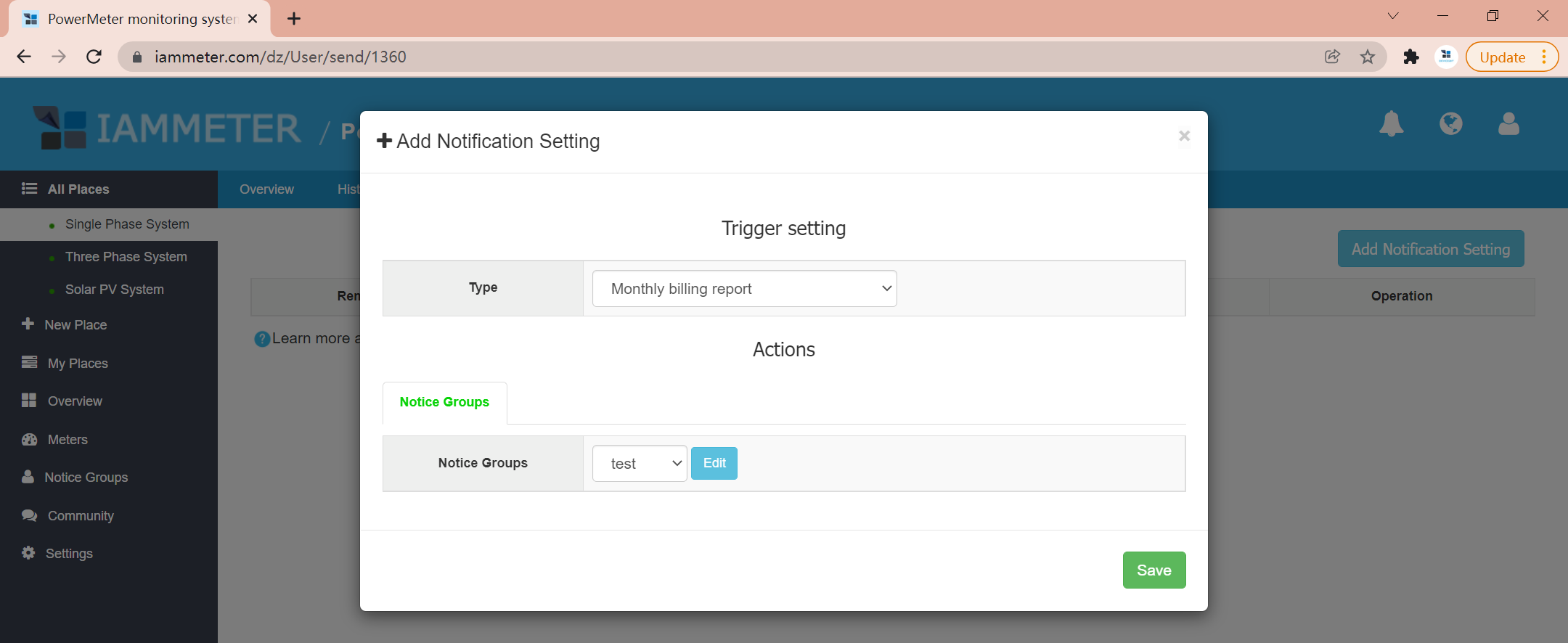
To receive a scheduled electricity report:
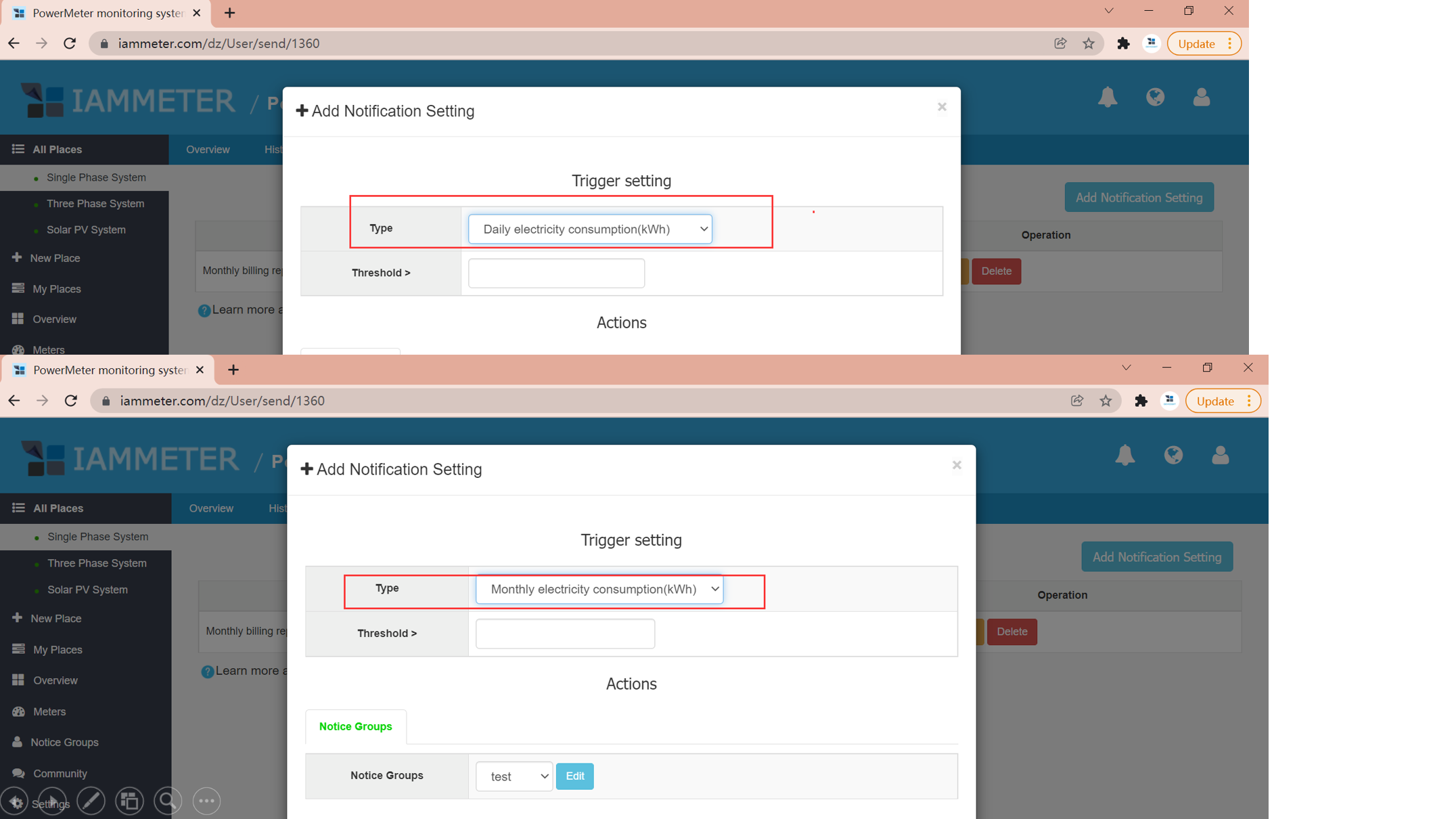
Use an accumulated-energy rule when the daily or billing-period total matters. For an instantaneous high-load condition, use a power or current rule instead.
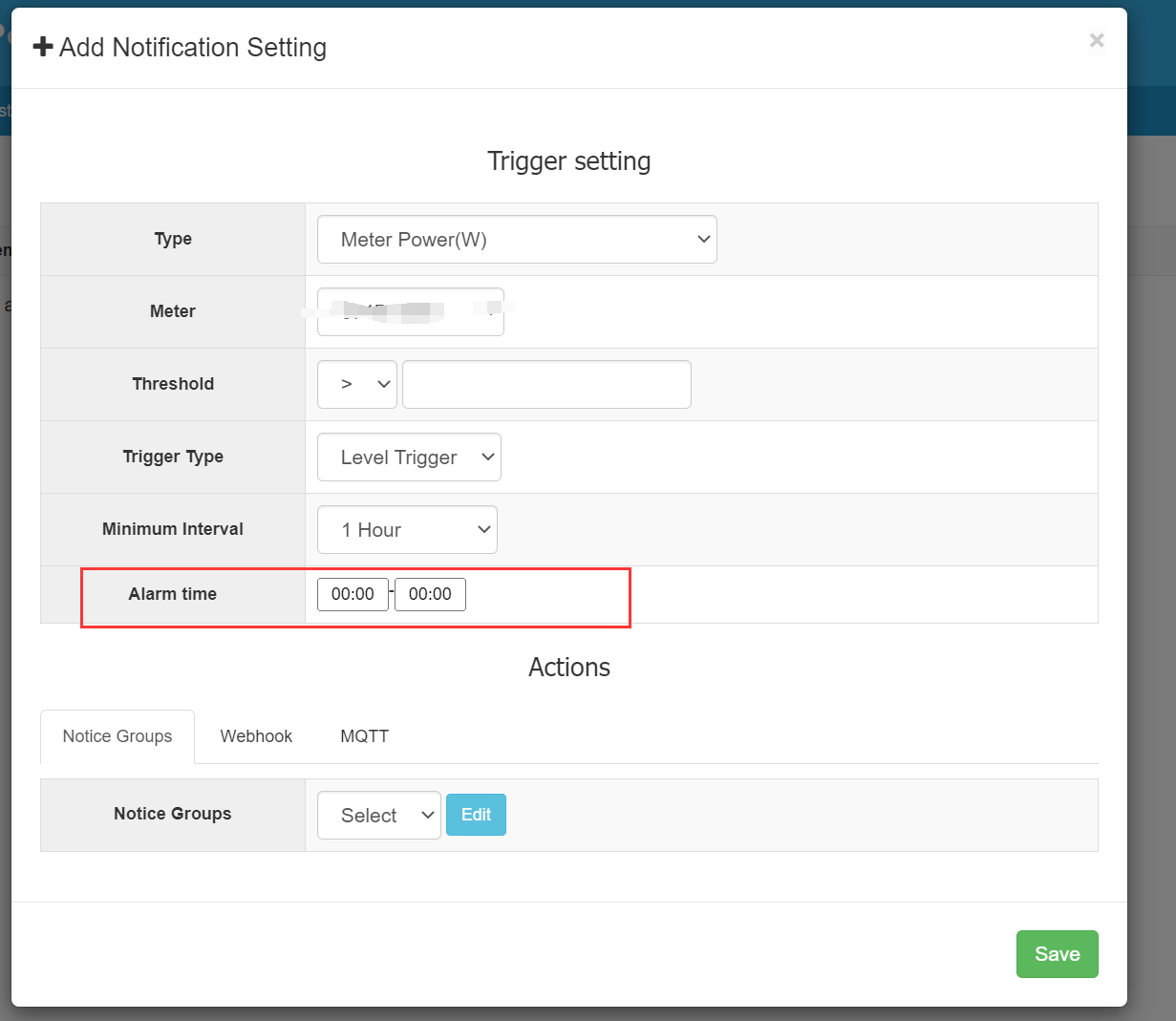
The power-alert form includes Alarm time for setting the time window in which the rule applies. The screenshot above shows the time-enabled interface.
Choose a threshold from the normal operating range and the response you expect someone to take. A threshold crossed during every normal motor start will create noise rather than useful information.
Use the minimum interval to reduce repeated notifications:
Choose the notice group that should receive the alert. Confirm that every intended recipient has completed any required channel binding.
Power alerts can be restricted to a specified time window using Alarm time. Enter the start and end times for the period you want to monitor, then save the rule with the appropriate threshold and notice group.
For example, a business that finishes closing tasks at 19:00 can monitor an evening window such as 19:00–23:00 for unexpectedly high power. Choose the threshold from the normal load during that period; refrigeration, security systems and other essential equipment may legitimately remain on. This is a configuration example, not a universal threshold or a measured savings result.
Alarm time determines when the rule applies. Minimum Interval controls repeated notifications; it is not the time window and does not mean that power must remain above the threshold for that duration.
Time-windowed power alerts are the basis for after-hours high-load notifications in our Small Business Energy Monitoring and Cost Control solution. They help owners notice equipment left running after work, investigate the cause and reduce avoidable electricity waste.
IAMMETER can notify the configured recipients when no data has been uploaded for more than 10 minutes.
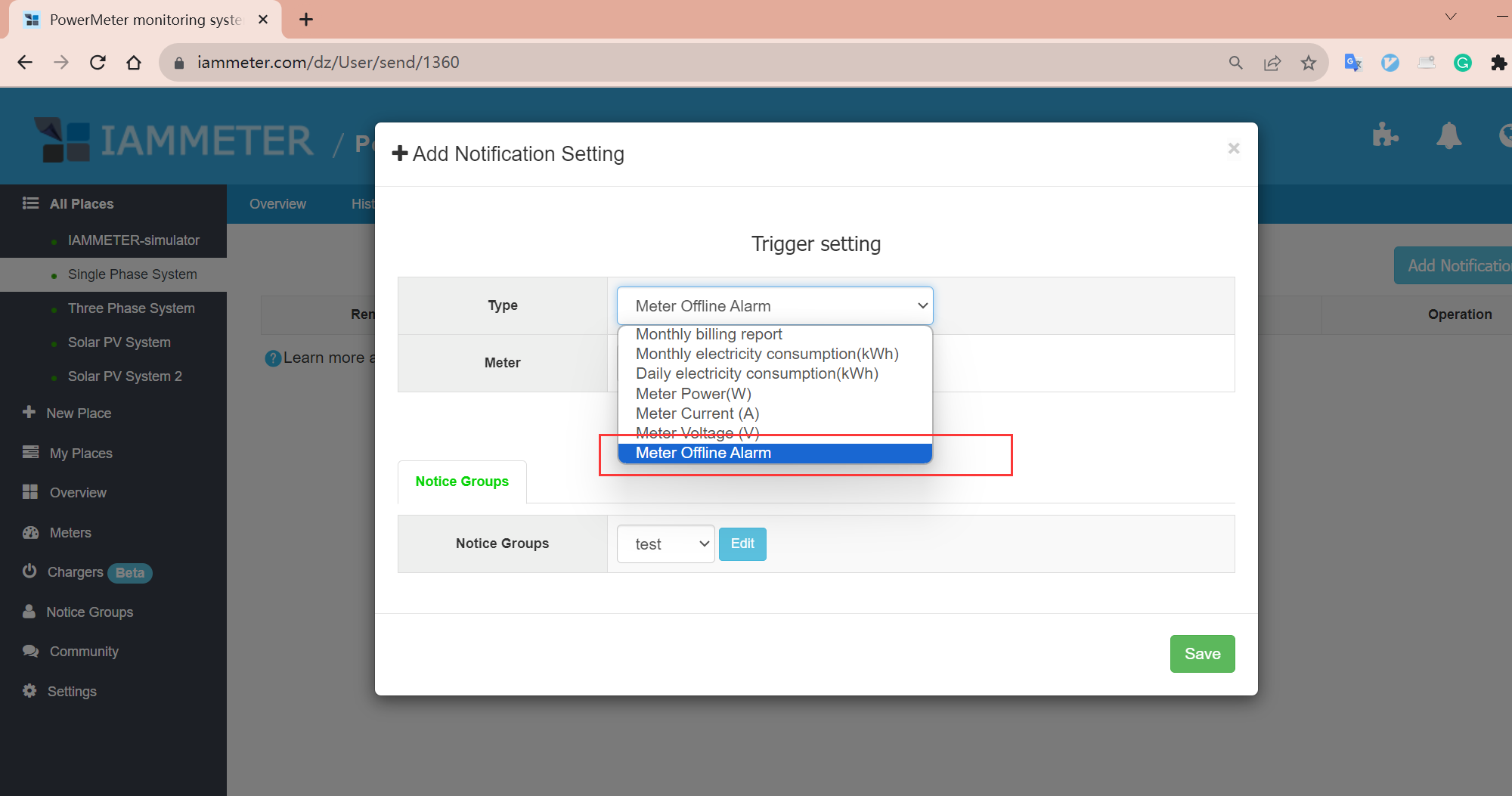
An offline alert indicates loss of uploaded data. Check site power, Wi-Fi, internet access and the meter connection before assuming a device fault.
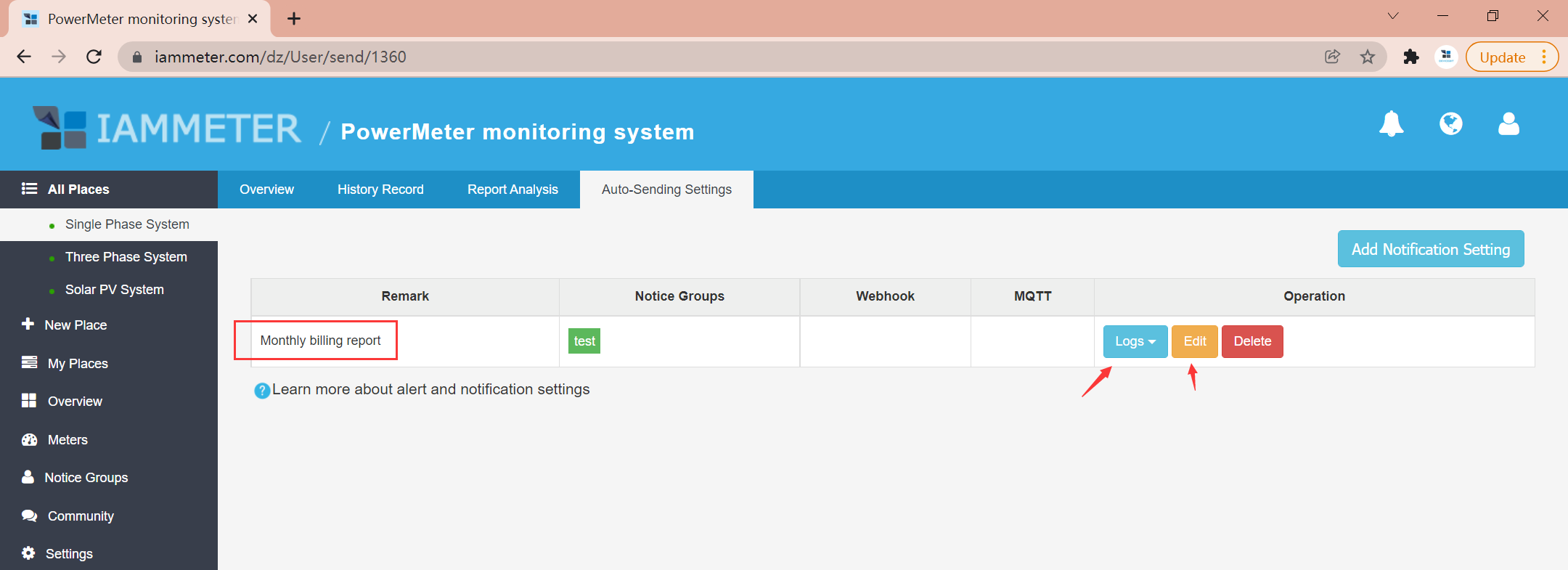
IAMMETER Cloud supports email and additional configured channels:
Available delivery options can depend on account, region and current platform support. The alert condition and notice group remain the core of the workflow.
Webhook and MQTT can connect IAMMETER measurements or trigger events to an external system. Treat control logic as a separate engineering task: add timing, hysteresis, fail-safe behavior and appropriate electrical protection.
Useful examples:
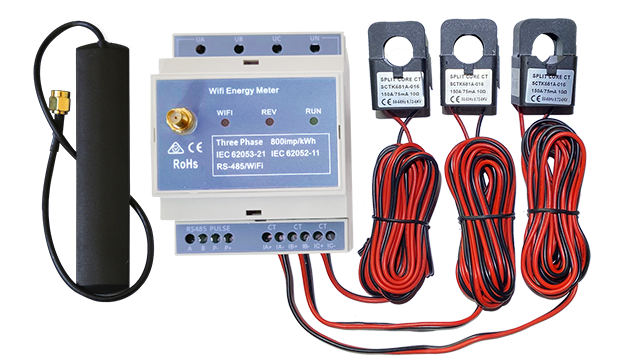
Three Phase Wi-Fi Energy Meter (WEM3080T)
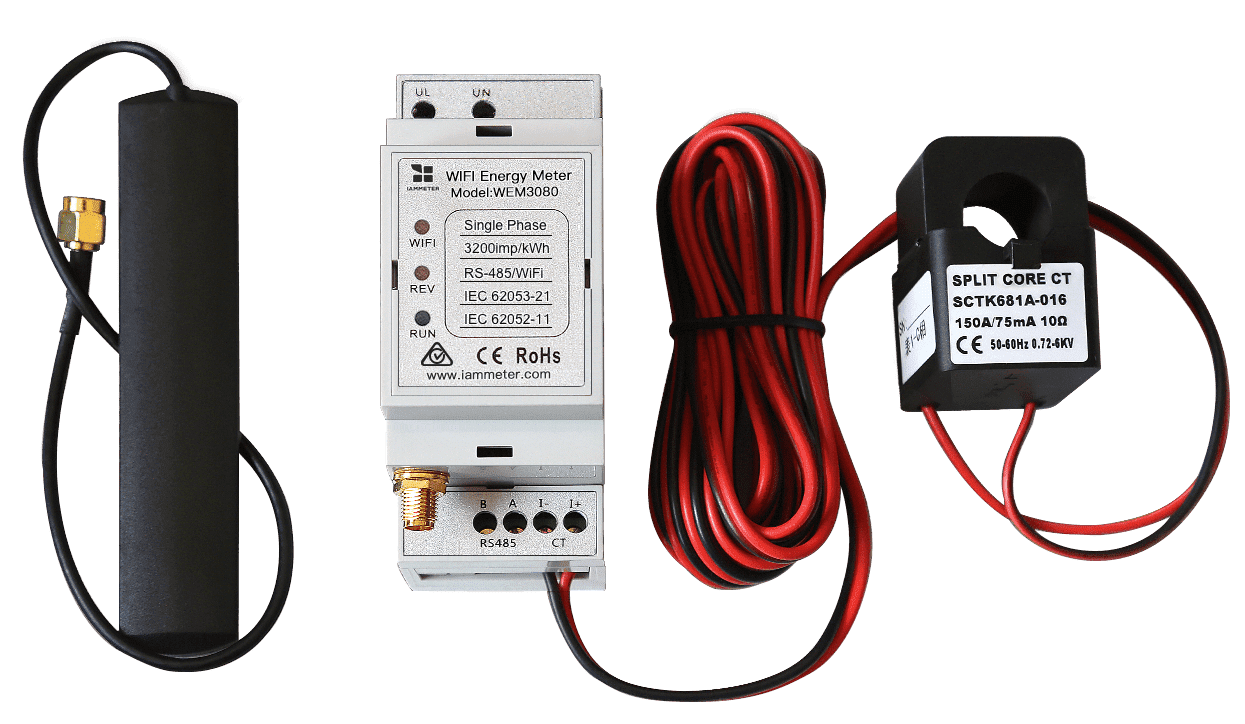
Single Phase Wi-Fi Energy Meter (WEM3080)
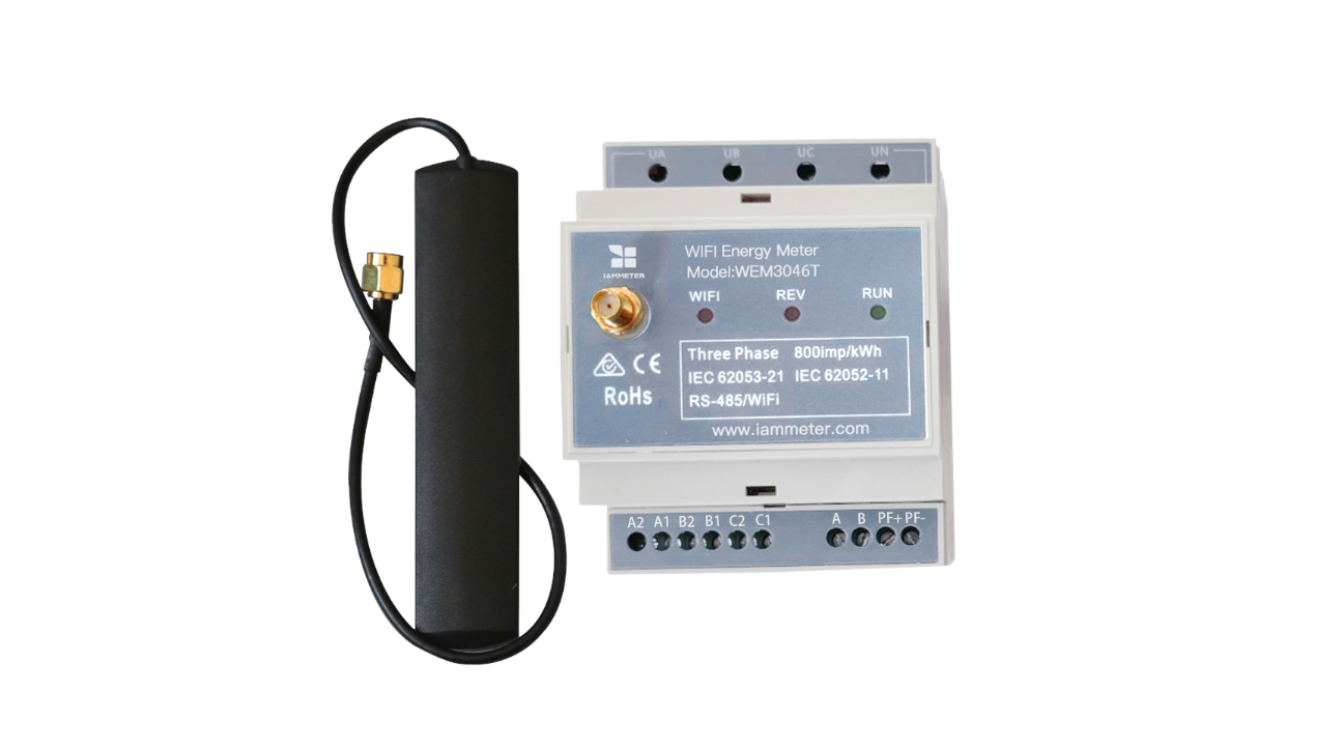
Three Phase Wi-Fi Energy Meter (WEM3046T)
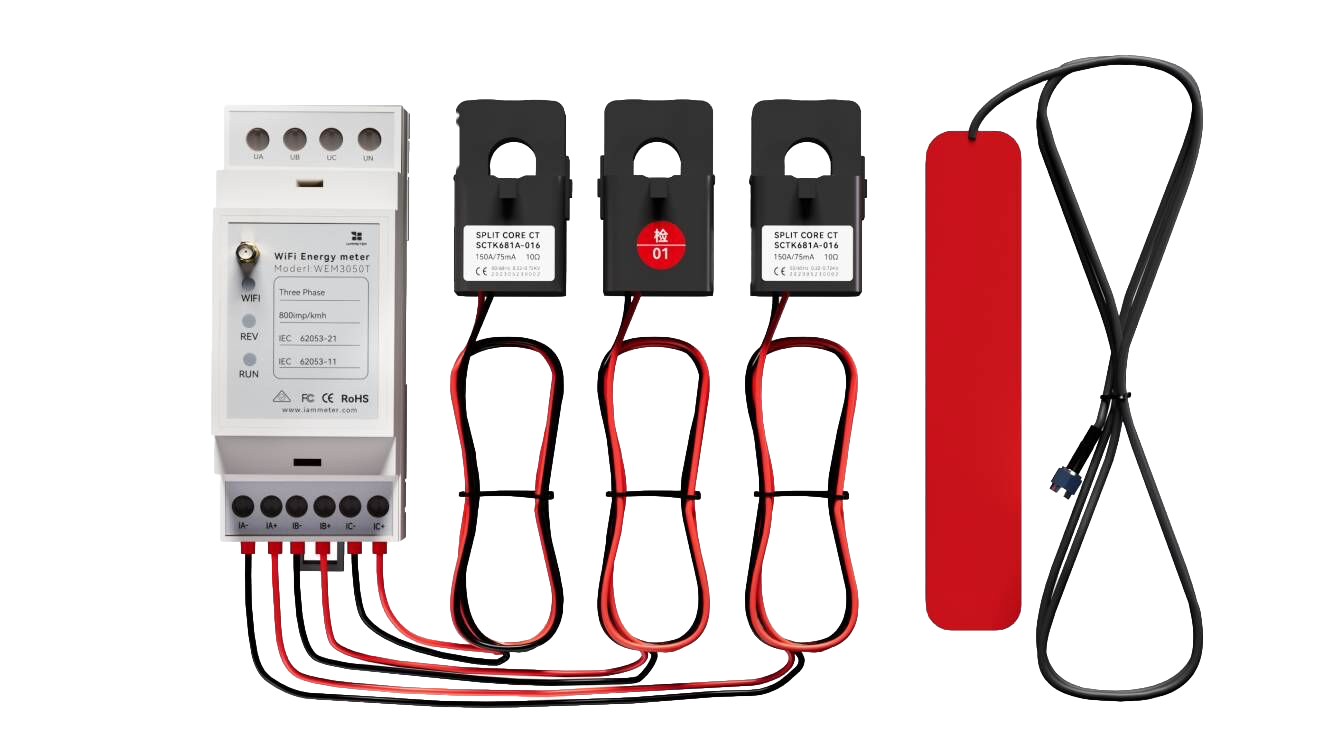
Three Phase Wi-Fi Energy Meter (WEM3050T)