


IAMMETER Wi-Fi energy meters can work as MQTT energy meters and publish real-time voltage, current, active power and energy data directly to your own MQTT broker. This provides a local and open way to integrate IAMMETER with a custom monitoring system, automation platform or Home Assistant.
The latest IAMMETER firmware lets you configure the MQTT connection directly from the meter's local WebUI.
Open the meter's local WebUI and go to the Settings page. Configure the MQTT connection using the fields shown below:
| Setting | Configuration |
|---|---|
| Run Mode | Select MQTT |
| Address | Enter the MQTT broker address and port |
| Username/Password | Enter the broker credentials; leave blank only if anonymous connections are allowed |
| HA MQTT Discovery | Enable only for Home Assistant automatic discovery |
| Real-time topic | device/{SN}/realtime |
After completing the settings, click Save. The meter will connect to the configured broker and publish its measurement data as an MQTT client.
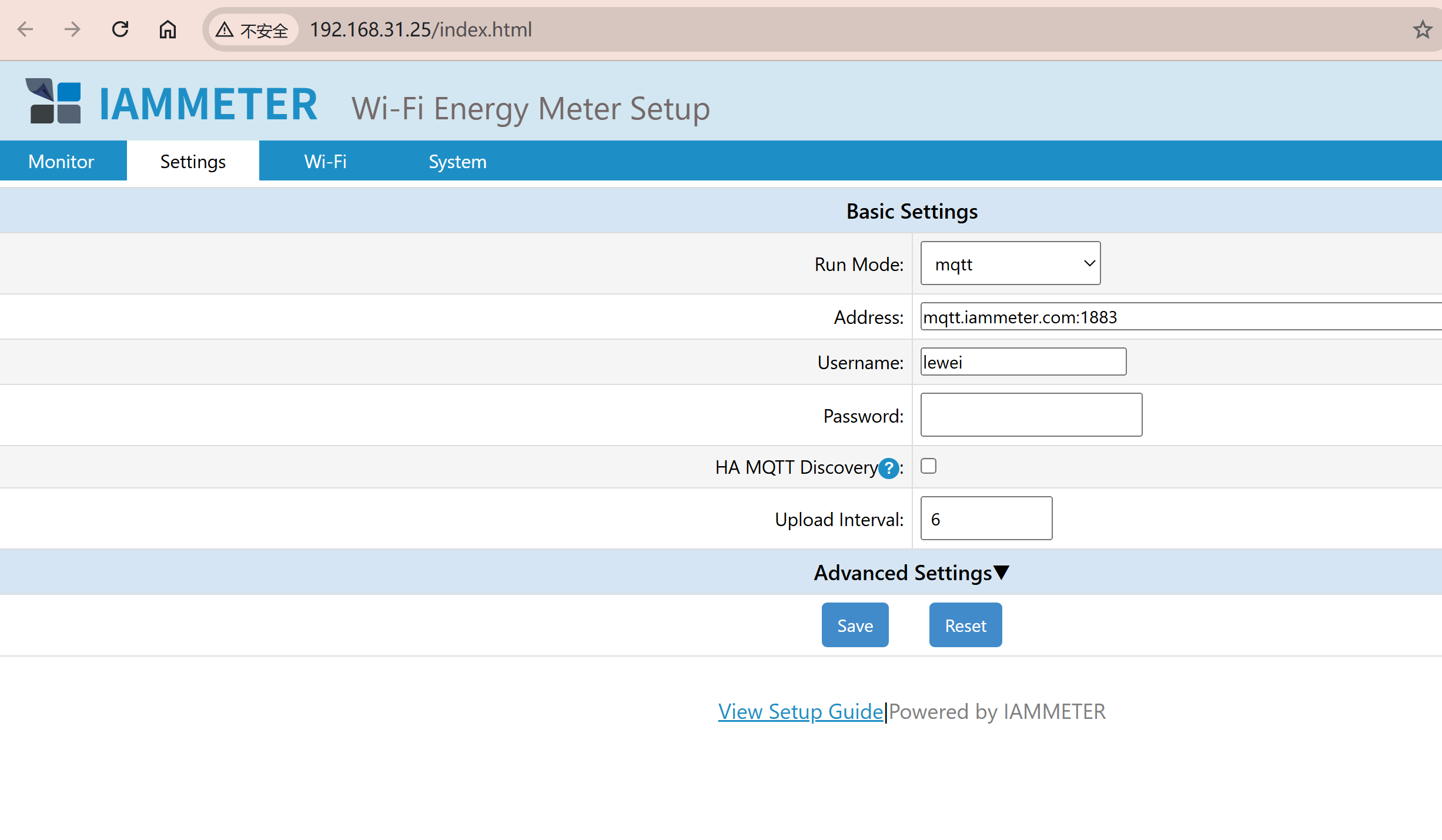
The latest firmware WebUI supports the MQTT settings described above. There is no need to configure the broker username and password through a local API.
HA MQTT Discovery is only used for Home Assistant automatic discovery.
For the complete discovery procedure, see Enable MQTT Discovery in Home Assistant with IAMMETER. To compare MQTT Discovery with IAMMETER's other Home Assistant integration methods, including the official integration, Modbus/TCP and manual MQTT configuration, start from the IAMMETER Home Assistant integration guide.
Topic: device/{SN}/realtime
Replace {SN} with the serial number of your IAMMETER meter. After the meter connects to the MQTT broker successfully, an MQTT client can subscribe to this topic to receive real-time measurement data.
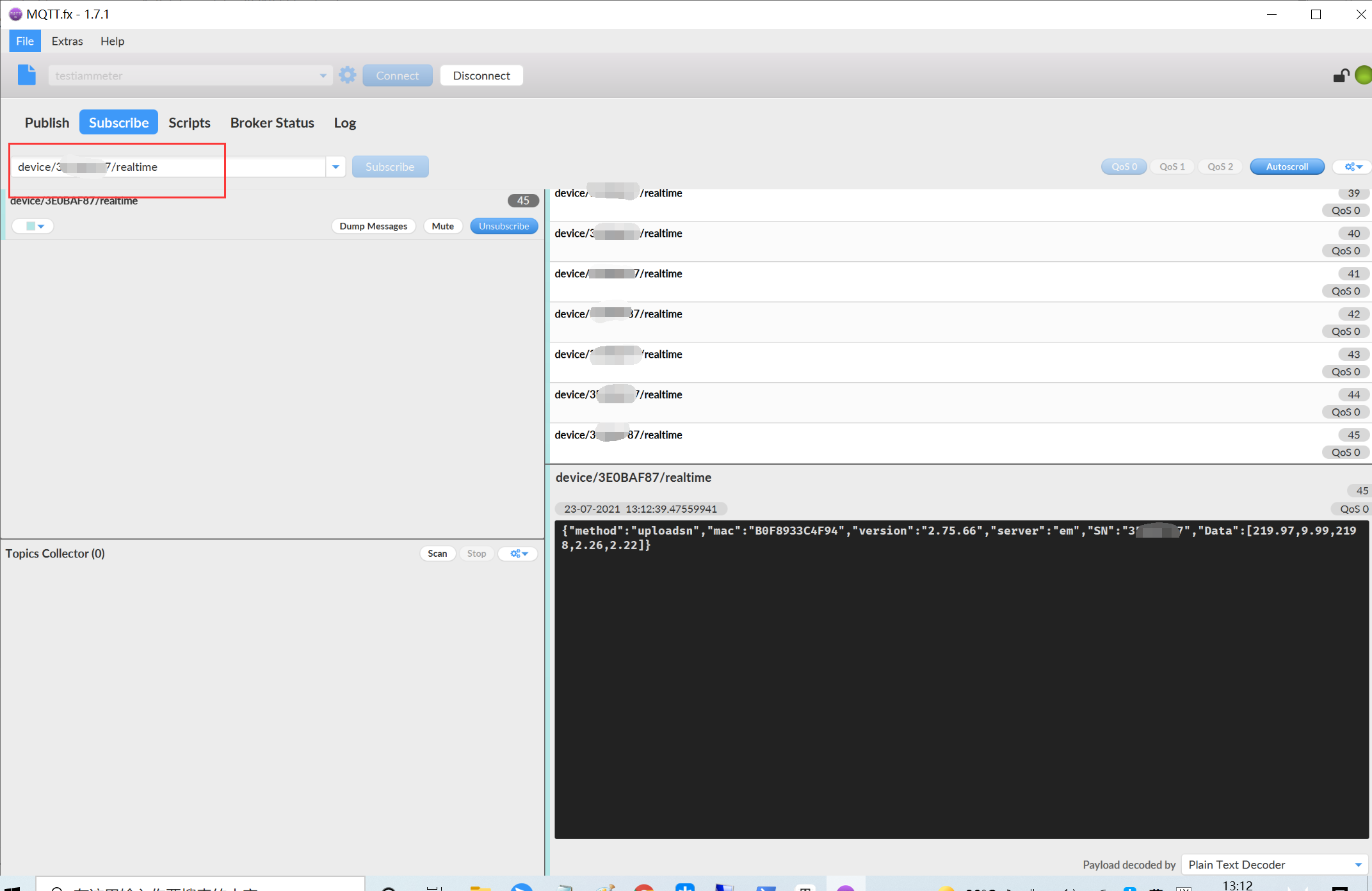
Regardless of whether the meter is configured to upload data to a third-party server using HTTP/HTTPS, TCP/TLS or MQTT, or measurement data is retrieved through a local API, the measurement JSON format remains consistent.
For example, a single-phase meter publishes a Data array containing voltage, current, active power, forward active energy and reverse active energy:
{
  "method": "uploadsn",
  "mac": "B0F8932A295C",
  "version": "i.75.98.71y",
  "server": "em",
  "SN": "12345678",
  "Data": [228.91, 1.61, 225, 15066.47, 0]
}
Three-phase meters use a Datas array with separate measurement arrays for phases A, B and C. See the complete IAMMETER JSON data definition before parsing the payload in a third-party application.
The instructions below are retained for meters that still use an older firmware version and do not provide the current MQTT configuration options in the WebUI.
If your meter's WebUI looks like the screenshots below, follow this legacy procedure. Alternatively, upgrade to the latest firmware and use the WebUI procedure in Section 1.
Configure the upload mode and MQTT broker address as follows:
TCPmqtt://[URL of your MQTT server]:[port]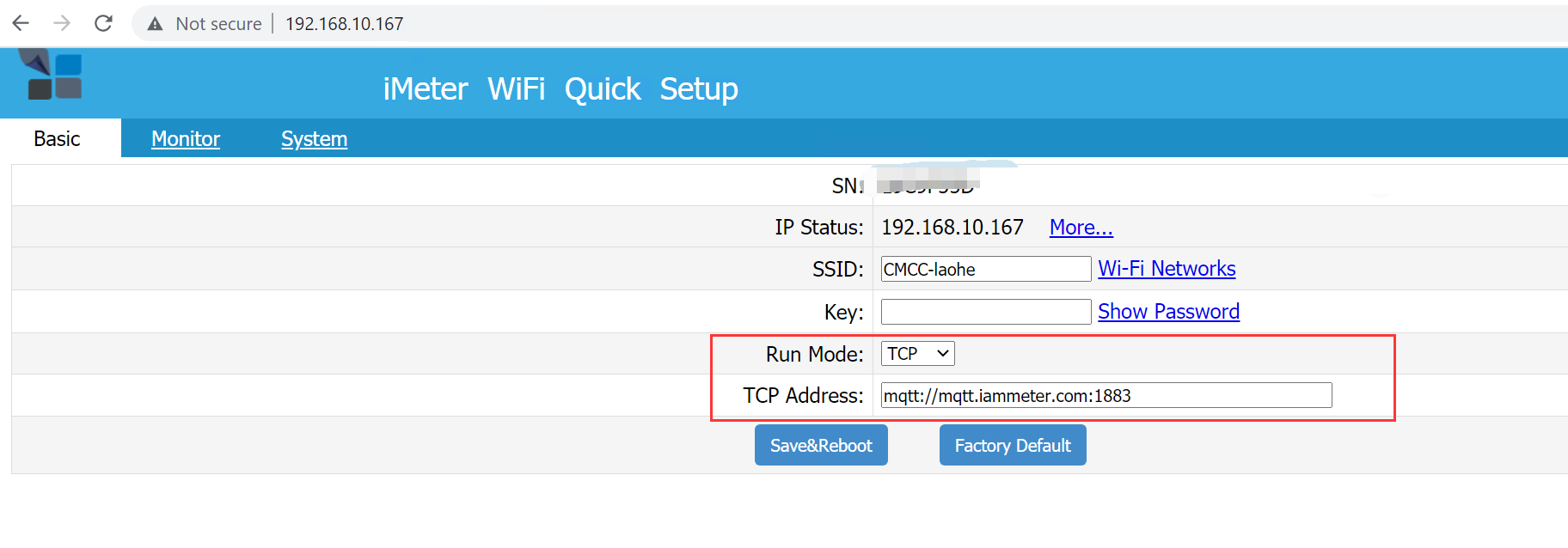
Username and password configuration requires firmware i.75.97.5 or later.
In this mode, the Wi-Fi energy meter works as an MQTT client and supports the following broker authentication methods:
On older firmware, set the MQTT username and password through the meter's local API:
http://{local IP of the energy meter}/api/mqtt?user=laoliu&pwd=123456
Replace laoliu and 123456 with the actual MQTT broker username and password.
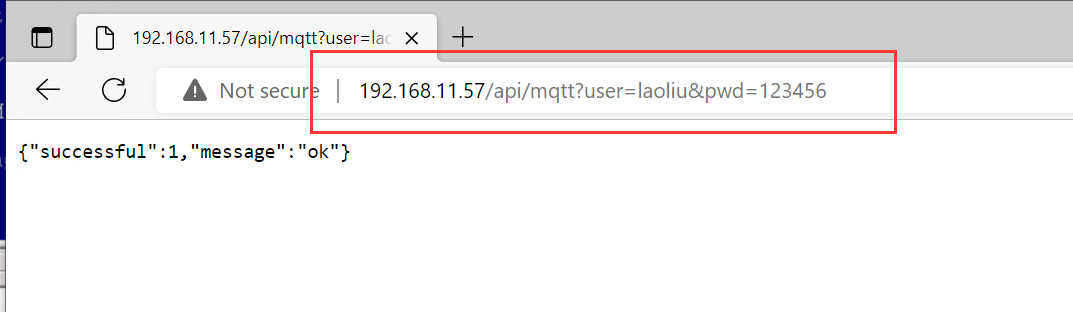
Legacy configuration notes:
& character is not supported in the username or password.To retrieve the current MQTT authentication setting, use:
http://{local IP of the energy meter}/api/mqtt
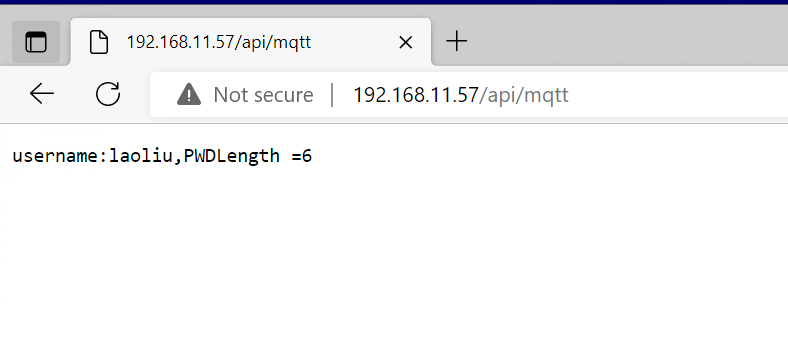
The API does not return the MQTT password itself; it only returns the password length.
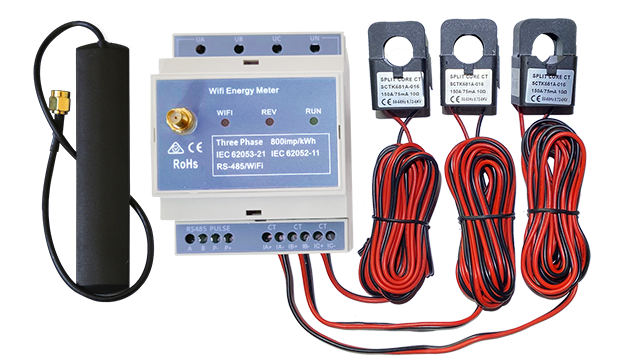
Three Phase Wi-Fi Energy Meter (WEM3080T)
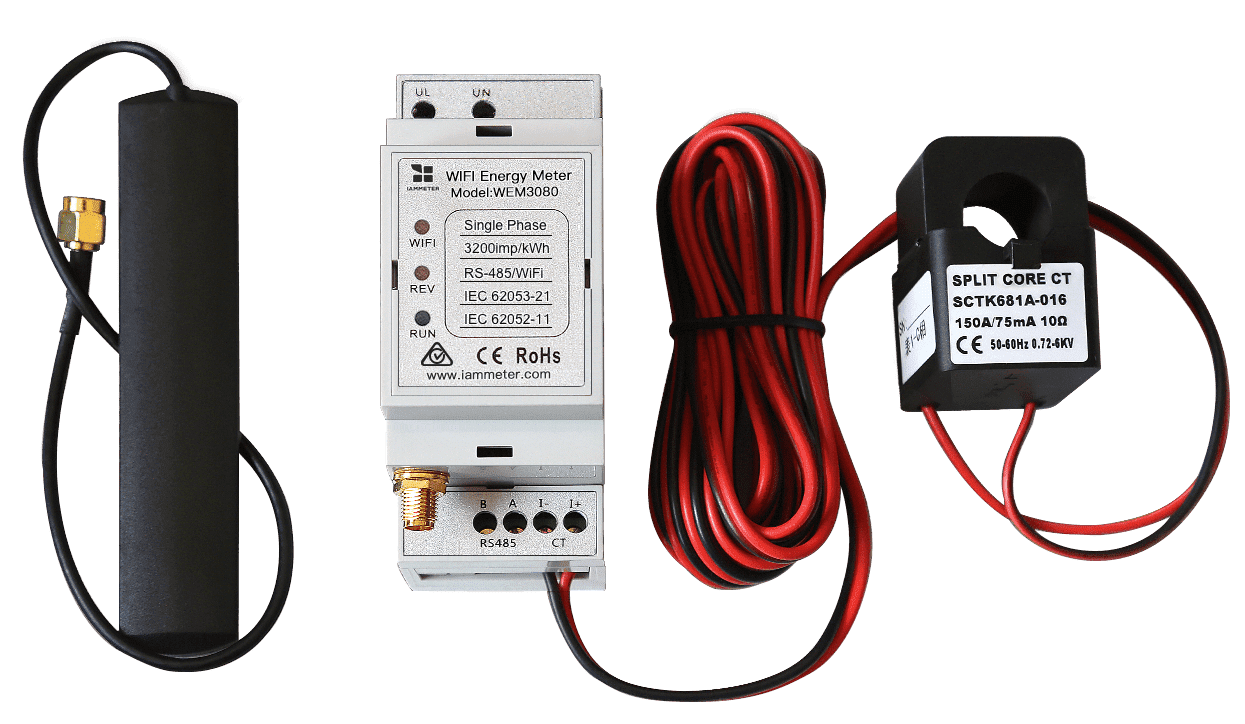
Single Phase Wi-Fi Energy Meter (WEM3080)
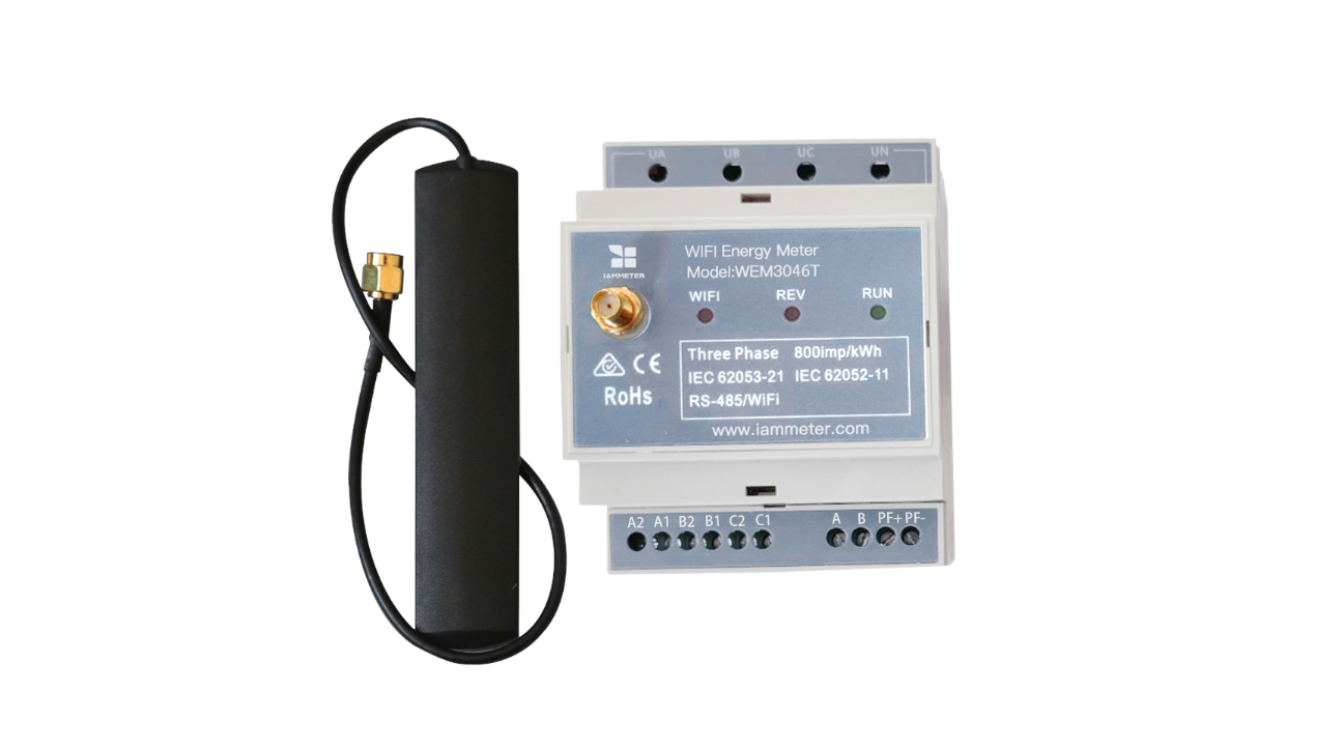
Three Phase Wi-Fi Energy Meter (WEM3046T)
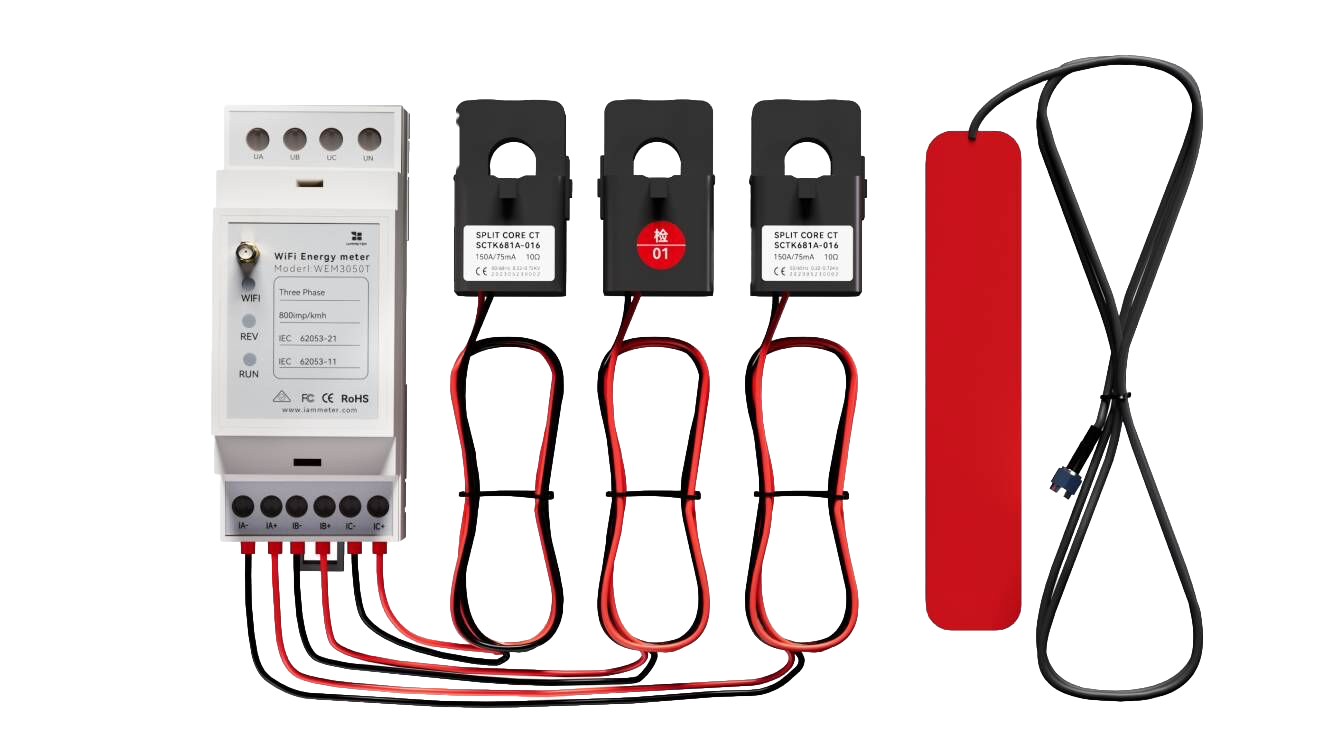
Three Phase Wi-Fi Energy Meter (WEM3050T)