


Use a Wi-Fi Energy Meter Without Internet or Cloud
Use a Wi-Fi Energy Meter Without Internet or Cloud
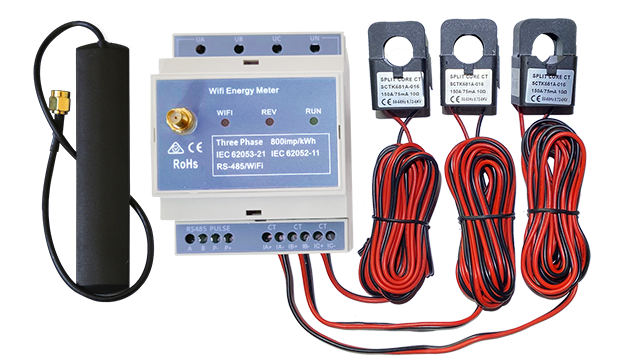
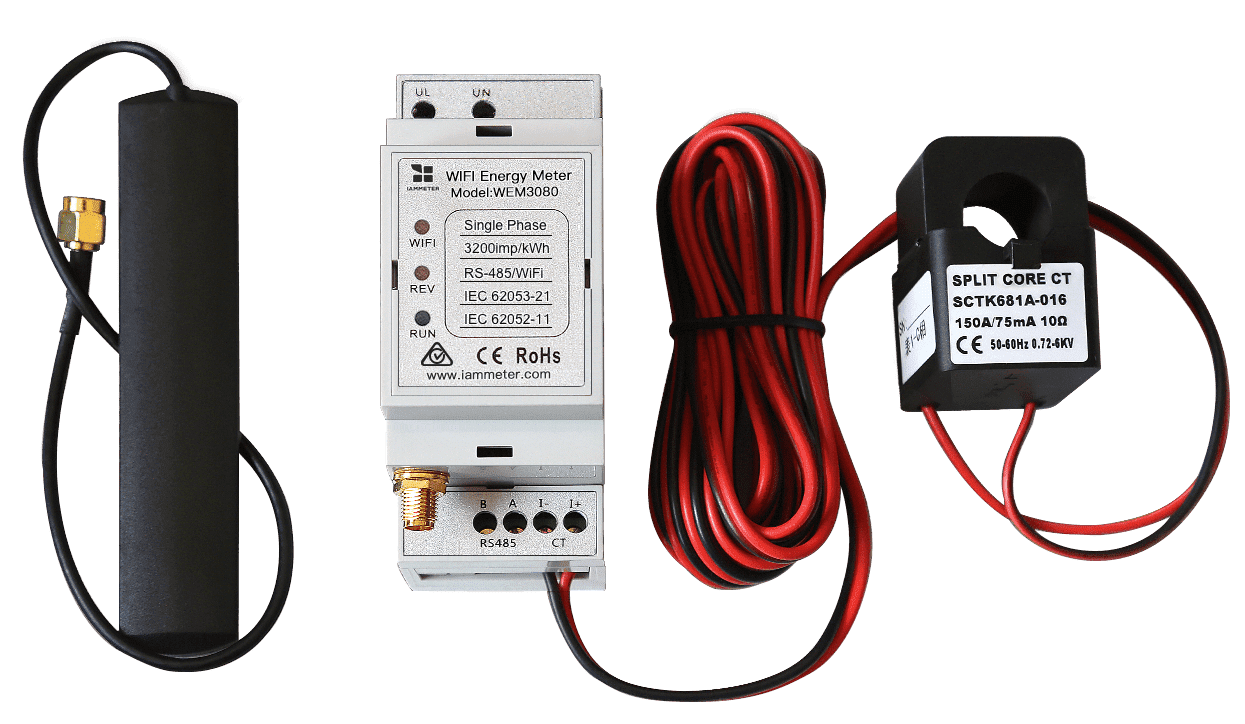
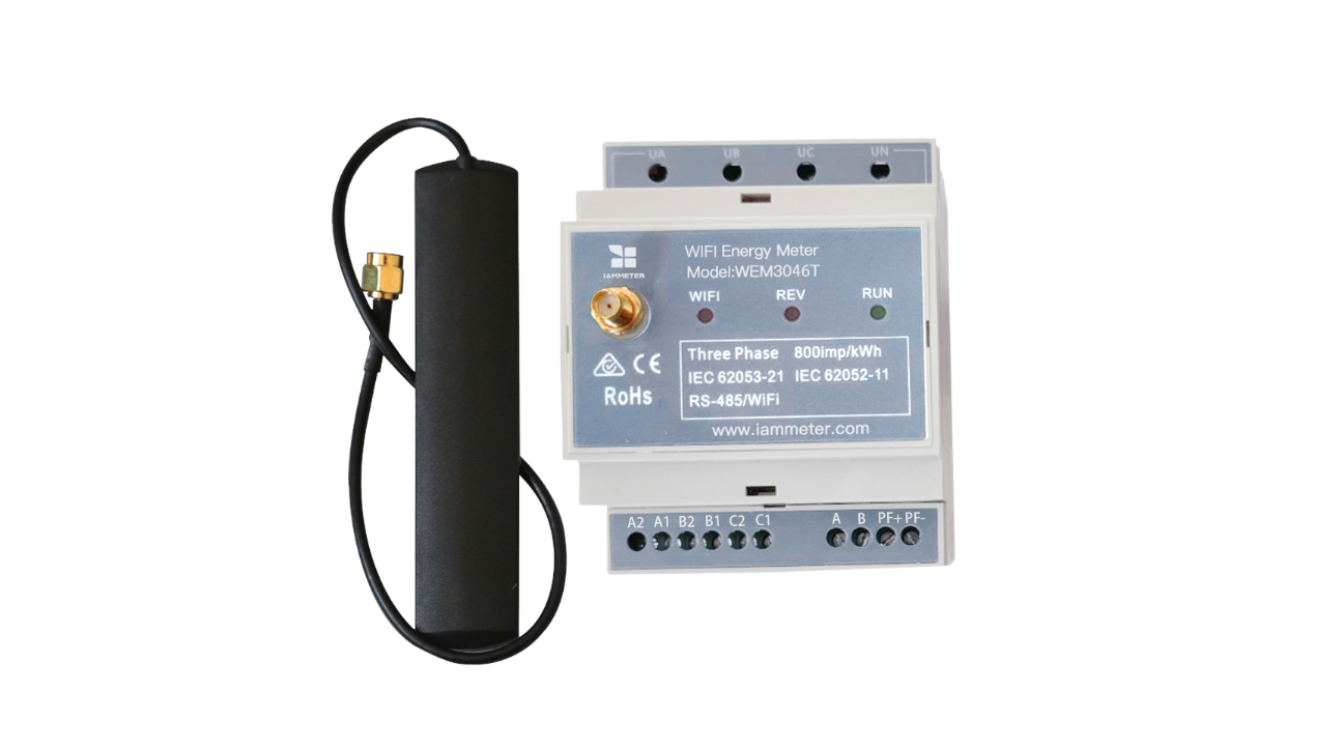
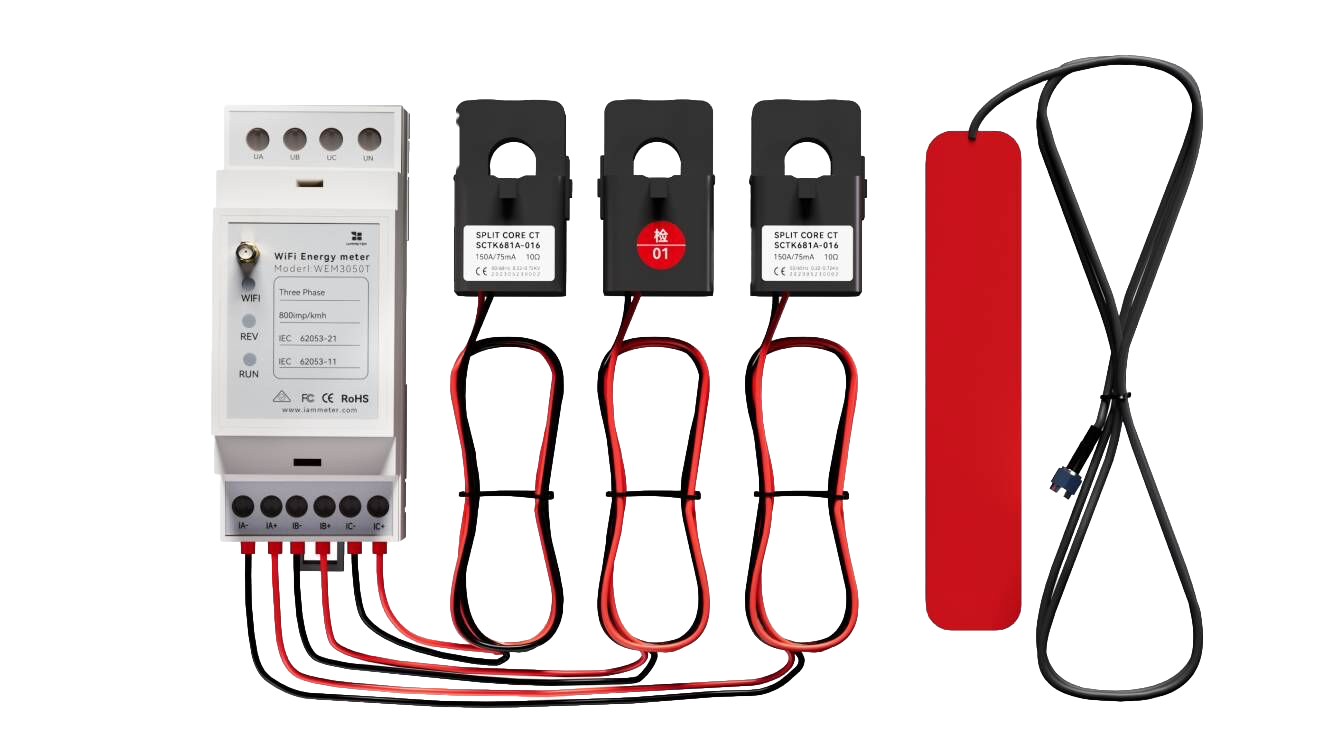
An IAMMETER Wi-Fi energy meter does not have to rely on IAMMETER-Cloud. It can provide measurement data to a local application, an open-source platform or your own energy monitoring system through its open interfaces.
Depending on the project, you can:
- read real-time data from the meter over the local network;
- poll the meter with a local API or Modbus TCP;
- publish data to your MQTT broker;
- upload data to your server through HTTP/HTTPS or TCP/TLS;
- integrate the meter with Home Assistant and other open-source platforms;
- deploy IAMMETER-Docker or IAMMETER-Central on your own server.
This guide helps you choose the appropriate architecture. Detailed API definitions and configuration procedures are provided in the linked technical documents.
Important: No Internet access and no local network are different situations. For continuous local monitoring, the recommended setup is to connect the meter to a Wi-Fi router, even when that router has no Internet connection. The meter's AP mode is intended mainly for initial configuration or temporary troubleshooting, not long-term monitoring.
1. Choose the Scenario That Matches Your Project
| Requirement | Recommended approach | Does it need Internet? |
|---|---|---|
| Read live measurements inside the same LAN | Local HTTP API | No |
| Read data every second for automation, PLC or SCADA | Modbus TCP | No |
| Use Home Assistant or another local platform | Use the platform's IAMMETER integration | No, after the required software is installed locally |
| Store and visualize data on a private server | IAMMETER-Docker | No, when the meter and server are on the same LAN |
| Provide meter data to an enterprise application | IAMMETER-Central or direct integration | Depends on the network architecture |
| Publish data to a local MQTT broker | MQTT | No, when the broker is on the same LAN |
| Upload data to a remote MQTT, HTTPS or TLS endpoint | MQTT/MQTTS, HTTP/HTTPS or TCP/TLS | Yes, or another route to the remote network such as a private WAN or VPN |
The Wi-Fi router provides the local network. It does not need an active Internet connection for LAN-based API, Modbus TCP or local-platform access.
2. Recommended Network Setup for Local Monitoring
For reliable operation, connect the IAMMETER meter and the application that reads it to the same local network.
IAMMETER Wi-Fi energy meter
          │
          │ Wi-Fi
          ▼
Local router / access point
          │
          ├── Home Assistant / Node-RED
          ├── IAMMETER-Docker
          ├── PLC / SCADA / local EMS
          └── PC, NAS or customer server
After the router assigns a local IP address to the meter, other devices on the LAN can access the supported local interfaces. If the site must continue operating during an Internet outage, reserve the meter's IP address in the router or otherwise keep its local address predictable.
3. Read Measurement Data Locally
Local polling is suitable when your software and the meter are on the same LAN and your application controls when data is requested.
3.1 Local HTTP API
IAMMETER provides local HTTP endpoints for reading measurement data directly from the meter. Common measurement endpoints include:
/api/monitorjson/api/monitor
The response includes values such as voltage, current, active power, imported energy and exported energy. The exact data structure depends on whether the meter is single-phase, split-phase or three-phase.
Use the IAMMETER local API and open-interface guide for the current endpoint definitions, JSON examples and firmware information.
Local API access provides measurements from the meter. If you need hourly, daily or monthly reports, your application must store and aggregate the readings, or you can use a self-hosted platform that provides historical storage and visualization.
3.2 Modbus TCP
Modbus TCP is normally the better option for:
- one-second local polling;
- PLC and SCADA integration;
- local automation based on real-time power;
- industrial EMS or BMS applications.
See the IAMMETER Modbus TCP register and integration guide for supported function codes, registers and examples.
4. Let the Meter Send Data to Your System
Instead of polling the meter, you can configure it to send measurement data to a server or message broker.
| Interface | Typical destination | Typical use |
|---|---|---|
| MQTT / MQTTS | Local or remote MQTT broker | IoT platforms, automation and message-based integration |
| HTTP / HTTPS | Web API endpoint | Customer backend, EMS or cloud application |
| TCP / TLS | TCP server | Custom data collector or legacy integration |
The current firmware WebUI provides the commonly used server and broker settings. The meter can therefore be connected to a customer system without using IAMMETER-Cloud as the data destination.
For configuration and payload details, use these guides:
- Publish IAMMETER data to your MQTT broker
- Upload IAMMETER data to a third-party server
- Local APIs and open interfaces supported by current firmware
- IAMMETER measurement JSON data definition
5. Connect to an Open-Source Platform
If you already use an automation or monitoring platform, it can collect, store and visualize IAMMETER data without requiring you to build an application from the beginning.
IAMMETER can be integrated with platforms such as:
The suitable interface depends on the platform and the required refresh rate. For a comparison of the available platforms and integration approaches, see Integrate IAMMETER with self-hosted and open-source systems.
For Home Assistant configuration, supported integration methods and entity details, start from the dedicated IAMMETER Home Assistant integration guide.
6. Deploy an IAMMETER Self-Hosted System
6.1 IAMMETER-Docker
IAMMETER-Docker is an open-source, self-hosted monitoring system for users who want local data collection, charts and APIs without developing a complete backend themselves.
It can run on a local server such as a Raspberry Pi, mini PC or NAS. The meter sends data to the Docker instance, and users access the monitoring interface through a browser on the local network.
IAMMETER-Docker is generally suitable for individuals, developers and smaller local-monitoring projects. See also the advanced IAMMETER-Docker guide.
6.2 IAMMETER-Central
IAMMETER-Central is a self-hosted data middleware option for enterprise users, installers and system integrators.
It stores and manages meter data and exposes APIs that a customer can use from an ERP, EMS, BMS or custom front end. It is useful when the customer prefers to call a standardized middleware API instead of implementing every meter-side upload protocol and payload parser independently.
To compare IAMMETER-Docker, IAMMETER-Central, open-source platforms and direct integration, see IAMMETER self-hosting options.
7. Which Integration Method Should You Choose?
| User or project | Suggested starting point |
|---|---|
| Developer building a LAN dashboard | Local HTTP API |
| Automation requiring one-second data | Modbus TCP |
| Existing MQTT-based IoT system | MQTT or MQTTS |
| Customer already has a web backend | HTTP or HTTPS upload |
| Home automation user | Home Assistant or Node-RED |
| User who wants local charts without building software | IAMMETER-Docker |
| Enterprise integrating meters with ERP, EMS or BMS | IAMMETER-Central or a direct server integration |
Using local interfaces does not automatically prevent use of IAMMETER-Cloud. Whether local access and cloud reporting operate together depends on the selected run mode, firmware and system architecture. Confirm the required data path before deployment.
8. Legacy and Temporary Use of AP Mode
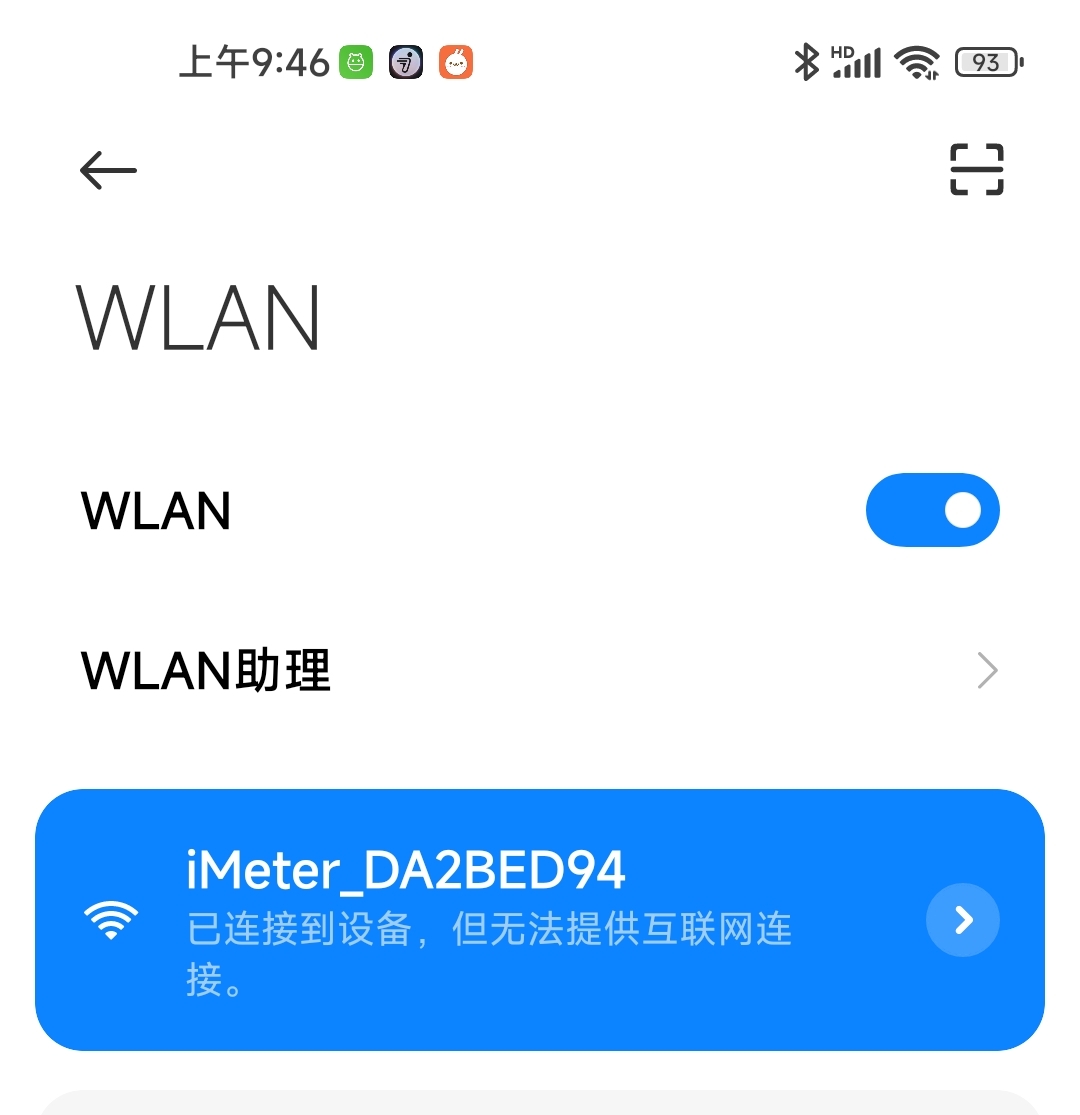
When an IAMMETER Wi-Fi energy meter is not connected to a router, it can expose an access point named similar to iMeter_SN. Older versions of this article presented AP mode as a way to operate the meter without any networking equipment.
AP mode is no longer recommended for continuous monitoring because:
- it is primarily intended for Wi-Fi setup and troubleshooting;
- only limited direct access is practical in this mode;
- features that depend on a stable LAN, server or broker are not available as a complete monitoring workflow;
- it does not provide the historical storage, reports or multi-client architecture expected from a monitoring system.
Use AP mode temporarily when configuring or diagnosing the meter. For normal operation without Internet access, connect the meter to an offline Wi-Fi router and use its LAN IP address.
For current firmware and WebUI information, see the IAMMETER firmware release and upgrade page.
9. Summary
IAMMETER is not limited to cloud-based energy monitoring. Its Wi-Fi energy meters can act as open measurement sources for local software, open-source platforms and customer-owned systems.
The recommended approach is:
- connect the meter to a stable local Wi-Fi network;
- use Local API or Modbus TCP for LAN polling;
- use MQTT, HTTPS or TLS when the meter should push data;
- use Home Assistant, IAMMETER-Docker or IAMMETER-Central when a ready-made platform is more appropriate;
- use AP mode only for initial setup or temporary troubleshooting.
Continue with:
- Self-hosted and open-source integration overview
- IAMMETER local API and firmware interface guide
- Develop your own energy monitoring system
- IAMMETER self-hosting service options
Last updated: July 16, 2026