


Real-Time Energy Meter Monitoring with Browser Alerts
IAMMETER has added a Realtime Meter Monitor to IAMMETER Cloud Apps. It provides a focused browser dashboard for users who need to watch live electrical measurements without building a custom interface.
The monitor combines IAMMETER Cloud API access for loading the signed-in user's sites and meters with MQTT delivery for live readings in the browser.
Open the Realtime Meter Monitor
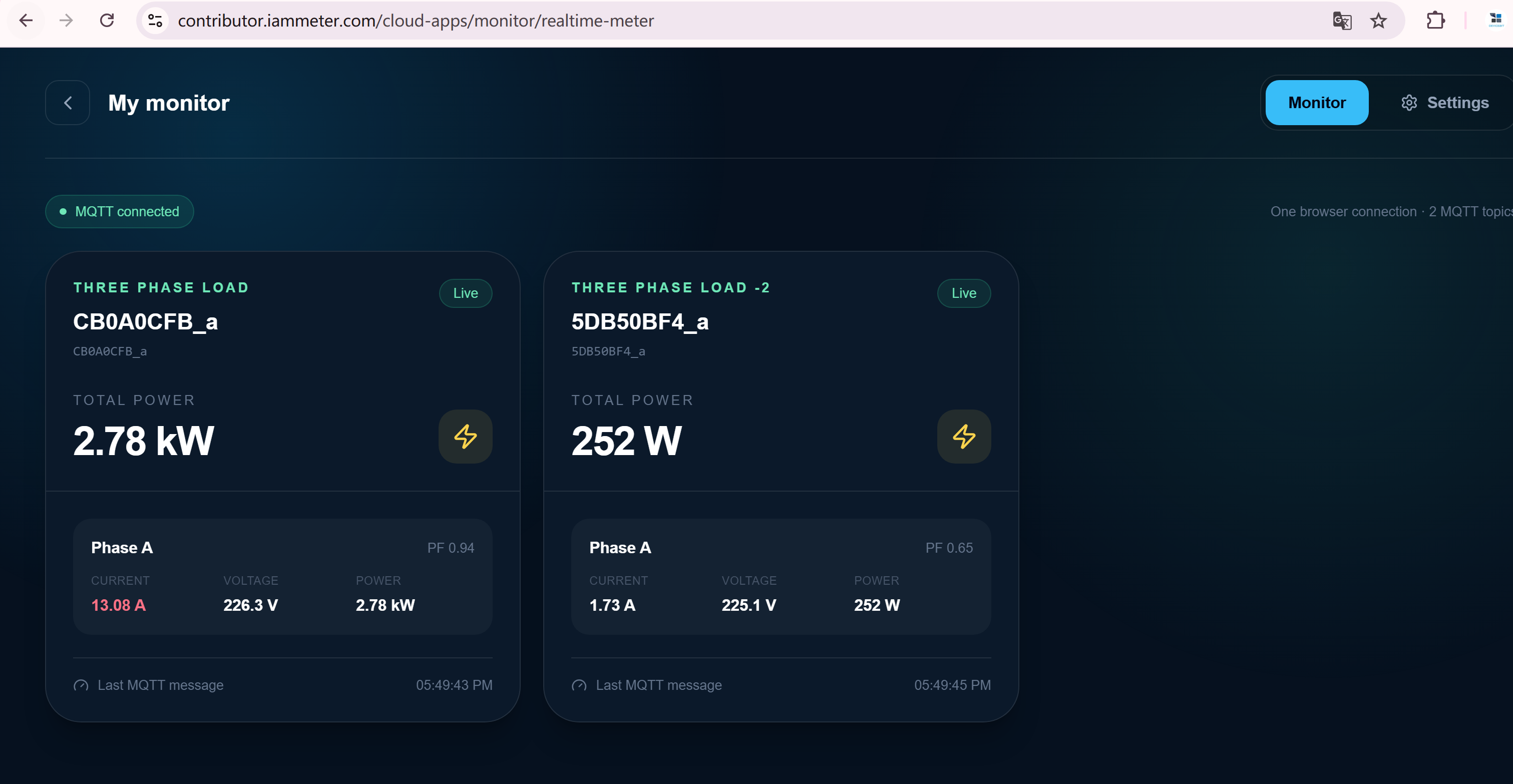
What the Realtime Meter Monitor Can Do
The browser-based dashboard supports:
- up to six selected meter channels;
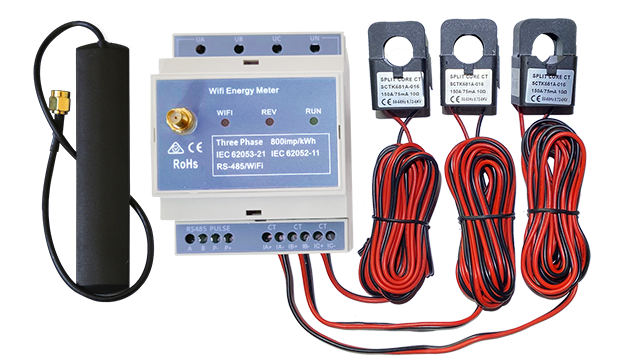
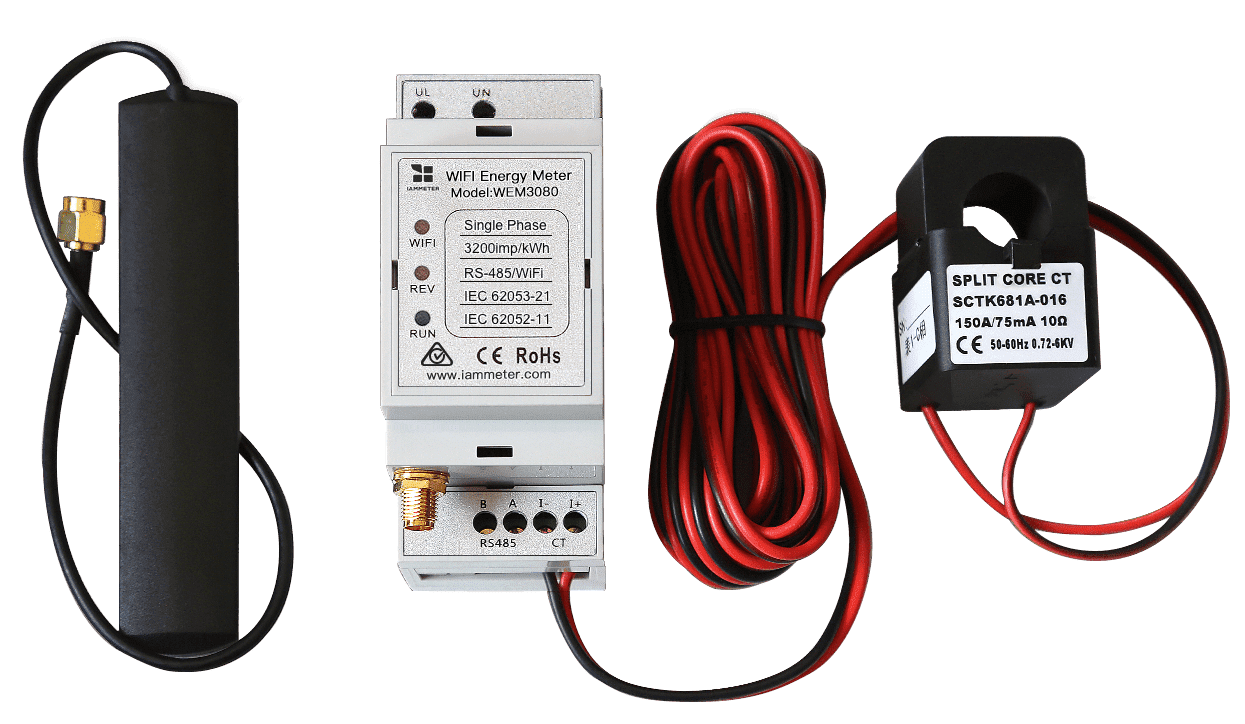
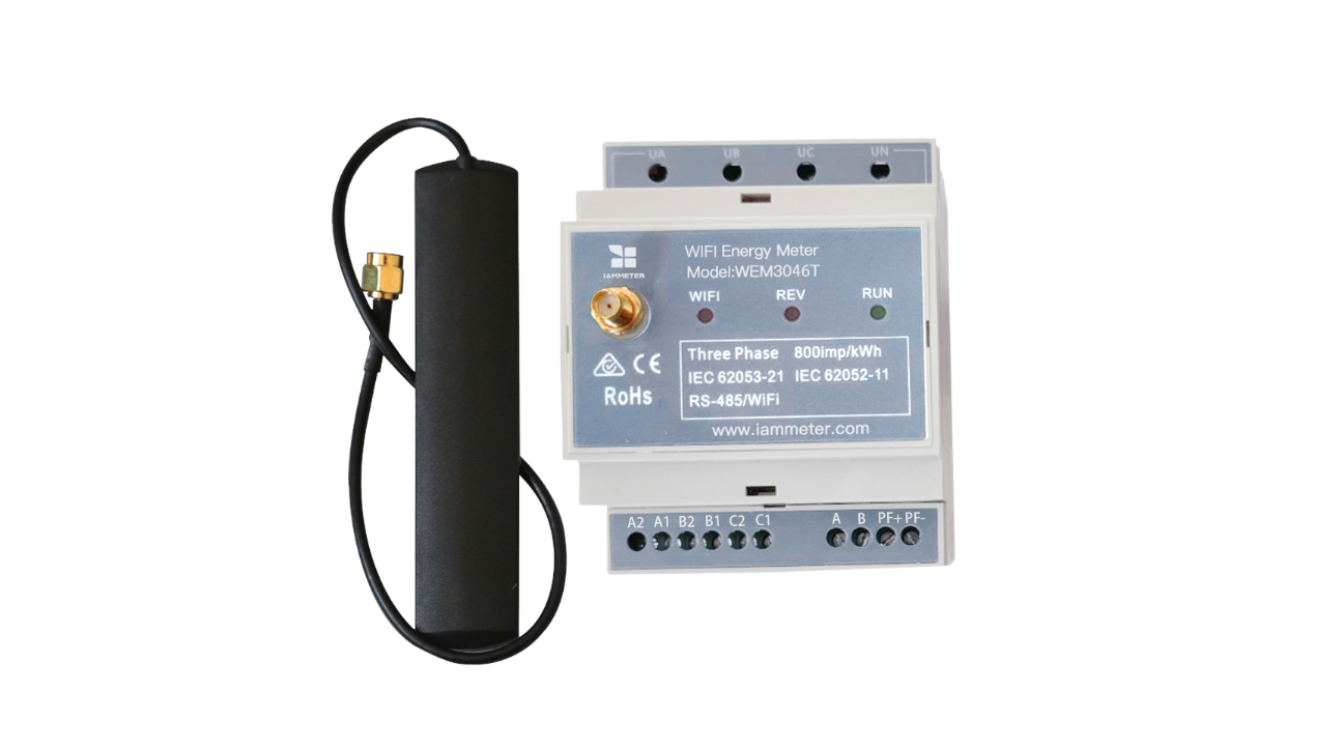
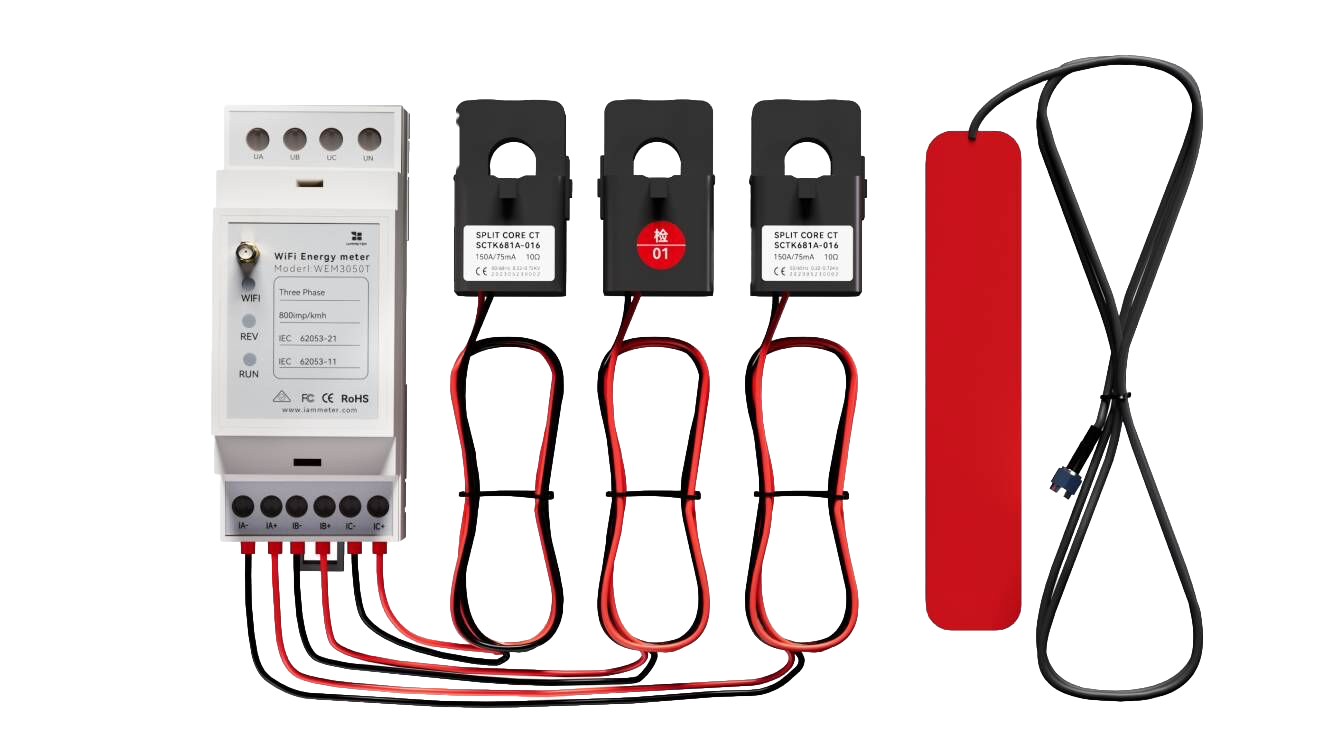
- single-phase and three-phase energy meters;
- live current, voltage and active-power display;
- a custom dashboard title;
- configurable normal ranges;
- red highlighting when a value is outside its normal range;
- an optional sound alarm while the page remains open.
This makes it useful for a temporary control-room display, commissioning work, load observation or any situation where several important meter channels should remain visible on one screen.
The browser alerts are monitoring aids. They do not replace circuit breakers, protective relays or certified electrical protection equipment.
Before You Start
You need:
- an IAMMETER Cloud account;
- an IAMMETER meter that supports MQTT;
- dedicated MQTT credentials created in IAMMETER Cloud;
- the meter configured to upload data through MQTT;
- a browser that can remain open while live monitoring is required.
For the underlying MQTT workflow, see Subscribe to Real-Time Energy Data by MQTT.
Step 1: Create Dedicated MQTT Credentials
Sign in to IAMMETER Cloud and open:
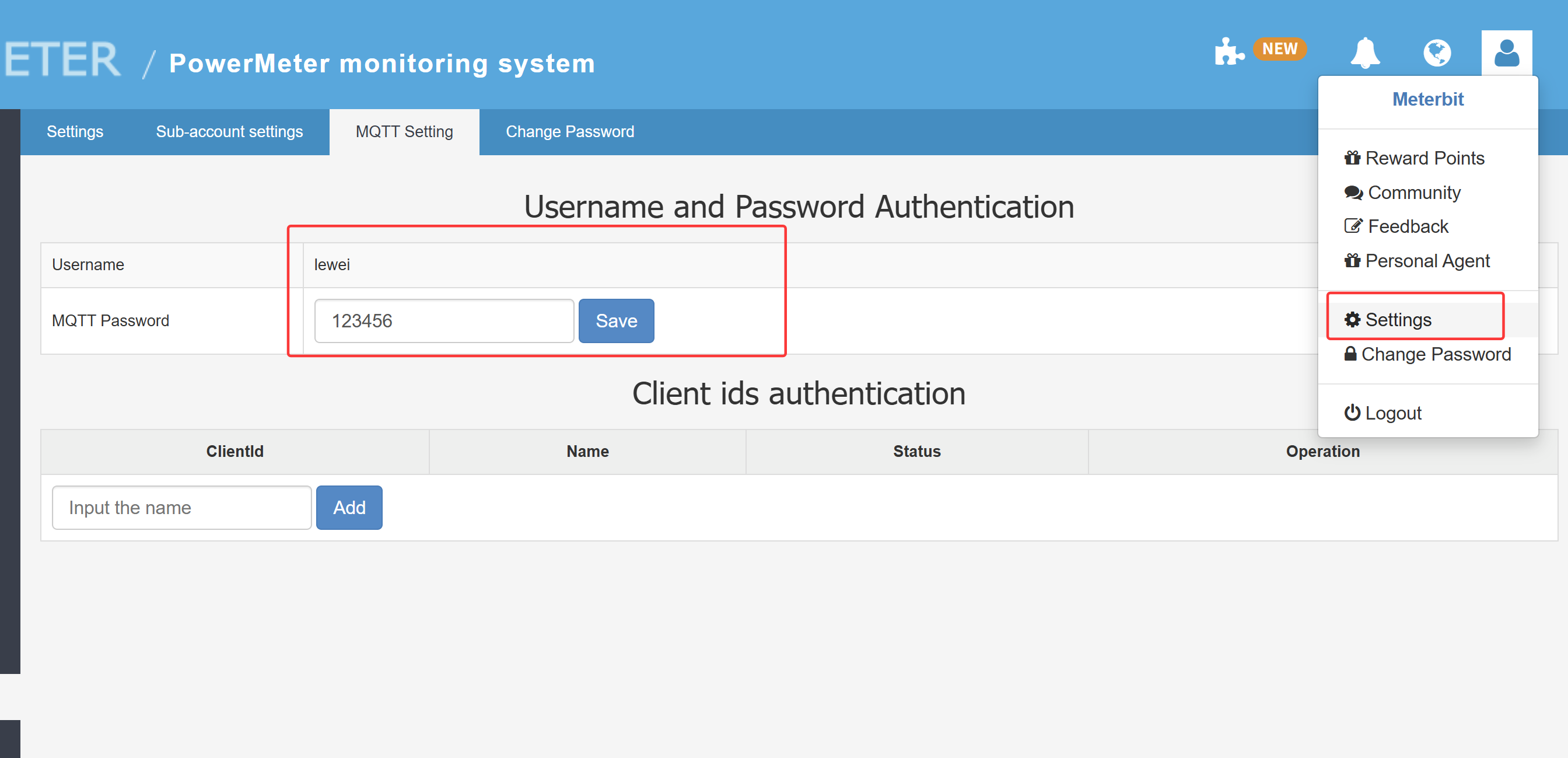
Settings → MQTT Setting
Create or save the MQTT password. Use the MQTT username and password displayed here when configuring the Realtime Meter Monitor.
Use the dedicated MQTT credentials. Do not enter your normal IAMMETER Cloud account password into the monitor's MQTT fields.
Step 2: Configure the Meter for MQTT Upload
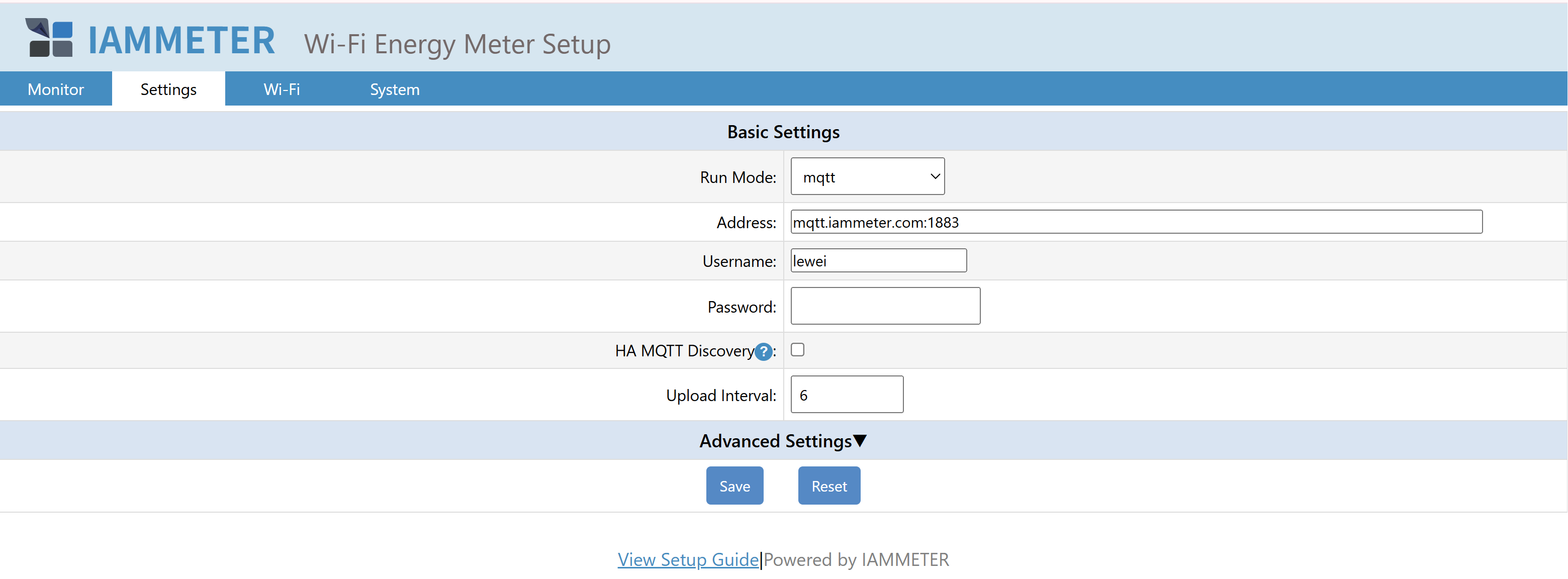
Open the meter's local WebUI and configure MQTT upload mode. Enter the IAMMETER MQTT broker address and the dedicated MQTT username and password created in IAMMETER Cloud.
Save the meter configuration and confirm that it is publishing data.
Step 3: Select Meters and Dashboard Values
Open the Realtime Meter Monitor and select Settings.
- Enter a dashboard title.
- Choose whether the dashboard should show current, voltage and power.
- Click Load my meters and sign in with IAMMETER if requested.
- Select up to six meter channels.
- Enter the dedicated MQTT username and password.
- Click Test MQTT.
- Click Save and open monitor.
Single-phase and three-phase meters can be used together, provided the total number of selected channels does not exceed six.
Step 4: Configure Normal Ranges and Alerts
In Alarm ranges, current, voltage and power can each have an independent normal range.
- Enable the required alarm.
- Enter the normal minimum and/or maximum value.
- Enable Sound alarm if an audible warning is required.
- Save the settings.
When a live value moves outside its configured range:
- the displayed value turns red;
- the optional sound alarm plays while the monitor page is open.
Display options and alarm options are independent. A user can display a value without enabling its alarm, or configure alarms only for the values that need attention.
Choose thresholds based on the actual electrical system and its normal behavior. A range that is too narrow may create frequent nuisance alerts.
Browser Storage and Privacy
The dashboard configuration and MQTT settings are saved in the current browser's local storage.
Important implications:
- MQTT credentials are not saved by Contributor Center;
- settings remain local to the current browser;
- settings are not synchronized automatically to other devices;
- clearing browser storage removes the saved monitor configuration;
- MQTT credentials should not be saved on a public or shared computer.
Use a dedicated display device or trusted browser profile when the monitor will run continuously.
What Happens When the Page Is Closed?
The Realtime Meter Monitor is a browser application:
- live display stops when the page is closed;
- the optional sound alert also stops;
- it does not provide a background safety alarm after the browser is closed;
- the meter's MQTT upload can continue independently.
For persistent local alarm records and one-second monitoring inside IAMMETER-Docker, see Real-Time Energy Monitoring and Power Alerts.
For a comparison of Cloud alerts, local alarm records and browser warnings, see Energy Monitoring Alerts & Automation.
Open IAMMETER Cloud Apps
Last updated: July 17, 2026.