


If you are looking for a power meter, please read this article first. It will help you quickly confirm whether IAMMETER products meet your requirements. How to choose the power meter with regard to your requirements
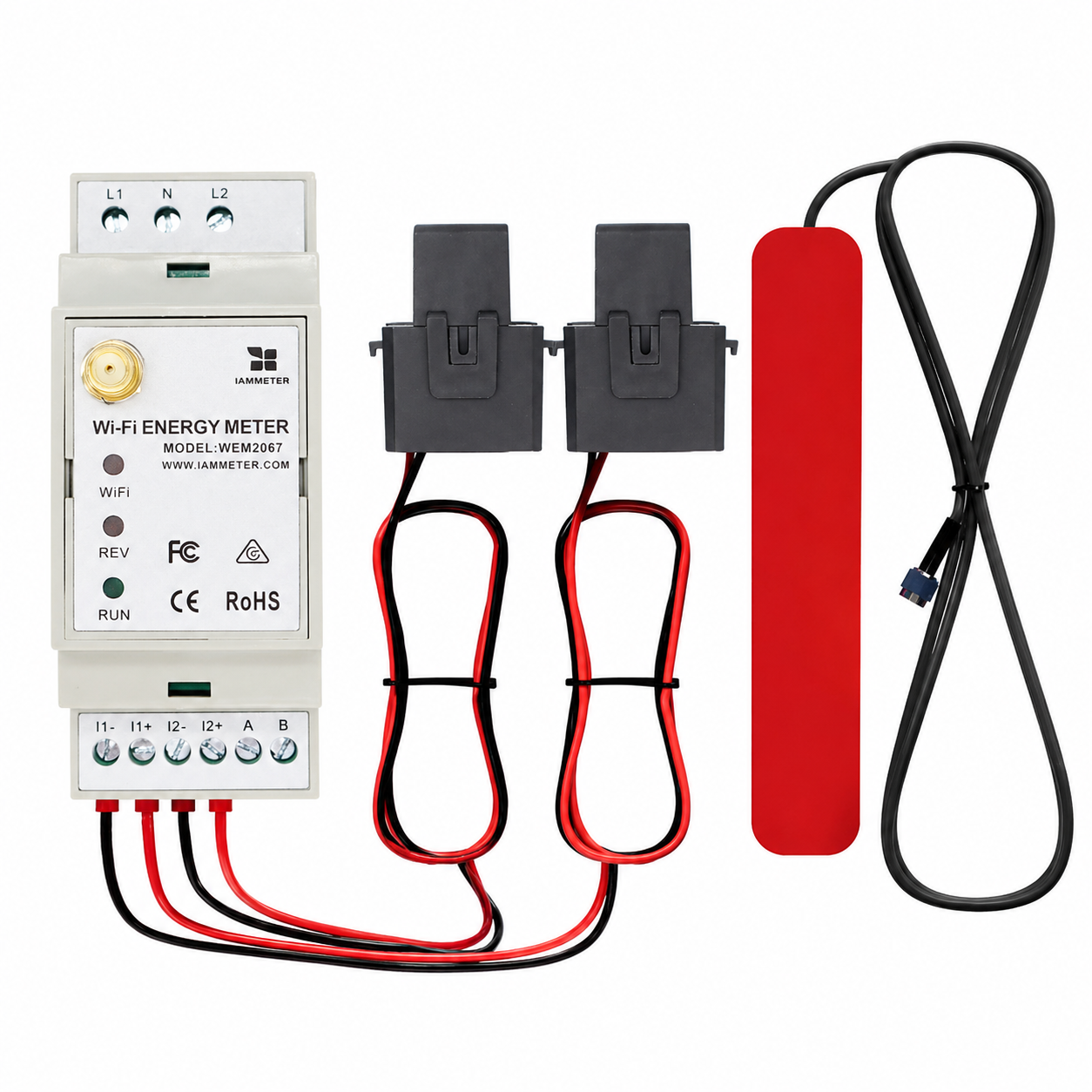
| No. | Item | Qty | Remark |
|---|---|---|---|
| 1 | Wi-Fi Energy Meter | 1 | Wi-Fi module embedded |
| 2 | Split-core Current Transformer | 2 | 150A |
| 3 | 2.4G Wi-Fi Antenna | 1 |
Note:
WEM2067 is a dual-phase energy meter. It is especially suitable for single-phase solar PV systems where one channel monitors the grid side and the other channel monitors the inverter output. It is also suitable for split-phase systems.
Please note:
K->L) must align with the installation wiring diagram.In a single-phase solar PV system, one channel can monitor the grid side and the other channel can monitor the inverter output.
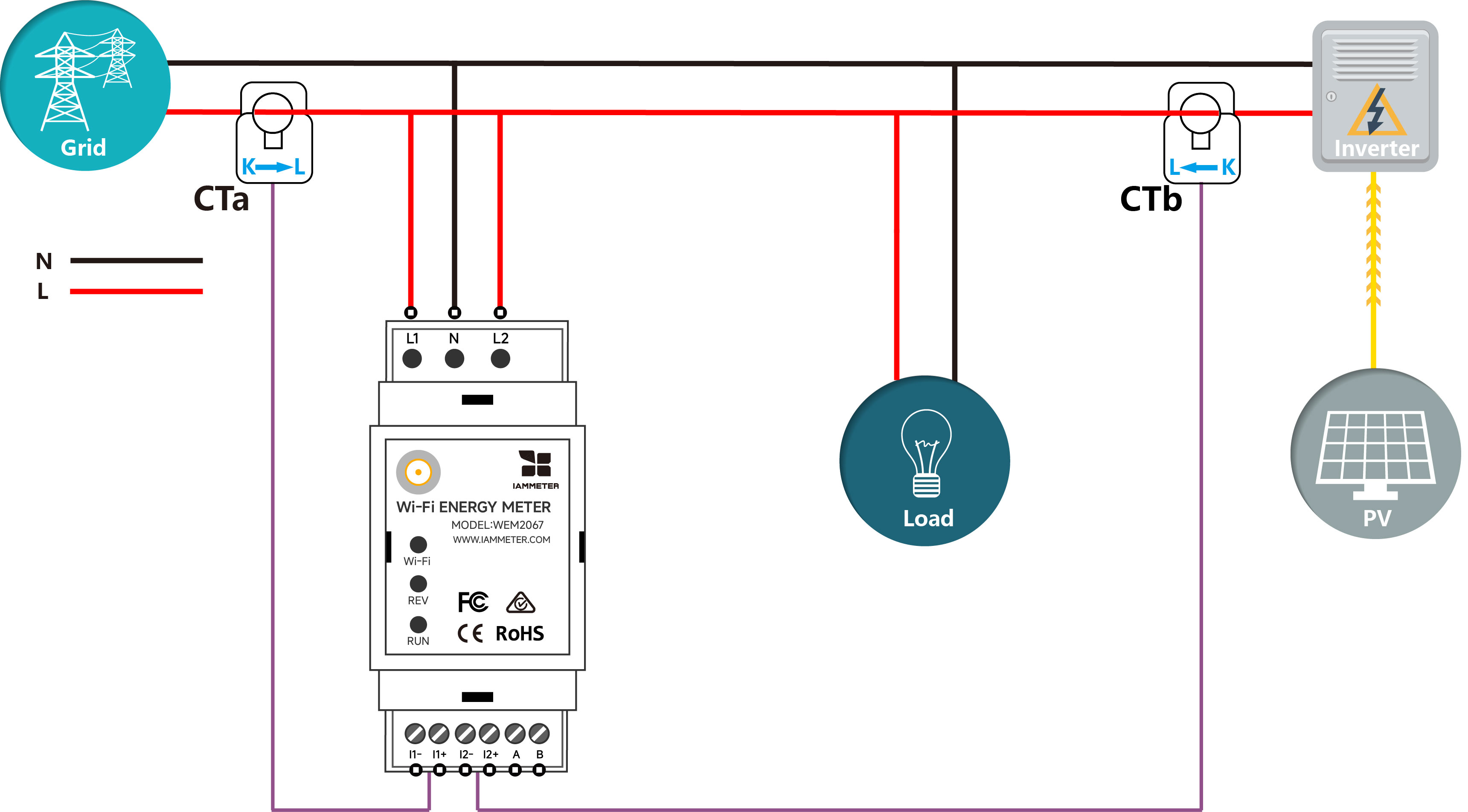
If you set up the channels as shown in the picture above, you should define the meter type accordingly.
| Channel | Meter Type | |
|---|---|---|
| 1 | A | Grid |
| 2 | B | Solar |
A split-phase or single-phase three-wire system is common in North America. It supplies two 120V AC lines that are 180 degrees out of phase, together with a common neutral.
WEM2067 is suitable for monitoring a split-phase grid system. One meter can monitor the grid side of a split-phase system, but it cannot monitor both split-phase solar and grid at the same time.
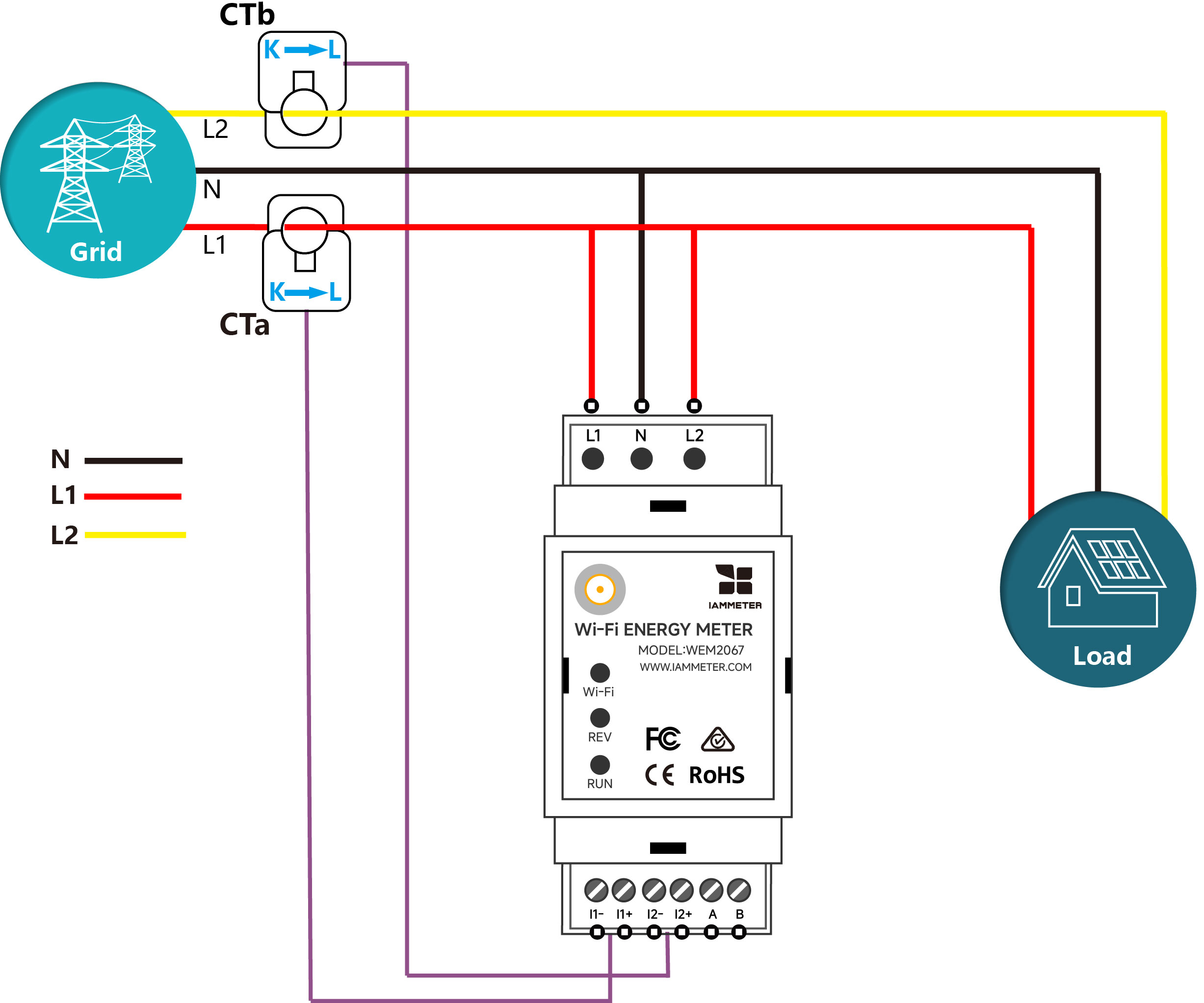
If you set up the channels as shown in the picture above, you should define the meter type accordingly.
| Channel | Meter Type | |
|---|---|---|
| 1 | A | Grid |
| 2 | B | Grid |
Please refer to Energy meter Wiring diagram in solar pv system
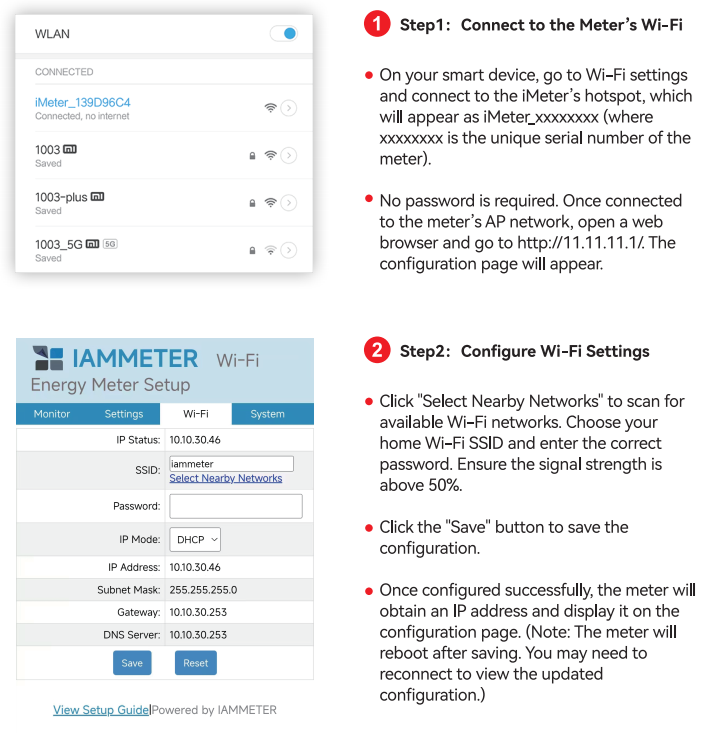
There are two ways to configure the meter's Wi-Fi settings. Setting up by mobile app is recommended. However, you can also set it up in the browser if you encounter any problems when using the app.
Video: WiFi set up by mobile App
Step 1, scan the QR code and download the mobile app.
Step 2, search and connect your phone to the iMeter access point signal iMeter_xxxxxxxx.
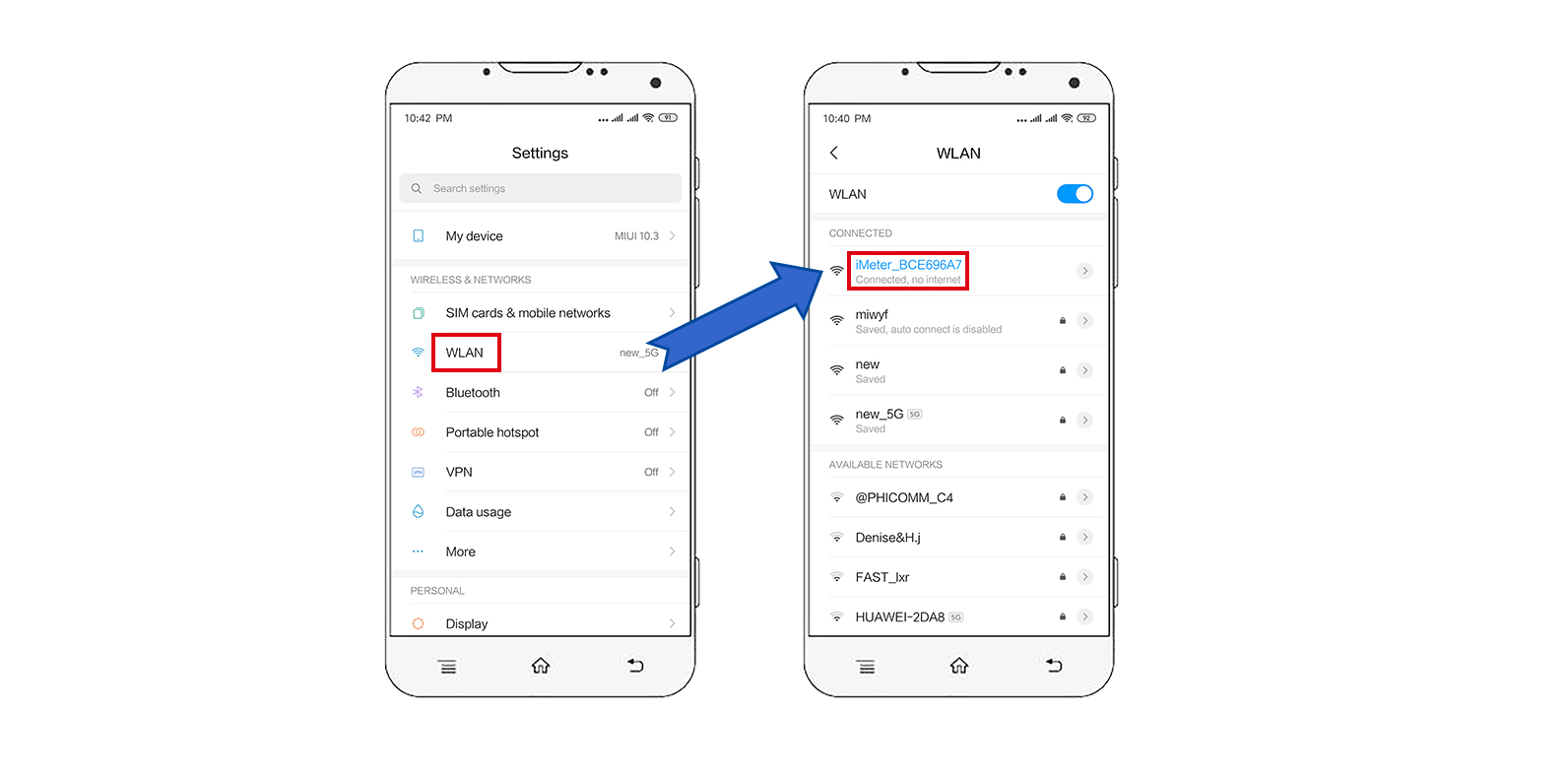
Step 3, open the app and find the iMeter.
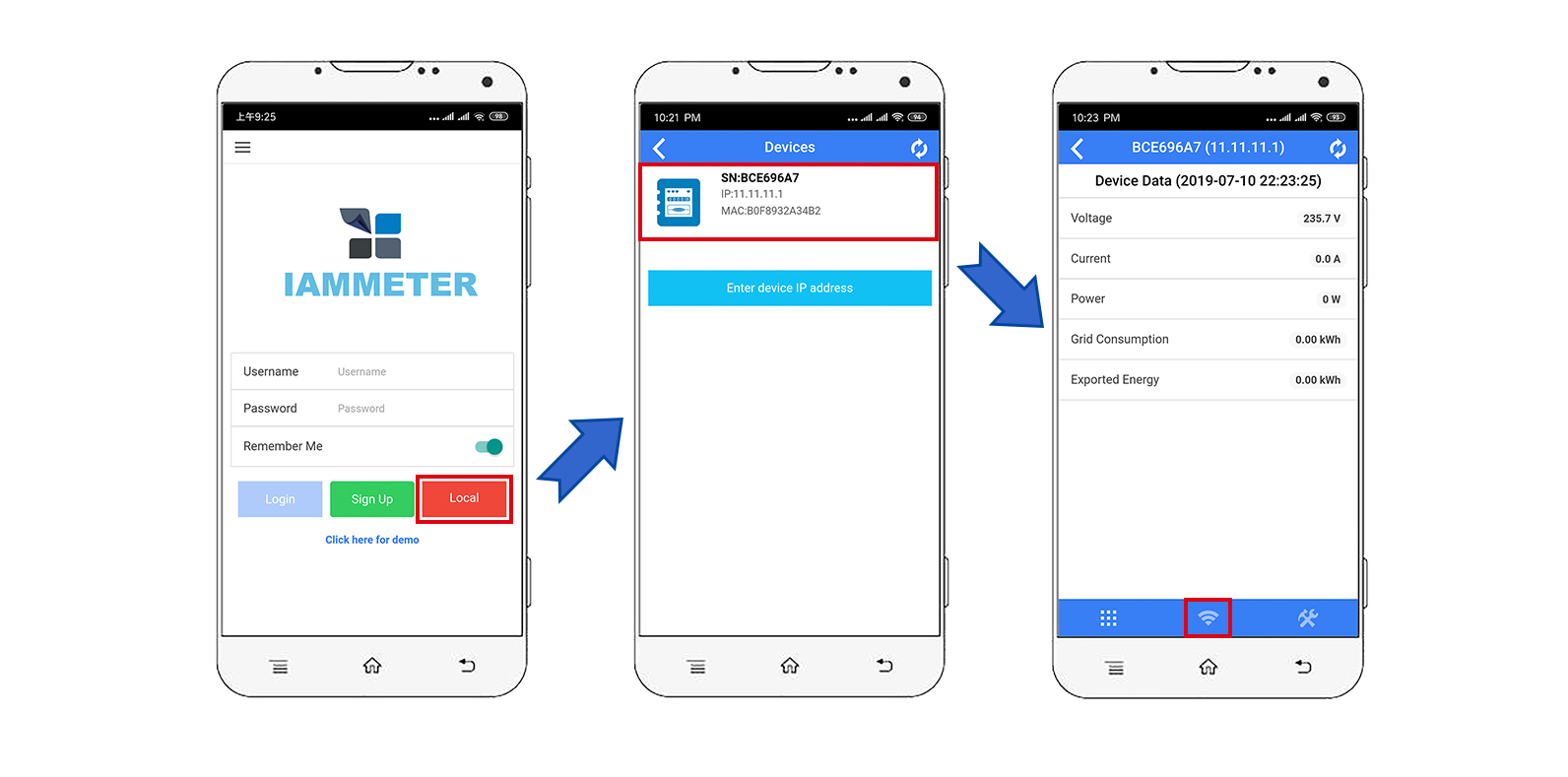
Tips: If the app prompts "Invalid device version", you need to set up the Wi-Fi network by browser, same as 3.1 WEM3162 QuickStart
Step 4, select the SSID of your home Wi-Fi network.
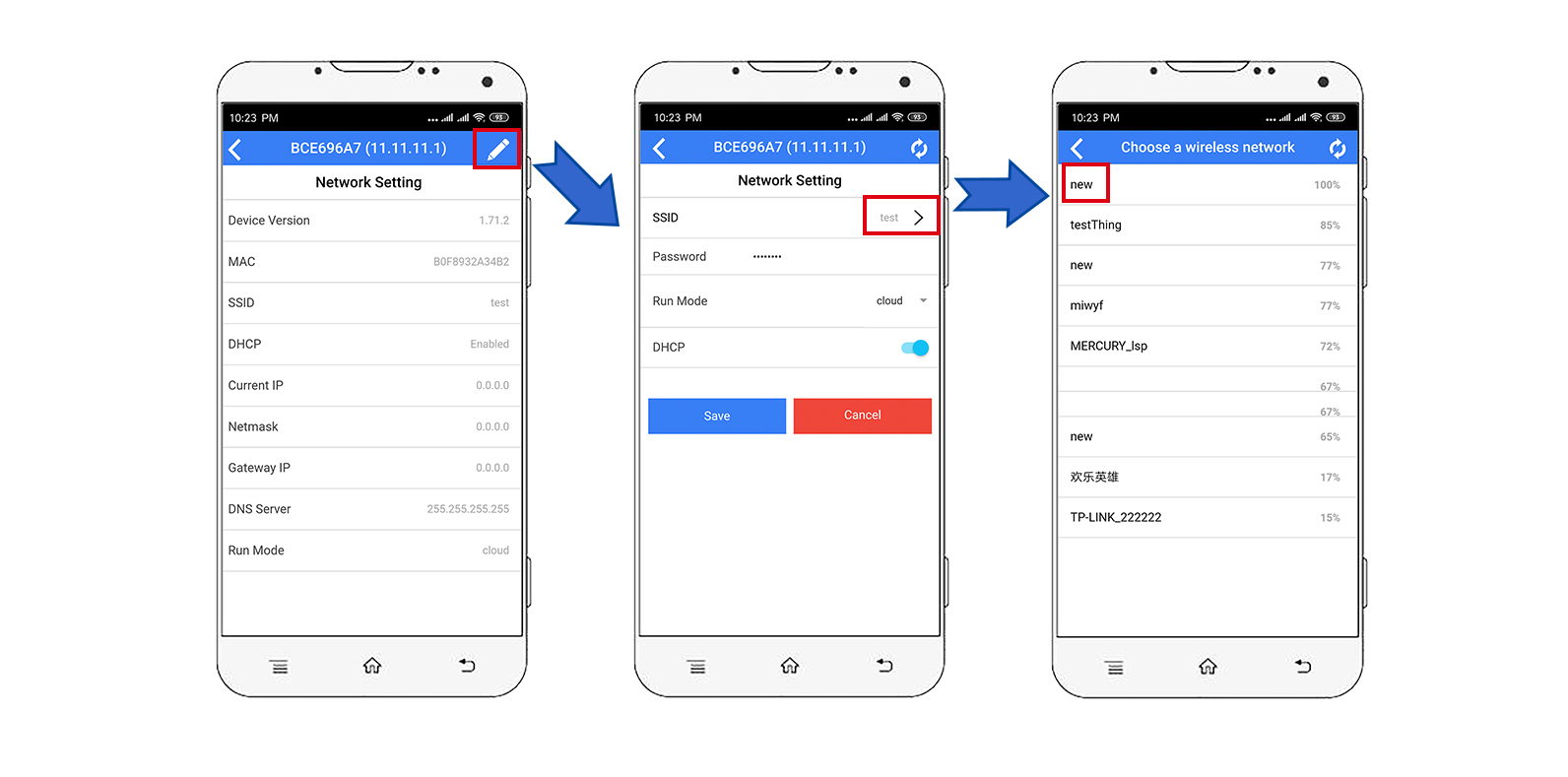
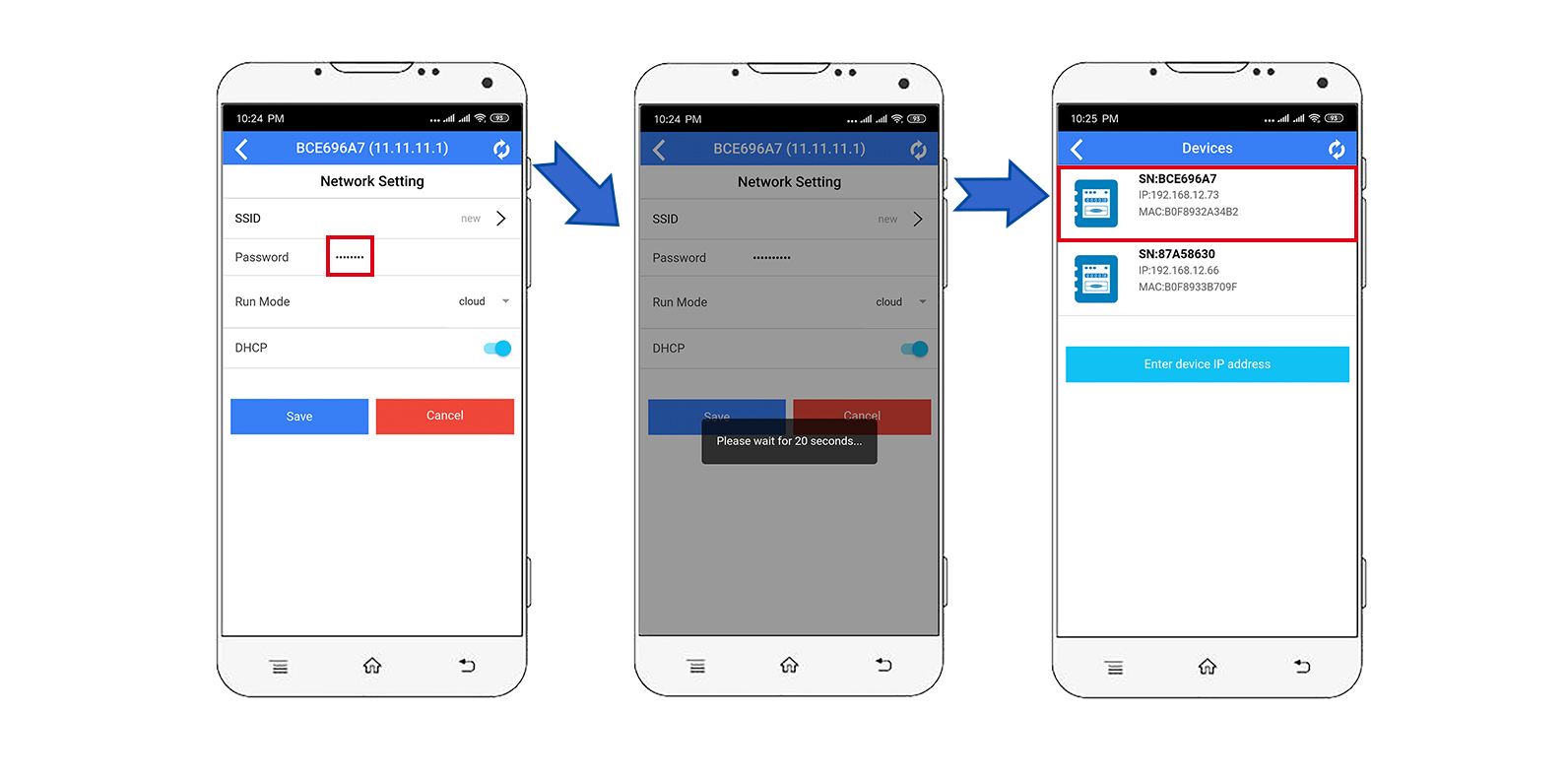
Step 5, enter the password and save. After the Wi-Fi settings are configured successfully, you will see the IP address allocated to the iMeter.
Video: WiFi set up in the browser
If you have successfully set up the meter's Wi-Fi settings in step 3.1, you can skip this section.
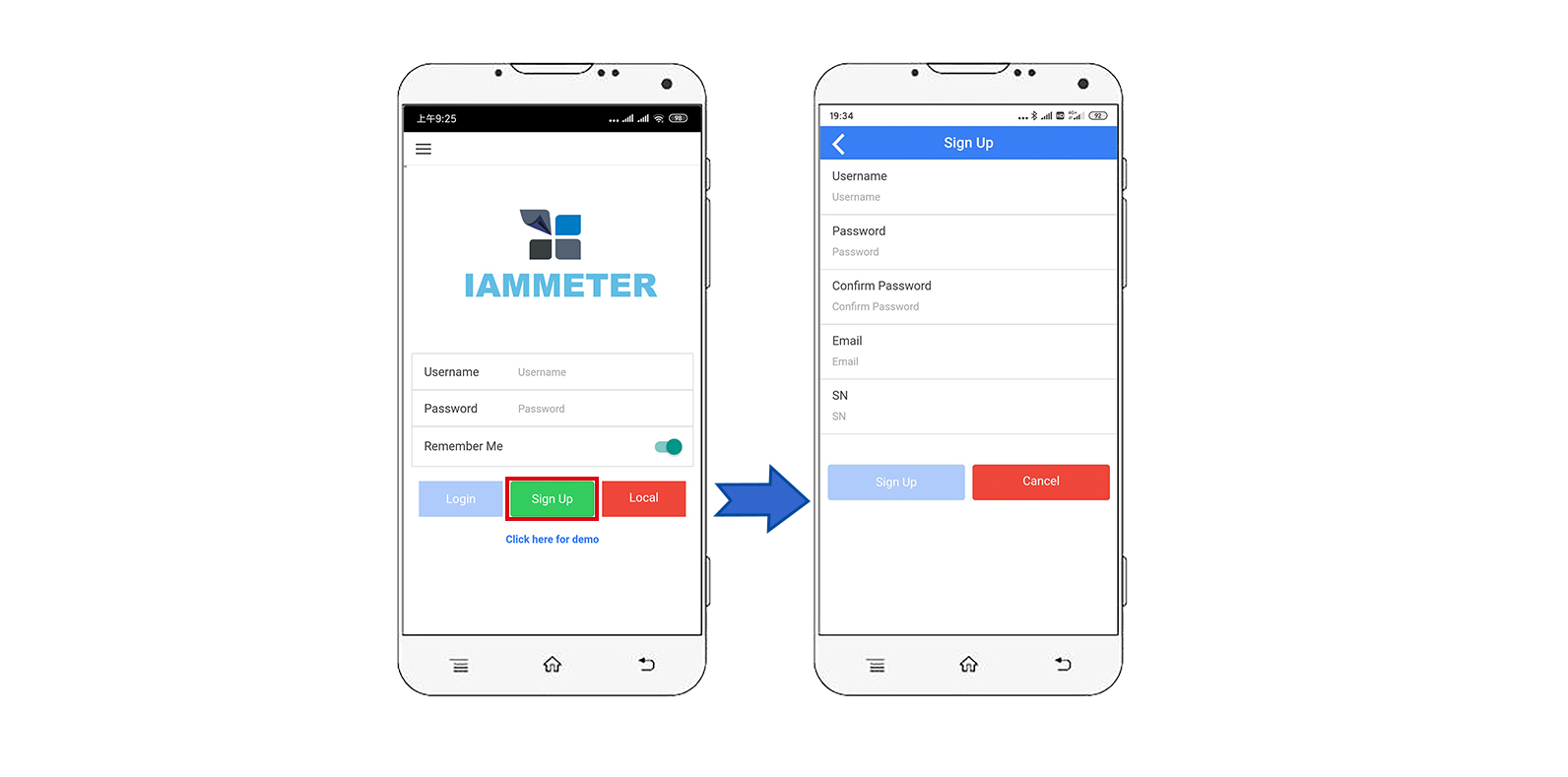
Tips: SN is the unique serial number of your iMeter. You can copy it from the iMeter's access point signal (
iMeter_xxxxxxxx, wherexxxxxxxxis the SN).
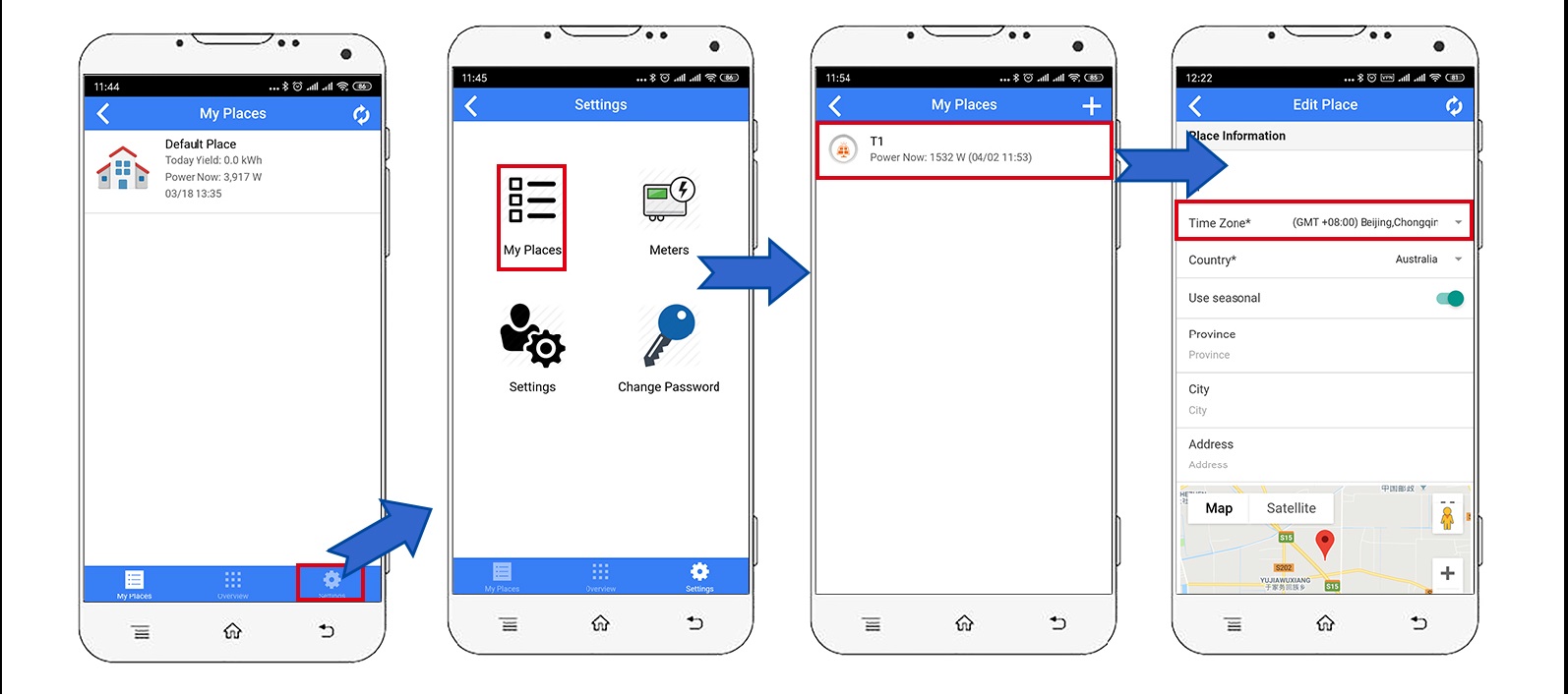
Tips: The time zone must be set according to where your meter is located for correct data display and time-based reports.
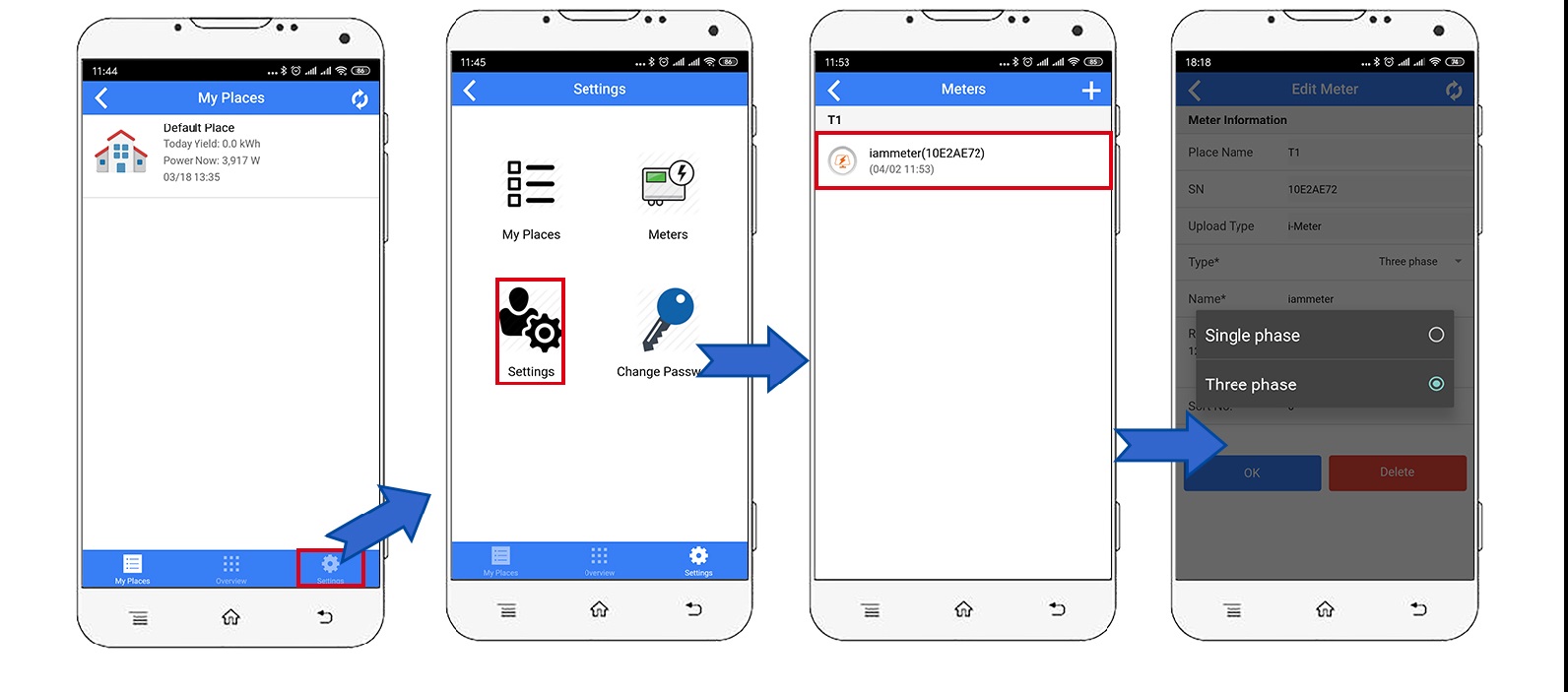
Tips: It is "single phase" as the default meter type in IAMMETER. Please set the meter according to your actual dual-channel installation scenario.
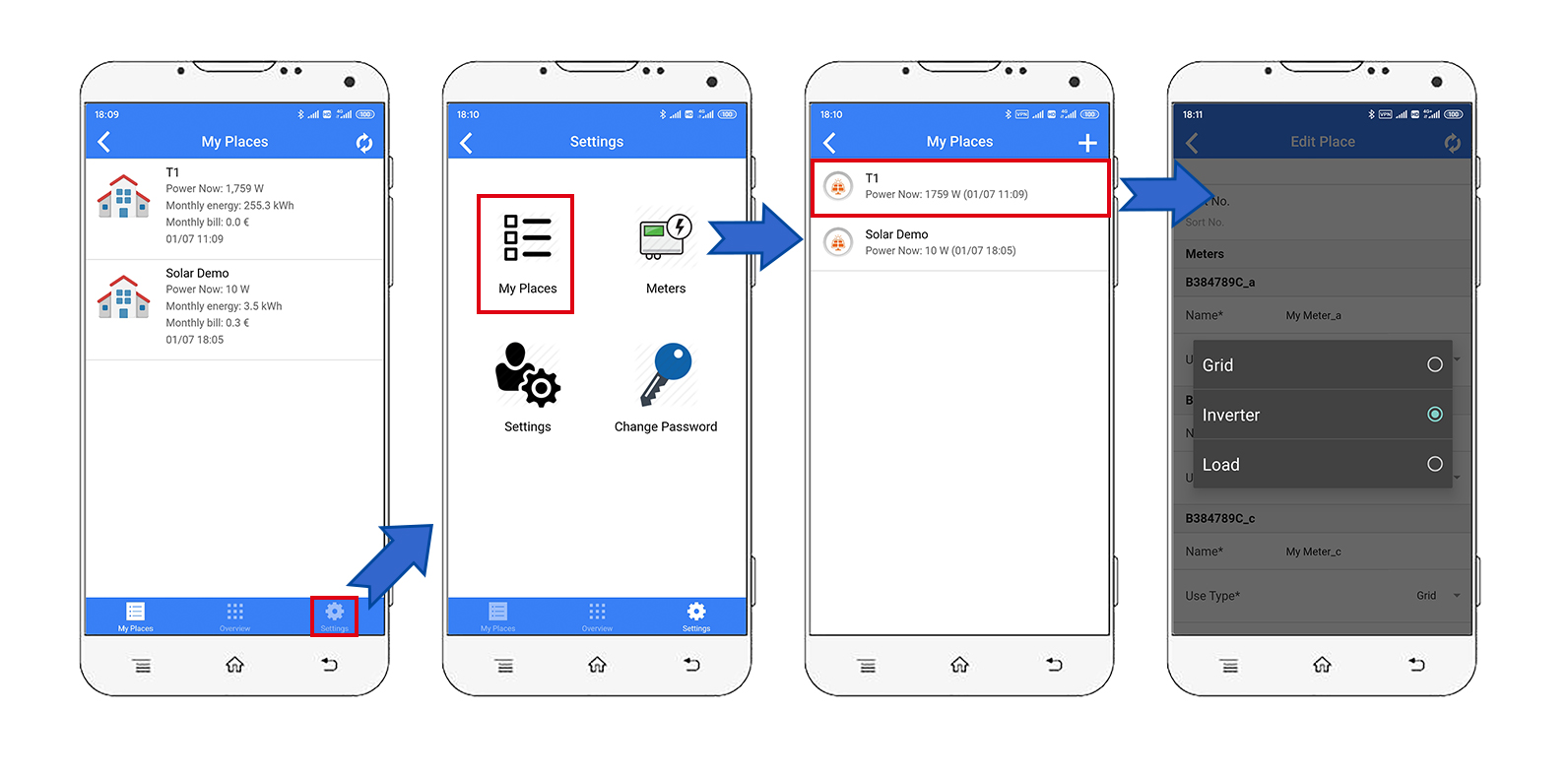
Tips: Please set the use type of each CT according to the actual installation. For example, set one channel to "grid" and the other to "solar" in a typical single-phase solar monitoring scenario.
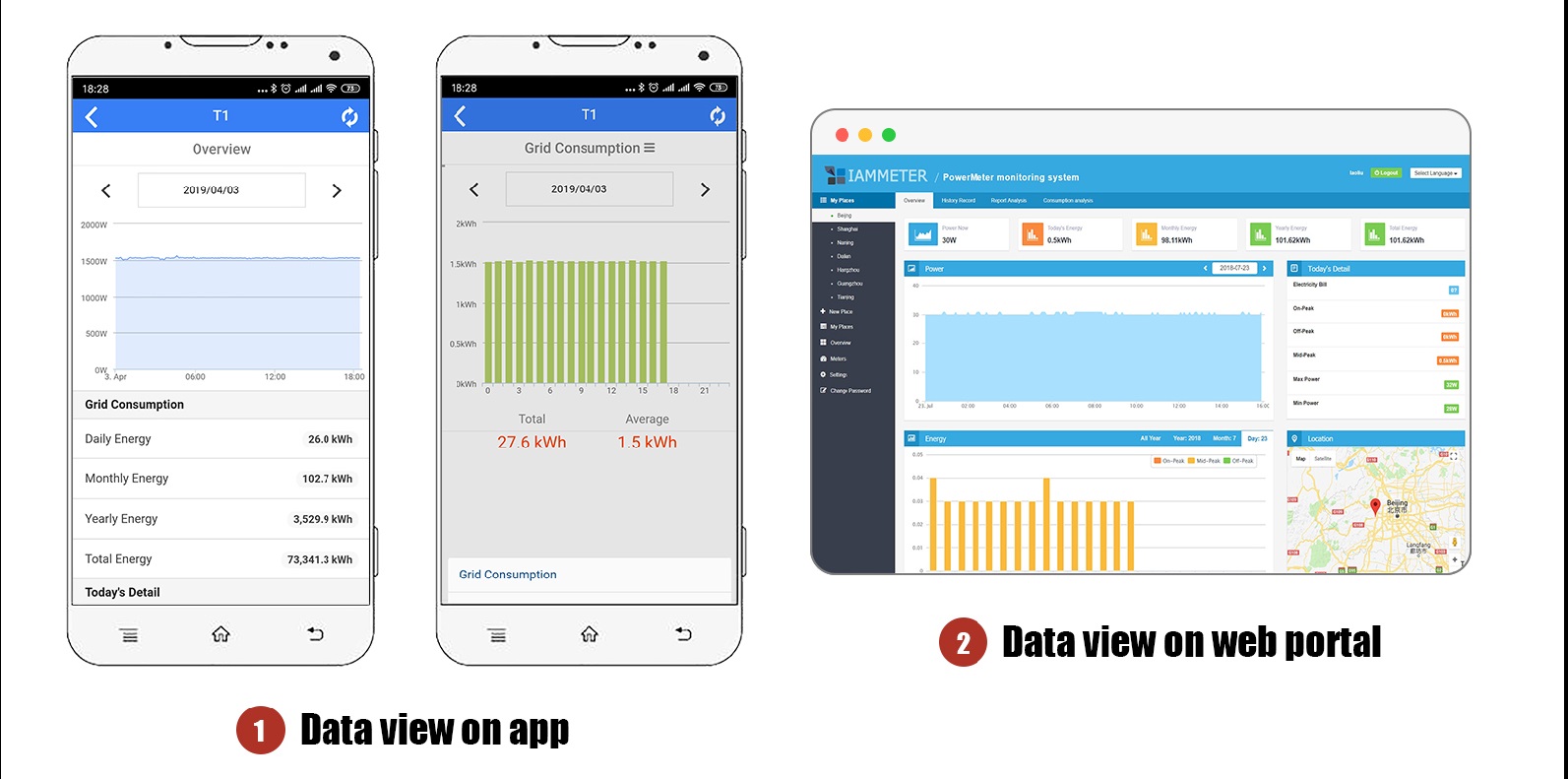
Monitor your energy consumption in IAMMETER-Cloud
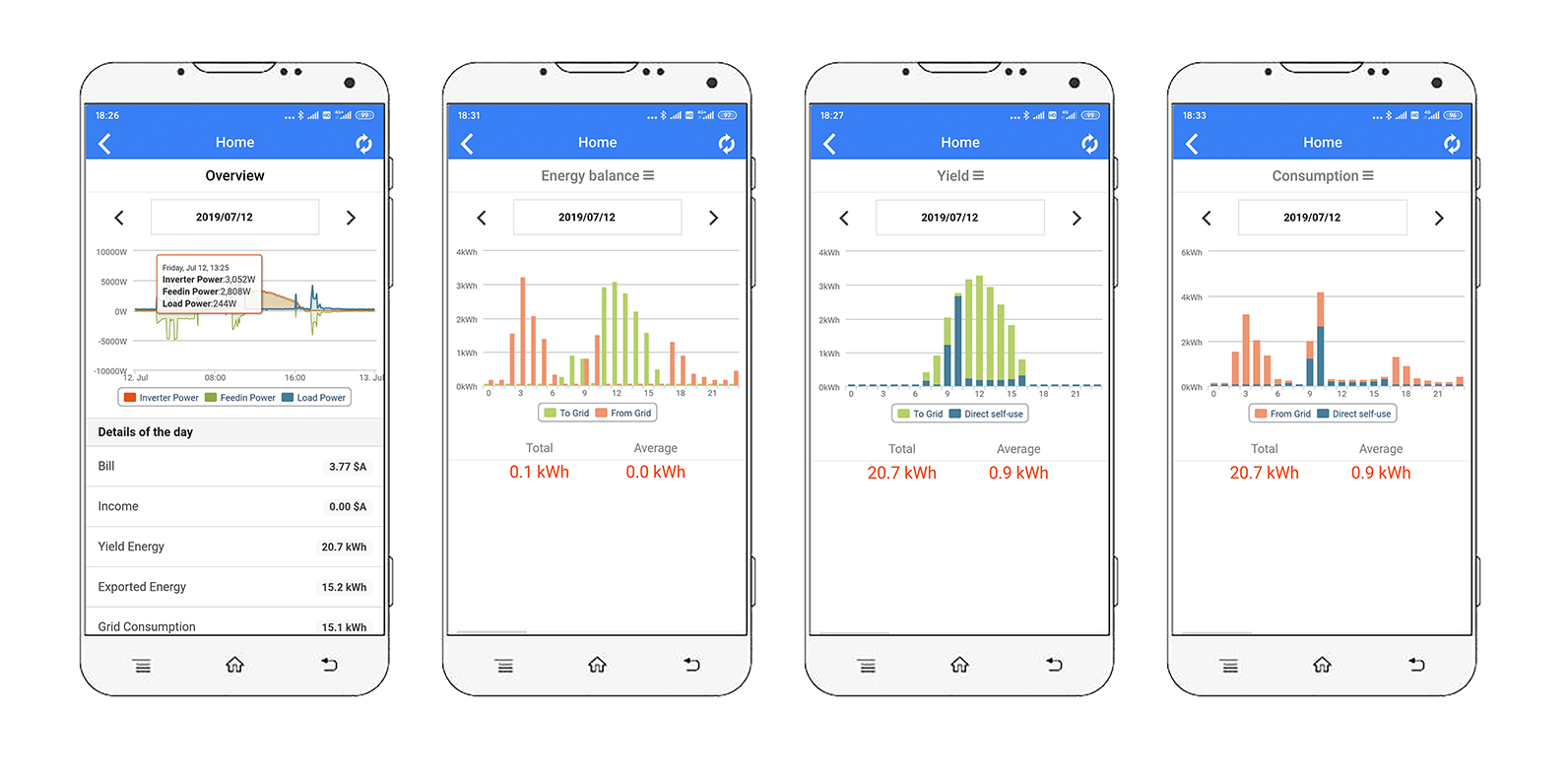
Monitor your solar PV system in IAMMETER-Cloud
View on Mobile App
View on Web browser
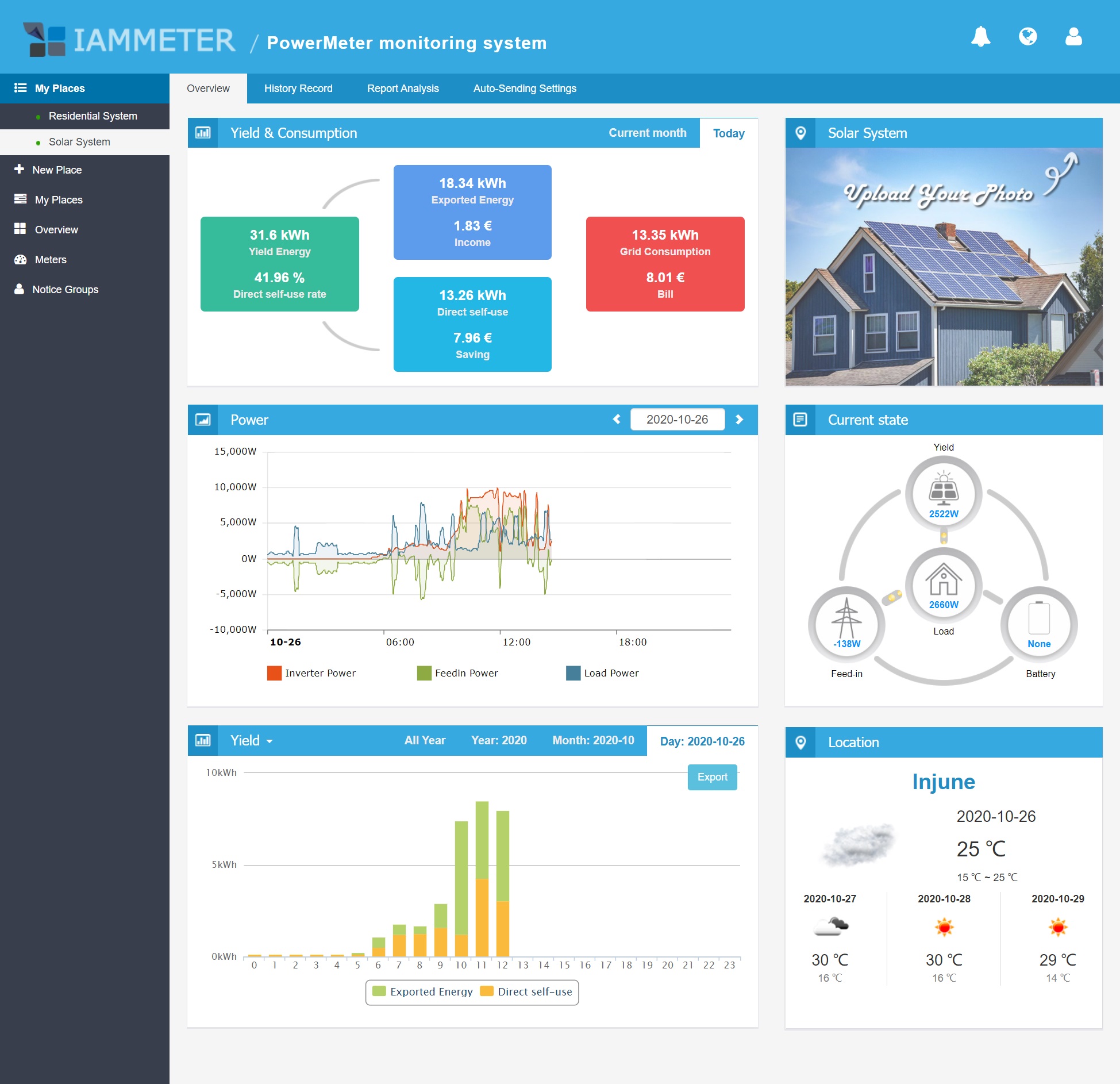
Tips: Please visit IAMMETER to log in to the web portal. Use the same username and password as the app.
iMeter_xxxxxxxx) disappears for security reasons.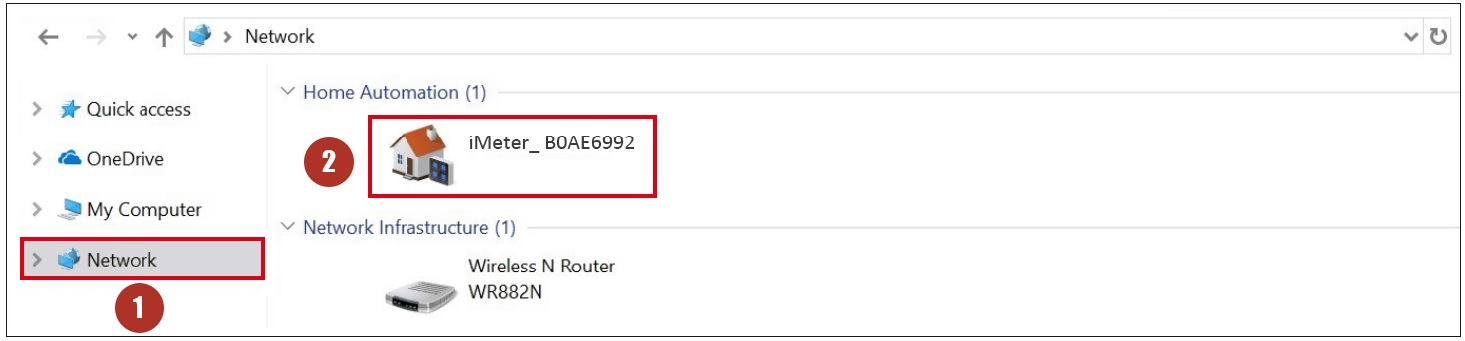
Integrate the Wi-Fi energy meter into Home Assistant
IAMMETER Energy monitor video tutorials
Please note that these video tutorials only introduce part of IAMMETER's functions. For more detailed introductions, please refer to IAMMETER Docs.
Integrate IAMMETER energy meter to third-party platforms other than Home Assistant
Use the Wi-Fi energy meter in areas without internet access
IAMMETER Introduces WEM2067 for Dual-Phase Energy Monitoring and Home Solar Applications
Monitor your solar pv system with Home Assistant
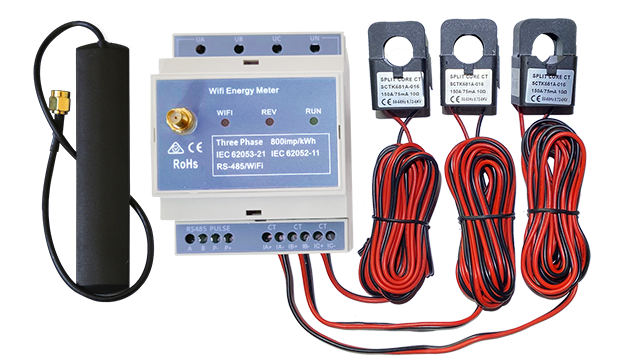
Three Phase Wi-Fi Energy Meter (WEM3080T)
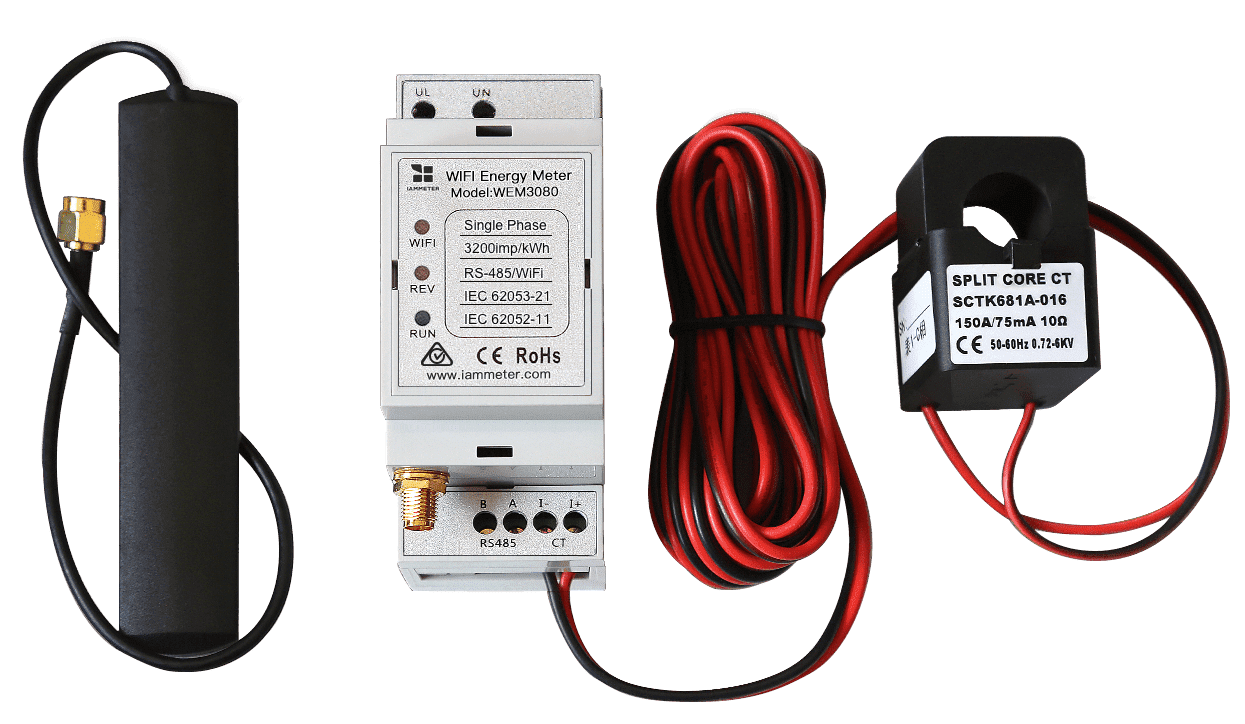
Single Phase Wi-Fi Energy Meter (WEM3080)
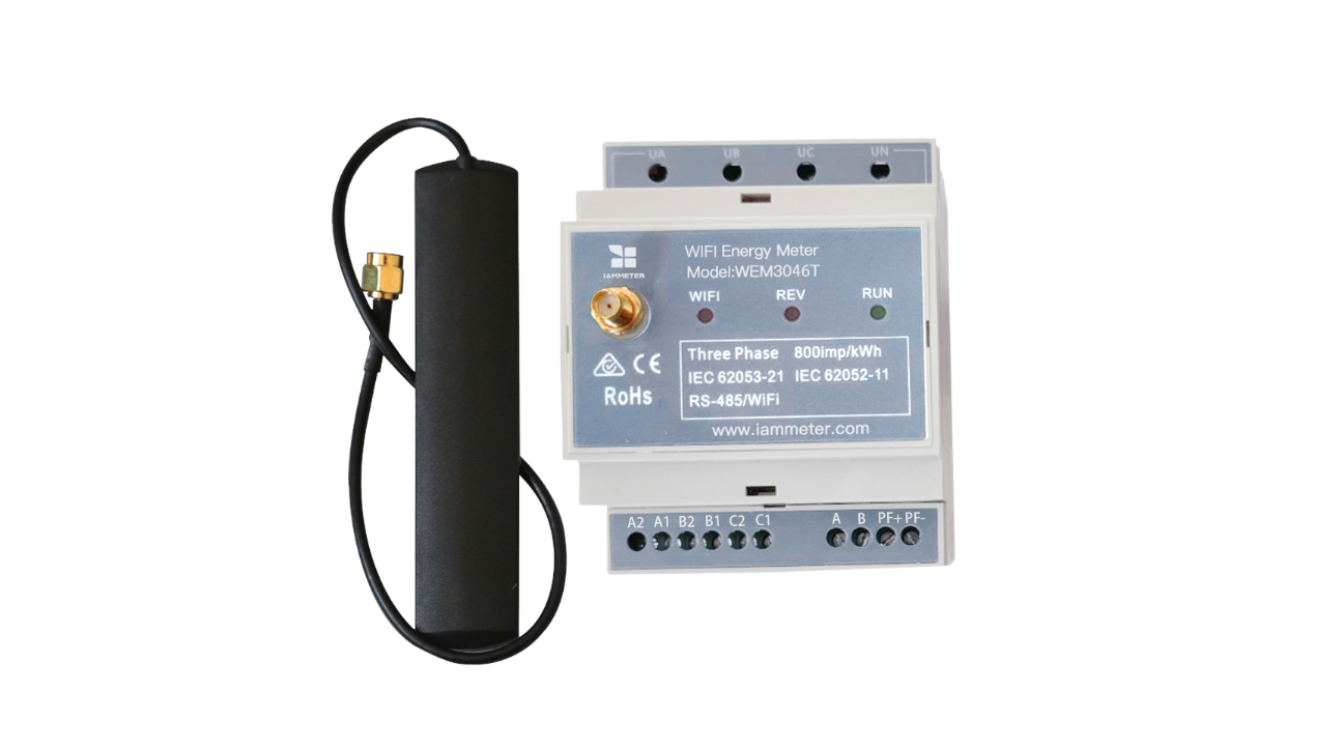
Three Phase Wi-Fi Energy Meter (WEM3046T)
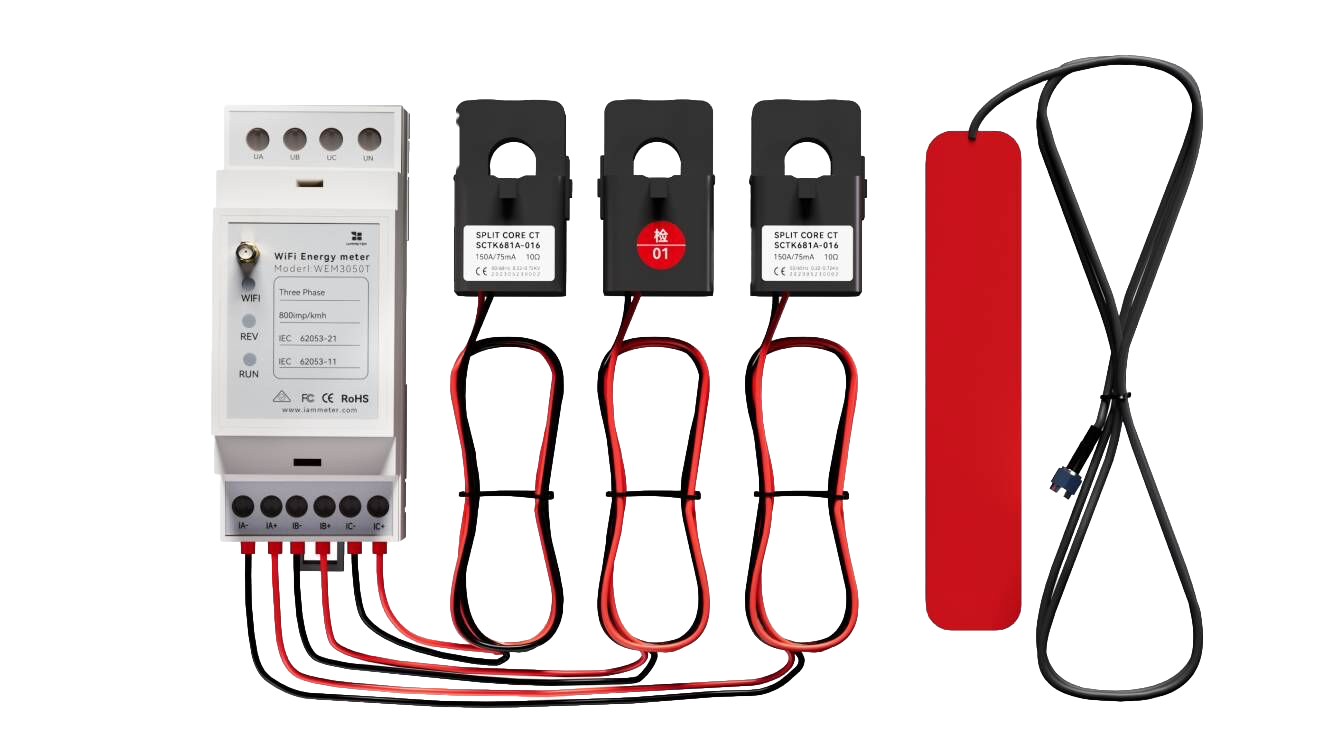
Three Phase Wi-Fi Energy Meter (WEM3050T)