


How to Build an Offline Electricity Data Logger with Docker
How to Build an Offline Electricity Data Logger with Docker
What happens when an electricity meter is installed at a solar site, factory, cabin or temporary project with no reliable Internet connection?
A cloud dashboard cannot receive data while the connection is unavailable. A full industrial server may be unnecessarily complex. In many cases, the practical requirement is simpler:
Keep every measurement locally, make the records easy to retrieve, and continue operating without Internet access.
This guide shows how to build an offline electricity data logger using an IAMMETER Wi-Fi energy meter and IAMMETER-Docker running on a local router or small server. The meter sends readings over the local Wi-Fi network, Docker stores them as CSV files, and a technician can retrieve the files later through a browser or USB drive.

For product selection and a shorter architecture overview, see the Offline Energy Datalogger solution.
1. The Deployment Scenario
Consider a small remote solar installation that needs generation and grid measurements for later engineering analysis.
The site has:
- an electrical supply and solar equipment;
- an IAMMETER Wi-Fi energy meter;
- a router or small computer that can run Docker;
- local Wi-Fi between the meter and router;
- no fixed Internet connection, or a connection too unreliable for continuous uploads.
The operator does not need to watch a cloud dashboard every day. Instead, a technician visits periodically and collects the measurement files.
The same architecture also suits:
- an off-grid cabin;
- a factory network isolated from the public Internet;
- a temporary electricity audit;
- a construction site;
- equipment testing in a laboratory;
- a backup monitoring path for a site with unstable connectivity.
2. Why Use a Local Router as the Data Logger?
A Docker-capable router can provide both parts of the local system:
- a Wi-Fi access point for the energy meter;
- a local Docker host for storing the measurements.
Electrical system
       │
       ▼
IAMMETER energy meter
       │
       │ Local Wi-Fi only
       ▼
Docker-capable router
       │
       ├── IAMMETER-Docker
       ├── Local CSV storage
       ├── Browser download
       └── Optional USB export
No public cloud is required for this data path. As long as the meter, router and storage remain powered and connected locally, loss of Internet access does not break local logging.
This architecture is compact, but it is not the only choice. IAMMETER-Docker can also run on a Raspberry Pi, NAS or Linux server. Choose the host based on storage, power supply, environmental conditions and maintenance requirements.
3. What You Need
Prepare the following components:
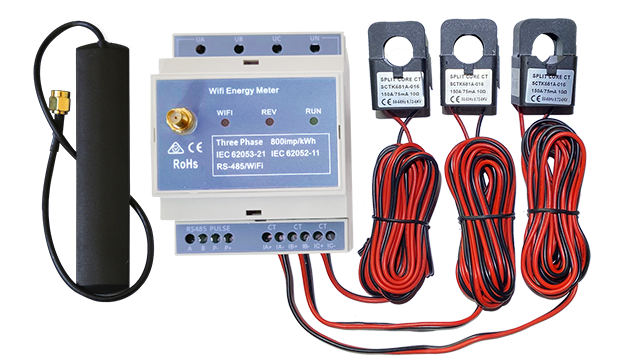
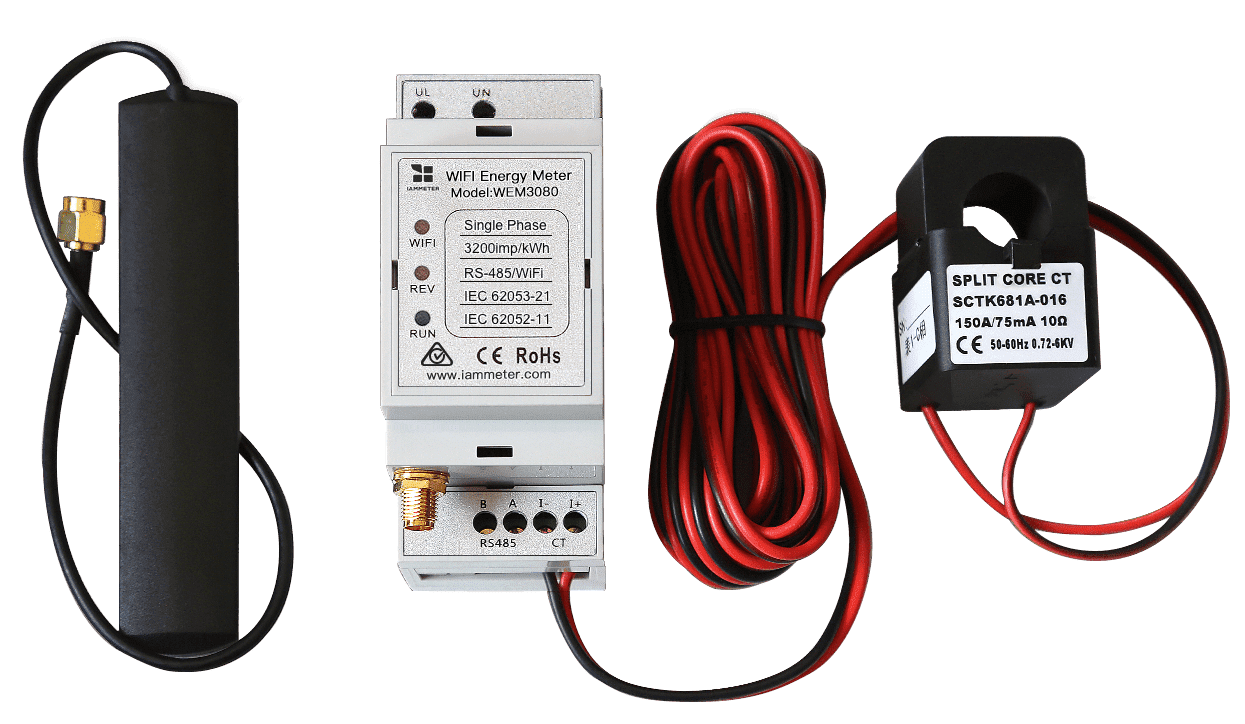
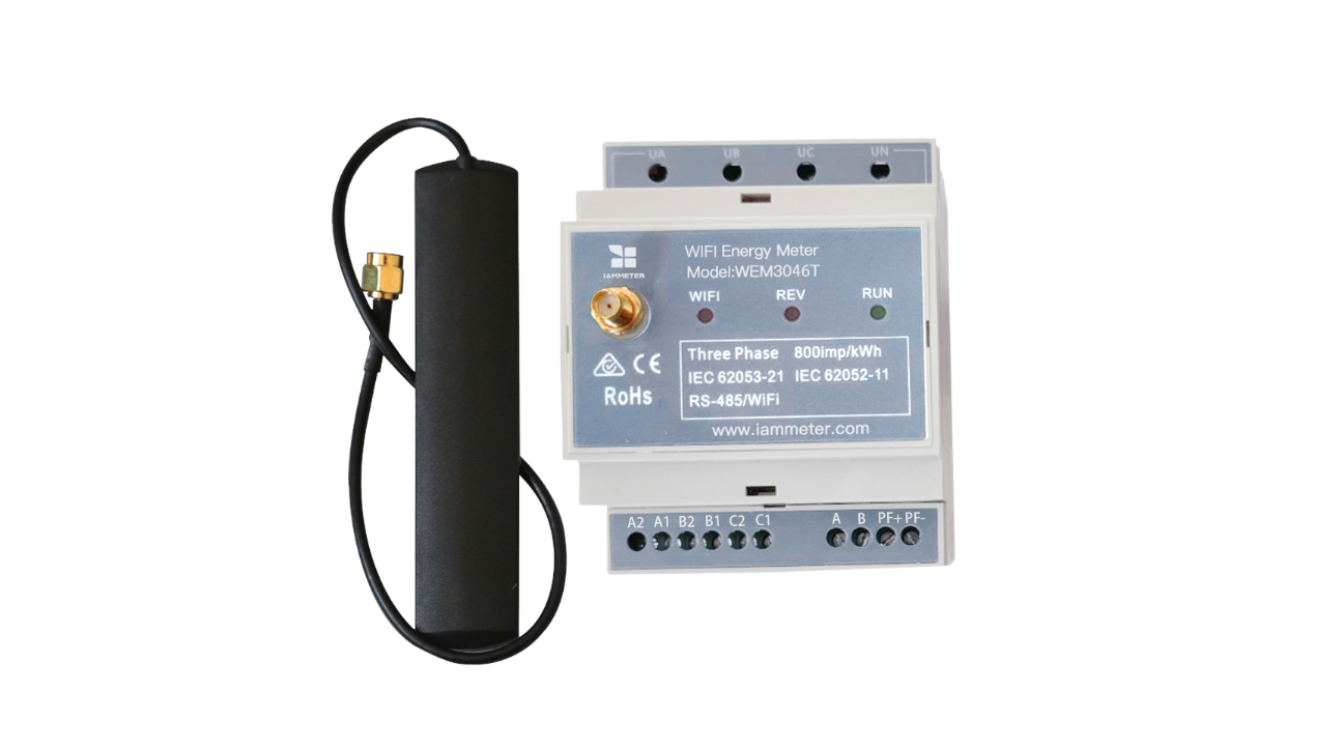
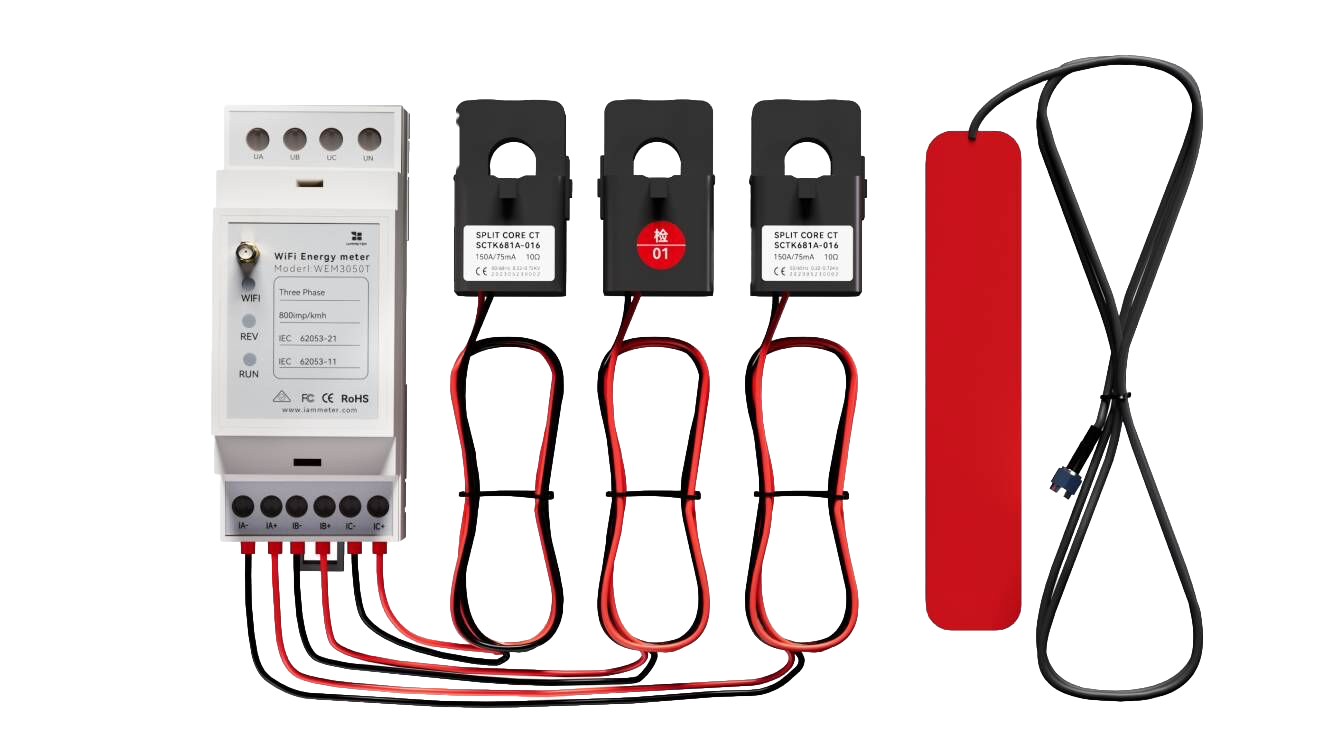
- an IAMMETER single-phase, dual-channel or three-phase Wi-Fi energy meter;
- a router, Raspberry Pi, NAS or server capable of running Docker;
- sufficient persistent storage for the expected logging period;
- a local Wi-Fi or LAN connection;
- optional USB storage for physical file export;
- a laptop or phone that can join the local network for setup and browser access.
For a router deployment, OpenWRT-based systems such as FriendlyWrt or iStoreOS are common options, provided the selected hardware can run Docker and has enough storage.
Storage planning
Before installation, decide:
- how long the site may run between visits;
- how many meters or channels will be recorded;
- how frequently files will be collected;
- whether a second local copy is required;
- what should happen when storage becomes full.
Do not rely on small internal router storage without checking capacity and write endurance. Use a suitable persistent storage device for unattended deployments.
4. Prepare IAMMETER-Docker Before Going Offline
The Docker image and any required packages normally need to be downloaded before the site becomes fully offline.
On a connected preparation network:
- install Docker on the router or server;
- pull the current
iammeter/iammeterimage; - create persistent directories for application data and datalogger CSV files;
- start the container;
- verify browser access;
- change default passwords;
- test logging with the actual meter;
- only then move the equipment to the offline site.
The datalogger directory must be mounted for CSV storage:
docker run -d \
  --name myiammeter \
  --restart always \
  -p 5050:5050 \
  -p 1883:1883 \
  -e TZ=Etc/UTC \
  -v "$PWD/data:/app/data" \
  -v "$PWD/datalogger:/app/datalogger" \
  iammeter/iammeter
Replace TZ=Etc/UTC with the site's actual timezone. Correct local time is essential when CSV timestamps will later be compared with maintenance, production or incident records.
For Docker Compose, backup and upgrade instructions, use the full IAMMETER-Docker deployment guide.
5. Connect the Meter to the Local Router
Configure the meter to join the router's local Wi-Fi network.
For a remote installation:
- reserve a stable IP address for the meter;
- avoid guest-network or client-isolation settings that block local communication;
- check Wi-Fi signal at the final installation position;
- keep the router and meter powered from a reliable supply;
- document the SSID, addressing and device location for the next technician.
Internet access is not required for communication between the meter and IAMMETER-Docker. The devices only need to reach each other over the local network.
6. Point the Meter to the Local Datalogger
In the current meter WebUI, configure the local IAMMETER-Docker service as the upload target. The datalogger workflow uses the router or Docker-host address, for example:
http://<router-local-ip>:5050

Use an IP address that remains stable. Do not enter localhost: from the meter's perspective, localhost refers to the meter itself rather than the Docker router.
After saving the upload configuration:
- wait for the first file or record to appear;
- compare live values with the meter's local readings;
- confirm the correct phase or channel count;
- verify CT direction and active-power sign;
- confirm timestamps use the intended timezone;
- restart both devices once to verify automatic recovery.
In this CSV datalogger workflow, the meter does not need to be manually created in the main IAMMETER-Docker monitoring interface before logging begins.
7. Retrieve CSV Files in a Browser
Join the same local network and open:
http://<docker-host-ip>:5050/datalogger
The documented default credentials are:
Username: admin
Password: admin
Change this password during commissioning.

From the datalogger page, users can download or delete stored CSV files.
Before deleting anything:
- download the required files;
- confirm that the copied files open correctly;
- check the date range and file size;
- store a second copy when the data is important;
- delete local files only according to the site's retention policy.
Browser retrieval is the simplest option when a technician can connect a laptop or phone to the site network.
8. Export Data with a USB Drive
Some router deployments can use a USB hotplug workflow. When a USB drive is inserted, the router copies the latest CSV files to it.
This is useful when:
- the site is physically isolated;
- the operator should not access the router administration interface;
- files need to be handed to another team;
- a simple repeatable field procedure is preferred.
USB hotplug behavior depends on the router platform and its configuration; it is not enabled merely by inserting a drive into every Docker host. Test the complete process before field deployment:
- insert a supported and empty test drive;
- wait for the copy process to complete;
- safely remove the drive;
- confirm the latest CSV files are present;
- repeat after a restart;
- document any status light, wait time or removal procedure.
9. What Can You Do with the CSV Data?
CSV files are portable and can be used without the original monitoring server.
Typical follow-up work includes:
- reviewing voltage and current over time;
- calculating energy consumption or solar generation by period;
- identifying peak active-power events;
- comparing phases in a three-phase system;
- correlating electricity behavior with production or equipment logs;
- importing the data into Excel, Python, MATLAB or a database;
- preparing a short-term energy audit report;
- archiving raw measurements for later investigation.
Preserve the following context with each dataset:
- meter serial number;
- site and circuit name;
- phase or channel assignment;
- CT ratio when external CTs are used;
- timezone;
- installation and collection dates;
- any known outages or configuration changes.
A CSV file without this context can be difficult to interpret months later.
10. Commissioning Test Before Leaving the Site
An unattended logger should be tested as a complete system, not as separate devices.
Connectivity
- Meter reconnects after router restart.
- Docker container starts automatically.
- Meter upload resumes without manual intervention.
- Browser datalogger page remains reachable.
Data quality
- Voltage, current, power and energy are plausible.
- Phase count and channel mapping are correct.
- Import/export direction is understood.
- Timestamps and timezone are correct.
Storage and retrieval
/app/dataloggeris mounted to persistent storage.- CSV files survive a container restart.
- Browser download works.
- USB export works if it is part of the field process.
- Storage capacity and retention are documented.
Security
- Default passwords have been changed.
- Ports
5050and1883are not exposed to an untrusted network. - Router administration credentials are stored securely.
- Physical USB access matches the site's security requirements.
11. Common Field Problems
No CSV file appears
- Confirm that
/app/dataloggeris mounted. - Check whether the meter can reach the Docker-host IP and port
5050. - Verify the meter upload target.
- Review the IAMMETER-Docker logs.
- Check directory permissions and available storage.
Logging stops after a power failure
- Confirm that the container uses an automatic restart policy.
- Verify that the router storage mounts correctly after boot.
- Check whether the meter reconnects to Wi-Fi.
- Test with a controlled restart before leaving the site.
CSV timestamps are wrong
- Set the Docker timezone to the installation location.
- Confirm the router clock.
- Document daylight-saving changes when relevant.
Files exist but values look wrong
- Verify CT orientation and wiring.
- Check the meter model and channel structure.
- Apply the correct CT ratio for WEM3046T/WEM3046TE installations.
- Compare the CSV with the meter's local live values.
The USB drive does not receive files
- Confirm that the router supports and has enabled the required hotplug process.
- Check filesystem compatibility and free space.
- Review router logs.
- Use browser download as the fallback retrieval method.
12. Offline Logging, Real-Time Alarms or Full Monitoring?
These IAMMETER-Docker functions solve different problems:
| Requirement | Best starting point |
|---|---|
| Keep continuous CSV measurements without Internet | Offline datalogger mode described in this guide |
| Watch one-second values and record threshold alarms | Real-time power monitoring and alarms |
| Use dashboards, historical reports and APIs locally | IAMMETER-Docker deployment guide |
| Use MQTT, MySQL or external forwarding | Advanced IAMMETER-Docker configuration |
| Compare self-hosted, cloud and custom-system choices | Self-hosted monitoring options |
Choose the smallest architecture that satisfies the actual requirement. An offline audit may need only CSV retention, while a permanent energy-management project may benefit from the full monitoring platform.
13. From Reference Deployment to Your Site
The reference architecture is simple:
One IAMMETER meter
        +
One Docker-capable router or server
        +
Persistent local storage
        =
Offline electricity data logger
Before selecting hardware, define:
- single-phase, split-phase or three-phase measurement;
- number of required channels;
- maximum current and CT type;
- expected offline duration;
- storage and retrieval procedure;
- whether IAMMETER-Cloud forwarding may be added later.
Use the Offline Energy Datalogger solution page to review the deployment model and choose an appropriate meter. For users who prefer a preconfigured router, contact support@devicebit.com.

Last updated: July 17, 2026.