


Home Assistant MQTT Discovery for an Energy Meter
Home Assistant MQTT Discovery for an Energy Meter
Home Assistant MQTT Discovery lets an energy meter create its device and sensor entities automatically. After the meter and Home Assistant connect to the same MQTT broker, Home Assistant can discover the meter without manual MQTT sensor YAML.
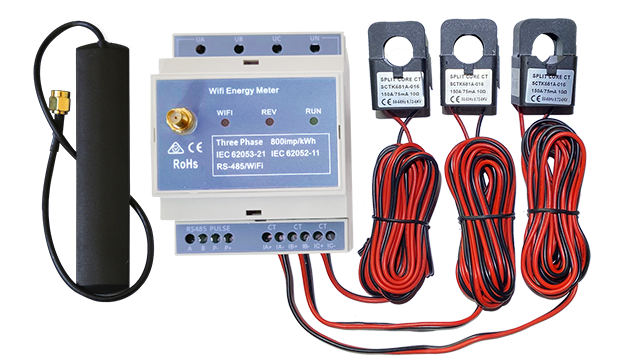
IAMMETER supports MQTT Discovery on all current energy meters. Depending on the model, Home Assistant creates entities for voltage, current, active power, imported energy, exported energy, and other available phase or channel measurements.
Use this method when you want:
- local MQTT energy monitoring;
- automatic device and entity creation;
- faster updates than the HTTP integrations;
- Energy Dashboard-compatible imported/exported energy entities;
- minimal Home Assistant configuration.
If you need complete control over topics, templates, entity names, and metadata, use the Manual MQTT energy meter guide instead.
MQTT Discovery versus Manual MQTT
Both methods require an MQTT broker, but only Discovery automatically creates Home Assistant entities.
| Feature | MQTT Discovery | Manual MQTT |
|---|---|---|
| Configure broker in meter WebUI | Yes | Yes |
| Enable MQTT Integration in HA | Yes | Yes |
| Write sensor YAML | No | Yes |
| Device/entities created automatically | Yes | No |
| Custom value templates | No | Yes |
| User controls every entity definition | Limited | Yes |
| Energy Dashboard metadata | Sent automatically | Added by the user in YAML |
Do not enable Discovery and manually define the same measurements unless you deliberately want two separate sets of entities.
Requirements
You need:
- an IAMMETER energy meter running firmware
i.76.058.8or later; - an MQTT broker reachable by the meter and Home Assistant;
- the broker address, port, username, and password;
- Home Assistant with the MQTT Integration enabled.
Firmware i.76.058.8 is the stable release baseline for MQTT Discovery. The earlier i.76.02 image was a test firmware and should no longer be installed or linked as the recommended version.
For current fixes and the latest MQTT options, upgrade to the latest IAMMETER firmware.
Step 1: Connect Home Assistant to the MQTT broker
If Home Assistant is not already connected to the broker:
- Open Settings → Devices & services.
- Select Add integration.
- Search for MQTT.
- Enter the broker address, port, username, and password.
- Confirm that the MQTT Integration connects successfully.
If Home Assistant already uses the intended broker, keep the existing MQTT Integration. Do not create a second broker connection for the IAMMETER device.
MQTT Discovery is enabled by default in a normal Home Assistant MQTT setup. If discovery has been disabled or a non-default discovery prefix is used, make sure the meter and Home Assistant use compatible settings.
Step 2: Configure MQTT Discovery in the meter WebUI
Open the meter's local WebUI and go to Settings. Configure:
| Setting | Value |
|---|---|
| Run Mode | MQTT |
| Address | MQTT broker hostname/IP and port |
| Username | Broker username, if required |
| Password | Broker password, if required |
| HA MQTT Discovery | Enabled |
Save the settings and allow the meter to reboot or reconnect.
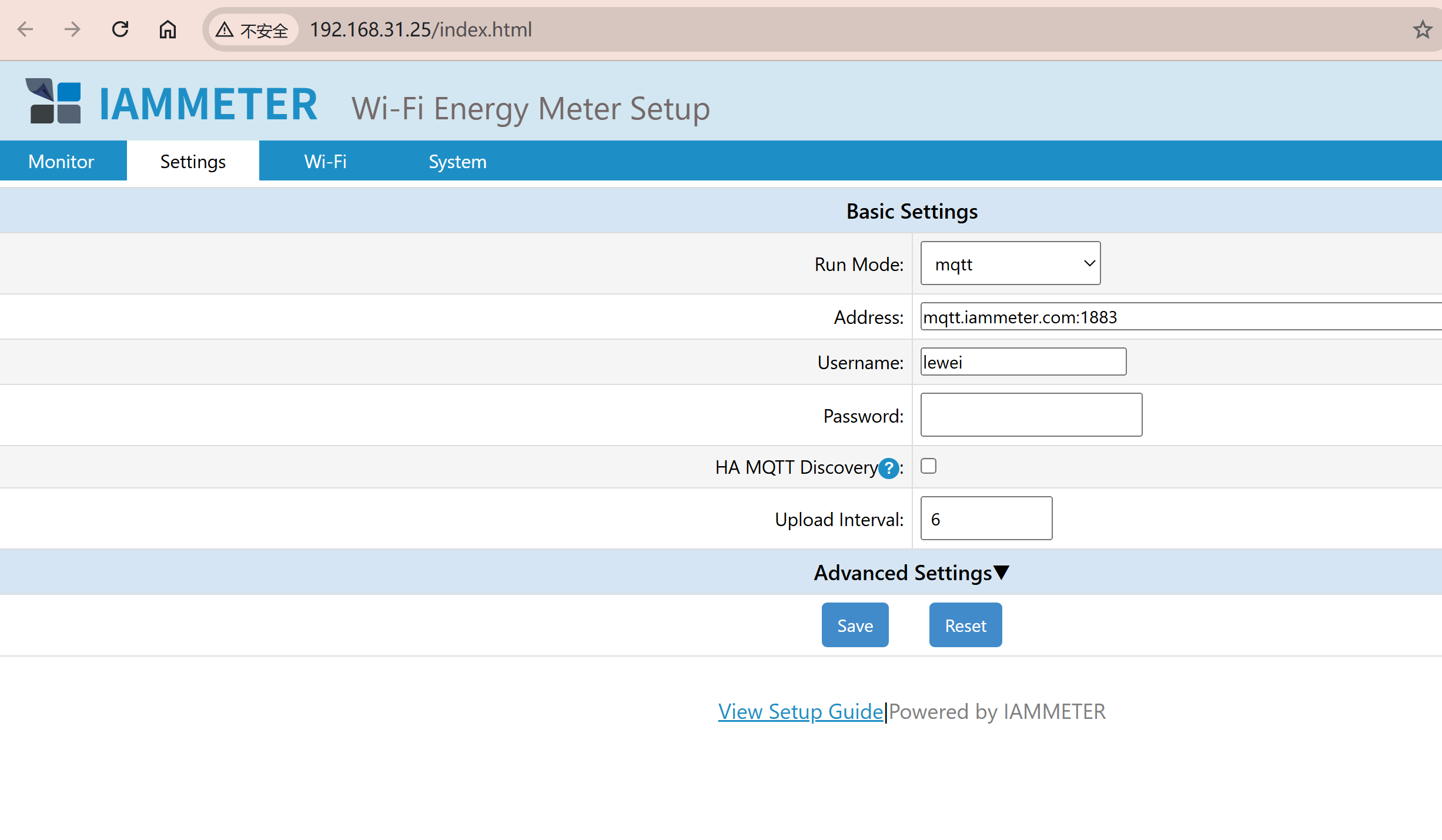
The latest firmware exposes the required settings in the WebUI. There is no need to call the historical /api/mqttha?x=1 endpoint.
The HA MQTT Discovery option is specifically for Home Assistant automatic discovery. For a general broker, custom system, Node-RED flow, or Manual MQTT configuration, leave it disabled and use the meter's standard MQTT publishing format instead.
Step 3: Confirm that Home Assistant discovers the meter
After the meter connects to the broker:
- Open Settings → Devices & services → MQTT.
- Look for a newly discovered IAMMETER device.
- Open the device and review the entities.
- Confirm that voltage, current, power, and energy values are plausible.
- Check that the expected number of phases or measurement channels is present.
Discovery configuration and measurement state are sent through different MQTT topics. Home Assistant uses the discovery configuration to create the entities, then updates their values when state messages arrive.
If the device does not appear, restart only after checking the broker connection and topics. A Home Assistant restart cannot fix an incorrect broker address or rejected MQTT credentials.
Energy Dashboard support
Current IAMMETER MQTT Discovery payloads include the required metadata for imported and exported energy entities:
unit_of_measurement: kWh
device_class: energy
state_class: total_increasing
IAMMETER uses the compact MQTT Discovery keys corresponding to these fields, including:
{
  "unit_of_meas": "kWh",
  "dev_cla": "energy",
  "stat_cla": "total_increasing"
}
After the entities receive valid data:
- go to Settings → Dashboards → Energy;
- select the imported-energy entity for grid consumption;
- select the exported-energy entity for return to grid;
- save the Energy Dashboard configuration.
Do not select an instantaneous active-power entity in watts for an energy field. The Energy Dashboard requires cumulative kWh.
Single-phase and three-phase models create different energy entities. Choose the entities that correspond to the meter's wiring and the way the installation measures grid import/export.
Choose an MQTT update interval
The latest IAMMETER firmware supports MQTT updates down to 2 seconds. A shorter interval gives Home Assistant fresher power readings but also creates more broker traffic, entity updates, and recorder data.
Suggested starting points:
| Application | Suggested interval |
|---|---|
| Fast local automation | 2–5 seconds |
| Live power dashboard | 5–12 seconds |
| General energy monitoring | 10–60 seconds |
Use the shortest interval only when the automation benefits from it. Energy Dashboard totals generally do not require two-second updates.
IAMMETER Cloud compatibility
MQTT Discovery changes the meter's Run Mode to MQTT. The meter sends its measurements to the configured broker and does not simultaneously upload them to IAMMETER Cloud.
If you need both Home Assistant and IAMMETER Cloud from the same meter, choose a local HTTP or Modbus TCP integration instead. Those methods read the meter locally while its normal Cloud upload continues.
Compare the options in the Home Assistant energy meter integration overview.
Supported IAMMETER models
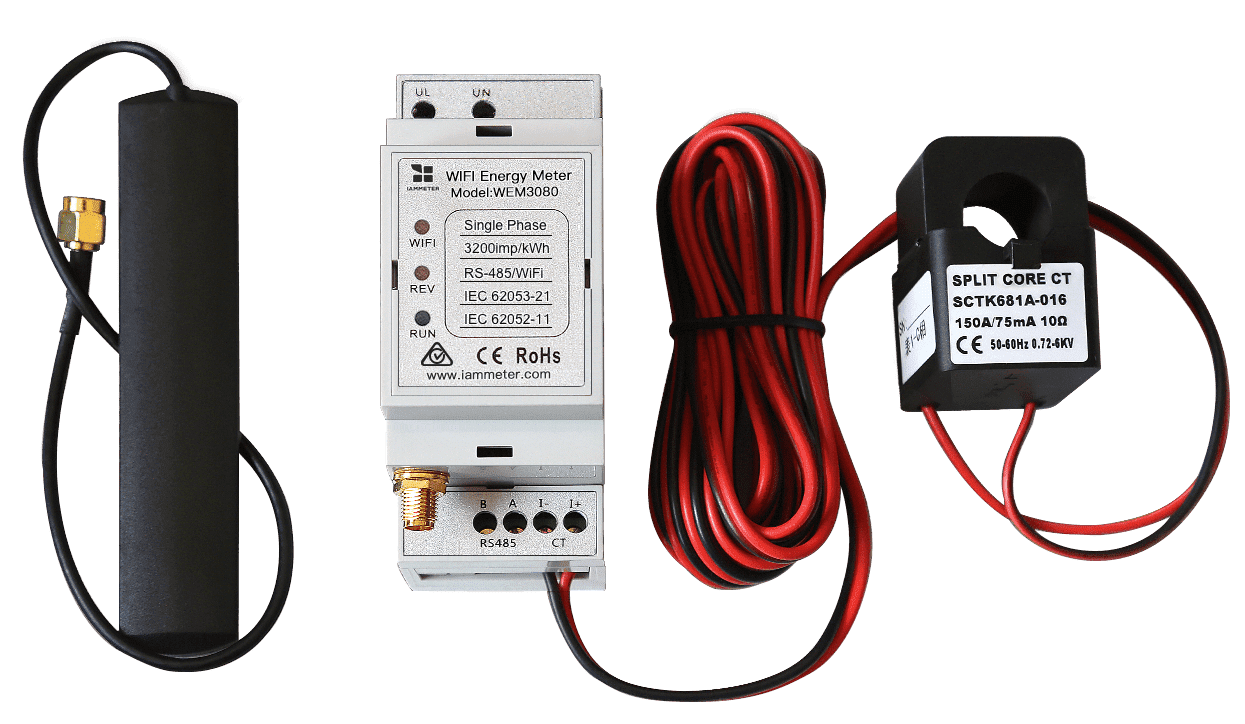
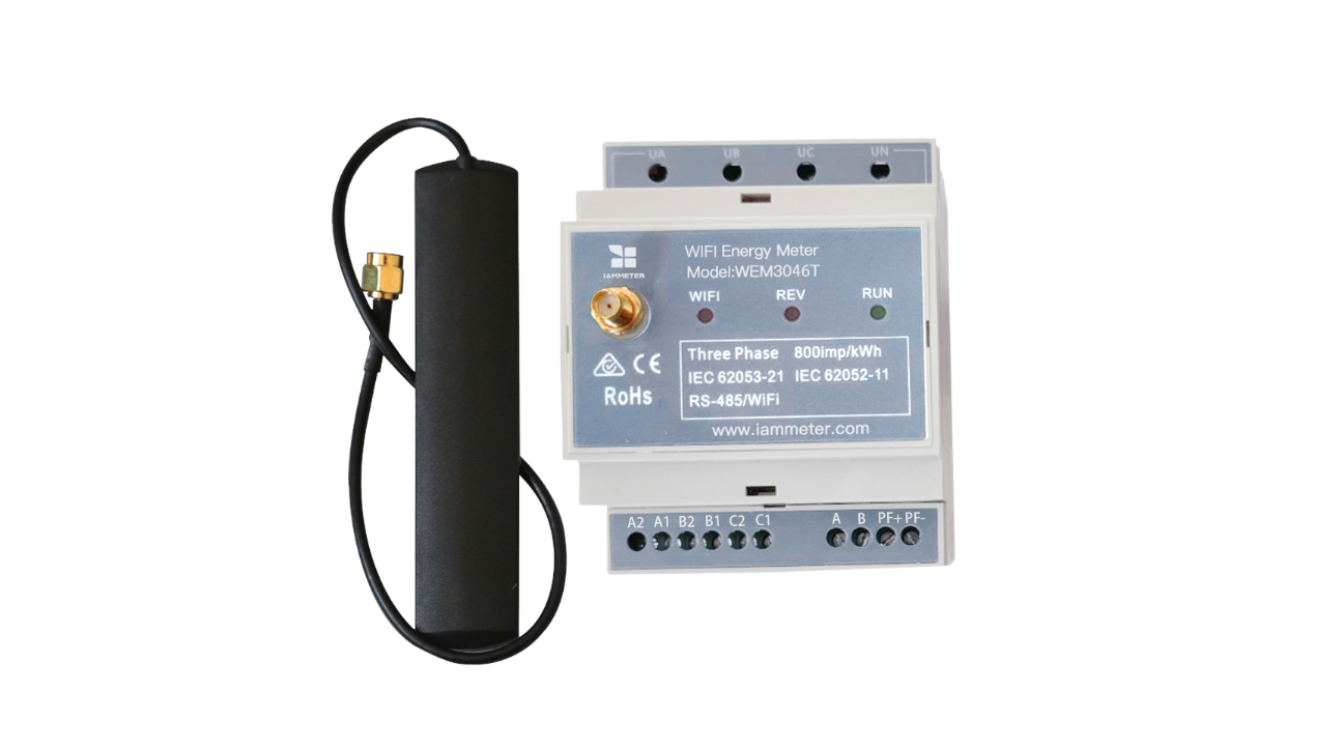
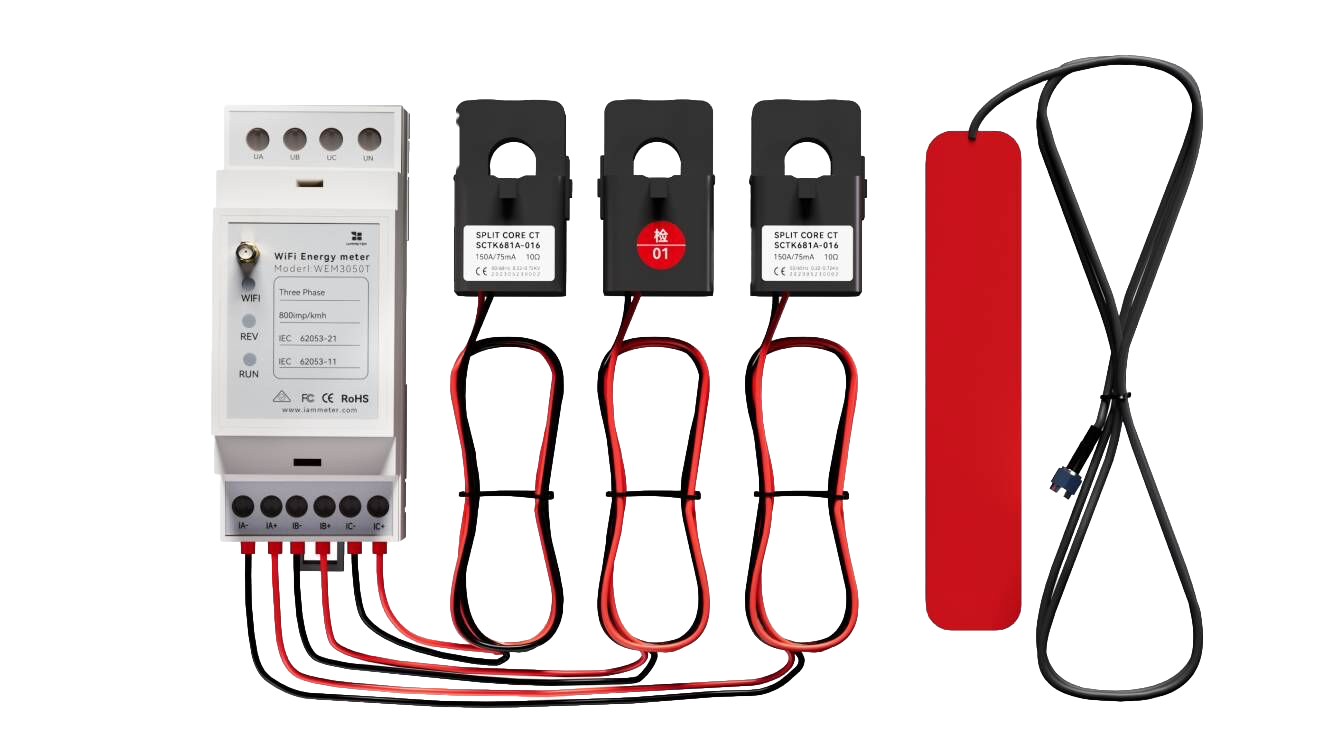
All current IAMMETER energy meters support MQTT Discovery. The main difference is the number of phases/channels and therefore the number of entities created.
| Model | Typical entity structure | Product information |
|---|---|---|
| WEM3080 | Single-phase entities | Single-phase energy meter |
| WEM2067 | Two measurement channels | Dual-channel meter for home solar |
| WEM3080T | Three-phase entities | Three-phase energy meter |
| WEM3050T | Three measurement channels | Home three-phase/split-phase meter |
| WEM3080TD | Entities interpreted according to wiring mode | WEM3080TD |
| WEM3046T / WEM3046TE | Three-phase entities with external 5 A CT measurement | 5 A CT three-phase meter |
WEM3046T and WEM3046TE measure the 5 A secondary output of external current transformers. The correct CT ratio must be applied to obtain primary-side current, power, and energy. This is a metering-system requirement, not a Home Assistant or MQTT Discovery limitation.
The discontinued WEM3162 is not included in the current compatibility scope.
Troubleshooting MQTT Discovery
Home Assistant does not discover the meter
- Confirm that the meter and Home Assistant use the same broker.
- Check the broker address, port, username, and password.
- Confirm that HA MQTT Discovery is enabled in the meter WebUI.
- Check broker logs for rejected connections or authorization errors.
- Verify that Home Assistant's MQTT Integration is connected.
- Subscribe to the broker's Home Assistant discovery prefix with an MQTT client and check whether configuration messages are present.
The device appears, but entities are unavailable
- Confirm that the meter continues publishing state messages after the discovery configuration.
- Check whether a firewall, VLAN, or broker ACL permits both discovery and state topics.
- Verify that the meter has not switched to a different broker.
- Upgrade to the latest firmware and reconnect.
Imported/exported energy is not selectable in the Energy Dashboard
- Confirm that the entity has received a valid numeric kWh value.
- Open Developer tools → States and inspect its unit, device class, and state class.
- Remove obsolete entities created by early test firmware before evaluating the current discovery payload.
- Confirm that you are selecting an energy entity, not an active-power entity.
Duplicate MQTT entities appear
Duplicates normally occur when:
- Manual MQTT YAML and MQTT Discovery are both active;
- the meter serial number or discovery unique ID changed;
- early firmware published a different discovery configuration;
- retained discovery topics from an old configuration remain on the broker.
Choose either Manual MQTT or MQTT Discovery for the same measurements, then remove the obsolete configuration.
Remove old retained Discovery entities
MQTT Discovery configuration messages are commonly retained by the broker so Home Assistant can recreate entities after a restart. If an old configuration topic remains, deleting the device only in the Home Assistant UI may not be enough—the entity can return when the retained configuration is received again.
Safe cleanup procedure:
- Disable HA MQTT Discovery on the meter or disconnect it temporarily so it does not immediately republish the old configuration.
- Use an MQTT client to inspect the Home Assistant discovery prefix, normally
homeassistant/#. - Identify only the configuration topics belonging to the affected IAMMETER serial number/device.
- Publish an empty retained payload to each obsolete configuration topic.
- Remove the obsolete device/entities from Home Assistant if they remain.
- Enable Discovery again on current firmware.
- Confirm that one device and the expected current entities are created.
Do not delete the entire homeassistant/# retained topic tree on a shared broker. That could remove discovery configuration for unrelated devices.
When Manual MQTT is the better choice
Use Manual MQTT instead when you need:
- custom entity names and unique IDs;
- custom JSON templates or calculations;
- only a selected subset of measurements;
- a topic structure shared with non-Home Assistant applications;
- explicit control over device class and state class;
- compatibility with a system where Home Assistant Discovery is intentionally disabled.
Related guides
- Manual MQTT energy meter configuration for Home Assistant
- Publish IAMMETER data to an MQTT broker
- Compare all IAMMETER–Home Assistant integration methods
- Upgrade to the latest IAMMETER firmware
- Home Assistant MQTT documentation
Updated: July 19, 2026.