


Local Admin Security for IAMMETER Energy Meters: User Guide
The Local Admin Security module is available in firmware i.91.065.3 and later.
On this page
- Purpose
- Configure Admin Security in the Web UI
- APIs That Do Not Require Basic Authentication
- API Reference
- How Password Recovery Works
- Usage Scenarios
Purpose
The Local Admin Security module protects the device's local Web UI and sensitive local APIs from unauthorized access.
After the feature is enabled, an administrator username and password are required for:
- all Set APIs available on the WEM API Test page;
- GET APIs that return sensitive configuration data or perform sensitive operations;
- local OTA firmware upload and upgrade operations.
This includes operations such as changing network or upload settings, updating firmware, restarting the device, restoring factory settings, and modifying other sensitive configuration parameters.
The module provides:
- configurable administrator credentials;
- HTTP Basic Authentication for protected local APIs;
- credential changes through the Web UI or API;
- an Ed25519 signature-based recovery process if the administrator password is forgotten.
The feature is disabled by default for compatibility with earlier firmware. It must be enabled and configured before protected access takes effect.
The current local Web UI uses HTTP. HTTP Basic Authentication encodes credentials but does not encrypt them. Use this feature on a trusted local network unless the device is accessed through an additional secure transport mechanism.
Configure Admin Security in the Web UI
- Open the device IP address in a browser.
- Select the Security tab.
- Enter an administrator username.
- Enter and confirm the administrator password.
- Select Enable Admin Security.
The username and password must meet the following rules:
- length: 1 to 32 characters;
- visible ASCII characters only;
- a colon (
:), double quote ("), or backslash (\) is not allowed.
After Admin Security is enabled, the browser displays an authentication prompt when a protected page or API is accessed. Enter the configured administrator username and password.
The Security tab can also be used to:
- change the administrator username and password;
- verify that administrator authentication is enabled;
- enable or disable the Modbus/TCP service on port 502;
- enable or disable SSDP discovery;
- disable Admin Security after authenticating with the current credentials.
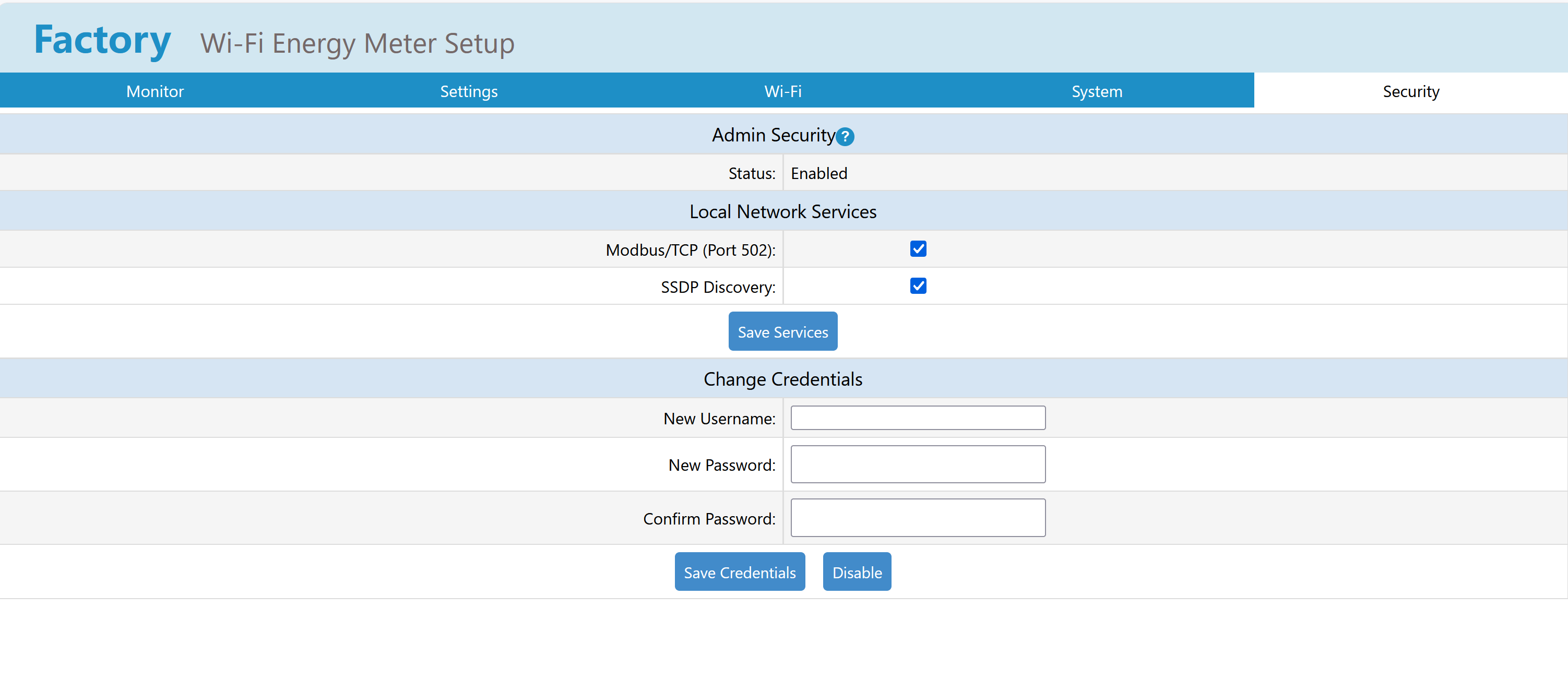
Changes to the Modbus/TCP or SSDP service state require a device restart. If these settings have never been stored by an earlier firmware, both services default to enabled for backward compatibility.
Browsers may cache Basic Authentication credentials for the device address. After changing the password, the browser might first retry the old credentials and then display a new authentication prompt. Closing all browser windows or using a private browsing window can also force a new login.
APIs That Do Not Require Basic Authentication
The following endpoints remain available without a Basic Authentication header so that the Web UI can load basic device information and the signed recovery process can operate:
| Method | Endpoint | Purpose |
|---|---|---|
| GET | /api/admin/status |
Returns whether Admin Security is enabled and whether signed recovery is supported. |
| GET | /api/admin/recovery_challenge |
Generates a device-specific, one-time recovery payload. |
| GET | /api/getbrand |
Returns the local Web UI branding configuration. |
| GET | /api/monitor |
Returns the current device and meter monitoring data used by the local Web UI. |
| GET | /api/monitorjson |
Returns the legacy monitoring response through the /api compatibility path. |
| GET | /monitorjson |
Returns the legacy monitoring response. |
| GET | /api/sntpstatus |
Returns the current SNTP status. |
| GET | /info.xml |
Returns UPnP-style device information. |
| POST | /api/admin/recovery |
Verifies the IAMMETER recovery signature and clears forgotten administrator credentials. |
POST /api/admin/enable is also callable without Basic Authentication when Admin Security is currently disabled, because it is the endpoint used for initial setup. If Admin Security is already enabled, the current valid administrator credentials are required before this endpoint can change or disable the security configuration.
Static Web UI files and other non-/api/ GET resources are not API endpoints and remain publicly readable. All other local API endpoints are treated as protected when Admin Security is enabled, including all Set APIs, sensitive GET APIs, and OTA firmware operations.
API Reference
GET /api/admin/status
Returns the current Admin Security status. Authentication is not required.
Example response:
{
  "enabled": 1,
  "hasPassword": 1,
  "recoverySupported": 1,
  "modbusTcpEnabled": 1,
  "ssdpEnabled": 1
}
Fields:
enabled:1when Admin Security is enabled; otherwise0.hasPassword:1when administrator credentials have been configured.recoverySupported:1when signed administrator recovery is supported by the firmware.modbusTcpEnabled:1when the Modbus/TCP service on port 502 is enabled.ssdpEnabled:1when SSDP discovery is enabled.
POST /api/admin/enable
Enables or disables Admin Security.
Enable Admin Security:
POST /api/admin/enable
Content-Type: application/json

{
  "enable": 1,
  "username": "admin",
  "password": "ExamplePassword"
}
Example with curl:
curl -X POST "http://<device-ip>/api/admin/enable" \
  -H "Content-Type: application/json" \
  -d '{"enable":1,"username":"admin","password":"ExamplePassword"}'
Disable Admin Security:
POST /api/admin/enable
Authorization: Basic <base64-credentials>
Content-Type: application/json

{
  "enable": 0
}
If Admin Security is already enabled, the current valid Basic Authentication credentials are required to call this API.
Example:
curl -X POST "http://<device-ip>/api/admin/enable" \
  -u admin:ExamplePassword \
  -H "Content-Type: application/json" \
  -d '{"enable":0}'
POST /api/admin/password
Changes the administrator username and password. This API is protected after Admin Security has been enabled.
POST /api/admin/password
Authorization: Basic <current-base64-credentials>
Content-Type: application/json

{
  "username": "newadmin",
  "password": "NewExamplePassword"
}
Example:
curl -X POST "http://<device-ip>/api/admin/password" \
  -u admin:ExamplePassword \
  -H "Content-Type: application/json" \
  -d '{"username":"newadmin","password":"NewExamplePassword"}'
After the request succeeds, use the new credentials for subsequent protected requests.
GET /api/admin/check
Checks whether the supplied Basic Authentication credentials are valid.
curl -u admin:ExamplePassword \
  "http://<device-ip>/api/admin/check"
Successful response:
{
  "successful": 1
}
Missing or invalid credentials result in HTTP 401 Unauthorized.
GET /api/admin/recovery_challenge
Creates a device-specific, one-time recovery payload. Authentication is not required because this endpoint does not reset credentials by itself.
Example response:
{
  "successful": 1,
  "alg": "ed25519",
  "payload": "reset_admin|DEVICE_SN|DEVICE_MAC|ONE_TIME_NONCE"
}
The returned payload must be sent to IAMMETER when administrator recovery is required.
Requesting a new challenge invalidates the previous challenge. A challenge is also invalidated after a successful recovery or device restart.
POST /api/admin/recovery
Submits the recovery payload and the Ed25519 signature supplied by IAMMETER.
POST /api/admin/recovery
Content-Type: application/json

{
  "payload": "reset_admin|DEVICE_SN|DEVICE_MAC|ONE_TIME_NONCE",
  "signature": "128-hex-character-ed25519-signature"
}
Example:
curl -X POST "http://<device-ip>/api/admin/recovery" \
  -H "Content-Type: application/json" \
  -d '{"payload":"reset_admin|DEVICE_SN|DEVICE_MAC|ONE_TIME_NONCE","signature":"<signature-from-IAMMETER>"}'
If signature verification succeeds, the device clears the local administrator credentials and disables Admin Security. A new administrator username and password can then be configured.
If the device does not have enough free memory to run signature verification, the API returns a response similar to:
{
  "successful": 0,
  "message": "low memory, please change to standalone mode",
  "freeMemory": 18000,
  "minFreeRequired": 28000
}
In this case, reduce memory usage and request a new recovery challenge before retrying. If the password is unavailable and the operating mode cannot be changed, restart the device and perform recovery before an MQTTS or HTTPS connection consumes additional memory.
How Password Recovery Works
The recovery design avoids adding an unauthenticated factory-reset command that could bypass administrator protection.
The process uses an Ed25519 public/private key pair:
- the device firmware contains only the IAMMETER recovery public key;
- the corresponding private key is retained by IAMMETER and is not stored on the device;
- the device creates a payload containing the requested operation, device SN, device MAC, and a one-time nonce;
- IAMMETER signs that exact payload with the recovery private key;
- the device verifies the signature with its embedded public key;
- only a valid signature for the current device and current nonce can clear the administrator configuration.
The nonce is stored only in RAM. It becomes invalid when the device restarts, when another challenge is requested, or after one successful recovery. Therefore, an old payload and signature cannot be reused for a later recovery session.
Usage Scenarios
Scenario 1: Set an Administrator Username and Password
The simplest method is the Web UI:
- Open
http://<device-ip>/. - Open the Security tab.
- Enter the new administrator username and password.
- Confirm the password.
- Enable Admin Security.
The same operation can be performed through POST /api/admin/enable:
curl -X POST "http://<device-ip>/api/admin/enable" \
  -H "Content-Type: application/json" \
  -d '{"enable":1,"username":"admin","password":"ExamplePassword"}'
Verify the result:
curl "http://<device-ip>/api/admin/status"
Scenario 2: Access Protected APIs with Basic Authentication
For every subsequent protected request, send the administrator username and password in the HTTP Basic Authentication header.
The header value is constructed as follows:
Authorization: Basic Base64(username:password)
For example, the credentials admin:ExamplePassword are combined first and then Base64 encoded. Most HTTP clients perform this automatically.
Using curl:
curl -u admin:ExamplePassword \
  "http://<device-ip>/api/getadv"
Using an explicit header:
TOKEN=$(printf '%s' 'admin:ExamplePassword' | base64)

curl "http://<device-ip>/api/getadv" \
  -H "Authorization: Basic ${TOKEN}"
For a JSON POST request:
curl -X POST "http://<device-ip>/api/setadv" \
  -u admin:ExamplePassword \
  -H "Content-Type: application/json" \
  -d '<setadv-json-body>'
The browser handles this header automatically after the administrator enters credentials in the Basic Authentication prompt.
The current Web UI uploads firmware to
POST /api/ota_successful.html. The legacy
POST /ota_successful.html endpoint remains available for older Web UI
versions and external tools. Both endpoints require Basic Authentication when
Admin Security is enabled.
The Web UI tabs behave as follows when the authentication prompt is closed:
- Settings and Wi-Fi cannot load their protected configuration APIs and display an administrator authentication message.
- System can still show SN, MAC, and firmware version because these values
were obtained from the public
/api/monitorendpoint. OTA upload remains protected. - Security can still show basic status because
/api/admin/statusis public. Credential changes and service-switch changes remain protected.
Scenario 3: Recover Access After Forgetting the Password
The device does not have a hardware reset button. To avoid adding an unauthenticated reset function that could bypass Admin Security, the device uses a signed, device-specific recovery mechanism.
Use this procedure only when the administrator credentials have been forgotten. If you still know the current credentials, change them from the Security tab or with POST /api/admin/password.
Follow the complete step-by-step Admin Security password recovery guide
The recovery flow is:
- Generate a one-time payload from
GET /api/admin/recovery_challenge. - Sign in to the IAMMETER Contributor Admin Recovery application. The service verifies that your account is authorized to manage the device SN and returns an Ed25519 signature for that exact payload.
- Submit the unchanged payload and signature to
POST /api/admin/recovery. After successful verification, Admin Security is disabled and the previous local administrator credentials are cleared.
Do not restart the device, refresh the challenge page, or request another challenge before completing recovery. Any of these actions invalidates the current nonce, so you must start again with a new payload.
The dedicated recovery guide includes screenshots, complete curl commands, signature-rejection troubleshooting, and the low-memory recovery procedure.