


Home Assistant Modbus TCP Energy Meter Setup Guide
Home Assistant Modbus TCP Energy Meter Integration
Modbus TCP is one of the fastest ways to connect an energy meter to Home Assistant. It works over the local network, does not depend on an internet connection, and is suitable for real-time power monitoring, solar-surplus automation, load control, and the Home Assistant Energy Dashboard.
All current IAMMETER energy meters support Modbus TCP. You can integrate them with Home Assistant in two ways:
- IAMMETER HACS Modbus integration — UI configuration, automatically created entities, and a configurable scan interval.
- Home Assistant built-in Modbus integration — YAML configuration with direct control over registers and sensors.
This guide explains the differences and helps you configure the right method.
HACS Modbus or built-in Home Assistant Modbus?
Both methods read the same local Modbus TCP data from the meter. The main difference is how the Home Assistant entities are configured.
| Feature | IAMMETER HACS Modbus | Home Assistant built-in Modbus |
|---|---|---|
| HA-side configuration | UI | YAML |
| Register configuration | Created by the integration | Defined manually |
| Scan interval | Configurable; default 3 seconds | Configurable per sensor |
| Energy Dashboard metadata | Included for supported energy entities | Must be configured in YAML |
| Automatic/assisted discovery | SSDP-assisted setup | No |
| Local operation | Yes | Yes |
| Can continue using IAMMETER Cloud | Yes | Yes |
| Best for | Most Home Assistant users | Advanced users and custom registers |
For most users, the HACS Modbus integration is the simpler option. Use Home Assistant's built-in Modbus integration when you need a custom register list, entity naming scheme, scaling rule, or polling interval for individual sensors.
If you do not need fast updates, compare the HTTP and MQTT alternatives in the Home Assistant energy meter integration overview.
Before you start
You need:
- an IAMMETER energy meter connected to the same LAN as Home Assistant;
- the meter's local IP address;
- TCP port
502accessible between Home Assistant and the meter; - a recent meter firmware version;
- HACS installed if you choose the IAMMETER HACS integration.
It is a good idea to reserve the meter's IP address in your router. A changing DHCP address is a common reason for a working Modbus integration to become unavailable later.
Method 1: Configure IAMMETER Modbus through HACS
The IAMMETER HACS Modbus integration is designed for users who want fast local data without manually defining each register in YAML.
Step 1: Install the integration
- Open HACS in Home Assistant.
- Search for IamMeter Modbus.
- Install the latest release.
- Restart Home Assistant if prompted.
Project and release information:
Use the latest available release. The scan-interval setting is supported by the updated integration and is passed to the DataUpdateCoordinator.
Step 2: Add the meter in Home Assistant
- Go to Settings → Devices & services.
- Select Add integration.
- Search for IamMeter Modbus.
- Enter the meter's IP address and Modbus TCP port.
- Select the appropriate meter type or phase configuration.
- Set the scan interval, or keep the default value of 3 seconds.
- Submit the form and confirm that the device and entities are created.
The integration creates a different number of entities for single-phase, dual-channel, and three-phase meters. A shorter entity list does not mean that a single-phase model has limited Home Assistant support.
Step 3: Check the entities
Open the IAMMETER device under Settings → Devices & services. Depending on the model, available entities can include:
- voltage;
- current;
- active power;
- power factor;
- imported energy;
- exported energy;
- reactive power or reactive energy when exposed by the applicable meter and register set.
Imported and exported energy entities use kWh and include the Home Assistant energy metadata required by the Energy Dashboard.
Step 4: Choose an appropriate scan interval
The default scan interval is 3 seconds. This is a practical starting point for live dashboards and power-based automations.
Recommended starting points:
| Application | Suggested scan interval |
|---|---|
| Real-time relay or solar-surplus control | 1–5 seconds |
| Live power dashboard | 3–10 seconds |
| General energy monitoring | 10–30 seconds |
A one-second setting is a polling request, not a guarantee that every Home Assistant dashboard will visibly refresh once per second. Network latency, the number of registers, recorder load, and frontend refresh behavior also affect the result.
Avoid unnecessarily aggressive polling. For most automations, a stable 2–5 second update is more useful than the shortest possible interval.
Method 2: Use Home Assistant's built-in Modbus integration
Home Assistant includes a standard Modbus integration. This method is completely local and does not require HACS, but the connection and sensors are defined in YAML.
The following example reads voltage and active power from a single-phase meter:
modbus:
  - name: iammeter_hub
    type: tcp
    host: 192.168.1.6
    port: 502
    sensors:
      - name: IAMMETER Voltage
        slave: 1
        address: 0
        input_type: holding
        data_type: uint16
        scale: 0.01
        precision: 1
        unit_of_measurement: V
        device_class: voltage
        state_class: measurement
        scan_interval: 5

      - name: IAMMETER Active Power
        slave: 1
        address: 2
        input_type: holding
        data_type: int32
        unit_of_measurement: W
        device_class: power
        state_class: measurement
        scan_interval: 5
Replace 192.168.1.6 with the meter's actual IP address. Check the applicable register map before adding more sensors:
Common IAMMETER Modbus registers
The following addresses illustrate the standard phase blocks used by common IAMMETER meters. Always use the current register documentation as the authoritative reference.
| Measurement | Phase A / single phase | Phase B | Phase C | Data type |
|---|---|---|---|---|
| Voltage | 0 | 10 | 20 | uint16 |
| Current | 1 | 11 | 21 | uint16 |
| Active power | 2 | 12 | 22 | int32 |
| Imported energy | 4 | 14 | 24 | uint32 |
| Exported energy | 6 | 16 | 26 | uint32 |
Use the documented scale, precision, and word order for each register. Do not infer energy scaling from the voltage example.
After editing YAML:
- run Home Assistant's configuration check;
- restart Home Assistant;
- open Developer tools → States;
- confirm that the new entities have plausible values and units.
Add imported and exported energy to the Energy Dashboard
The Home Assistant Energy Dashboard needs cumulative energy entities, not instantaneous power.
For a manually configured Modbus energy sensor, include the appropriate metadata:
unit_of_measurement: kWh
device_class: energy
state_class: total_increasing
Then go to Settings → Dashboards → Energy and select the imported energy entity as grid consumption and the exported energy entity as return to grid.
Do not select an active-power entity measured in watts for an Energy Dashboard energy field. Power shows the current rate; imported/exported kWh records cumulative energy.
Supported IAMMETER models
All current IAMMETER energy meters support both HACS Modbus and Home Assistant's built-in Modbus integration.
| Model | Meter configuration | Home Assistant note |
|---|---|---|
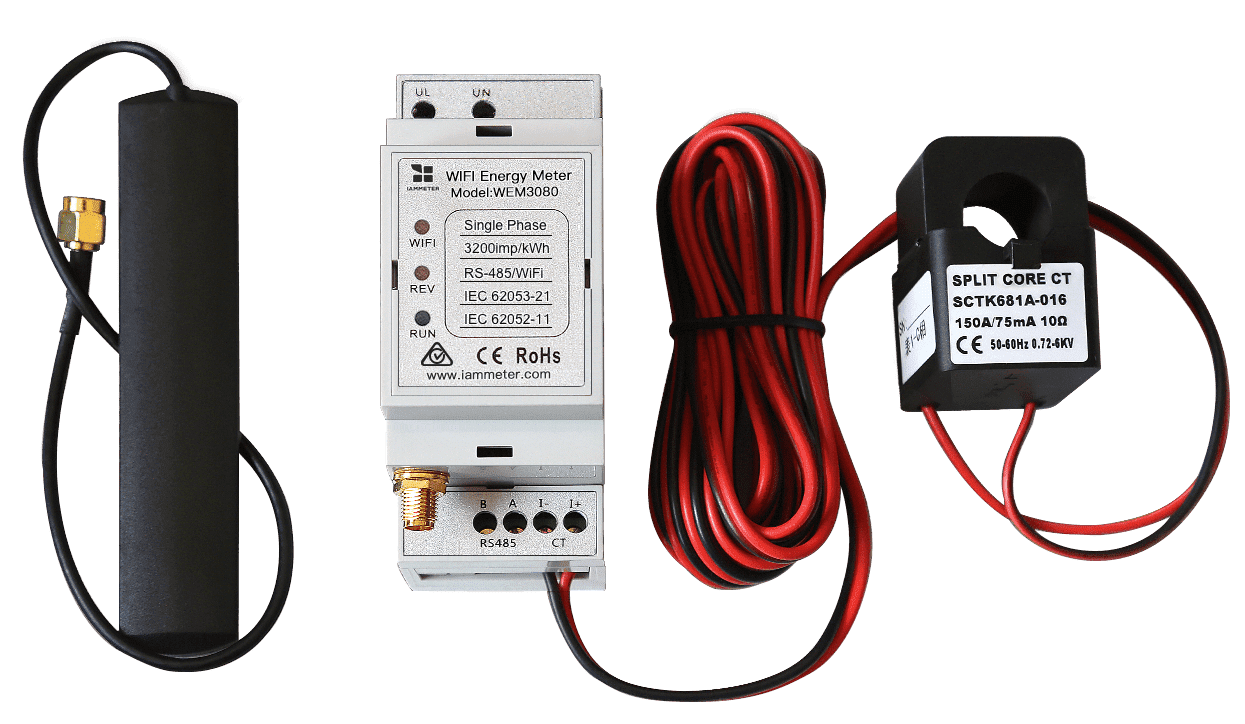
| WEM3080 | Single phase | Single-phase entity set |
| WEM2067 | Dual channel for single-phase applications | Two measurement channels |
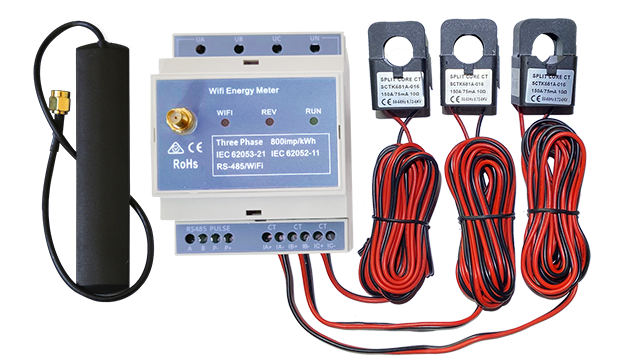
| WEM3080T | Three phase | Three phase/entity groups |
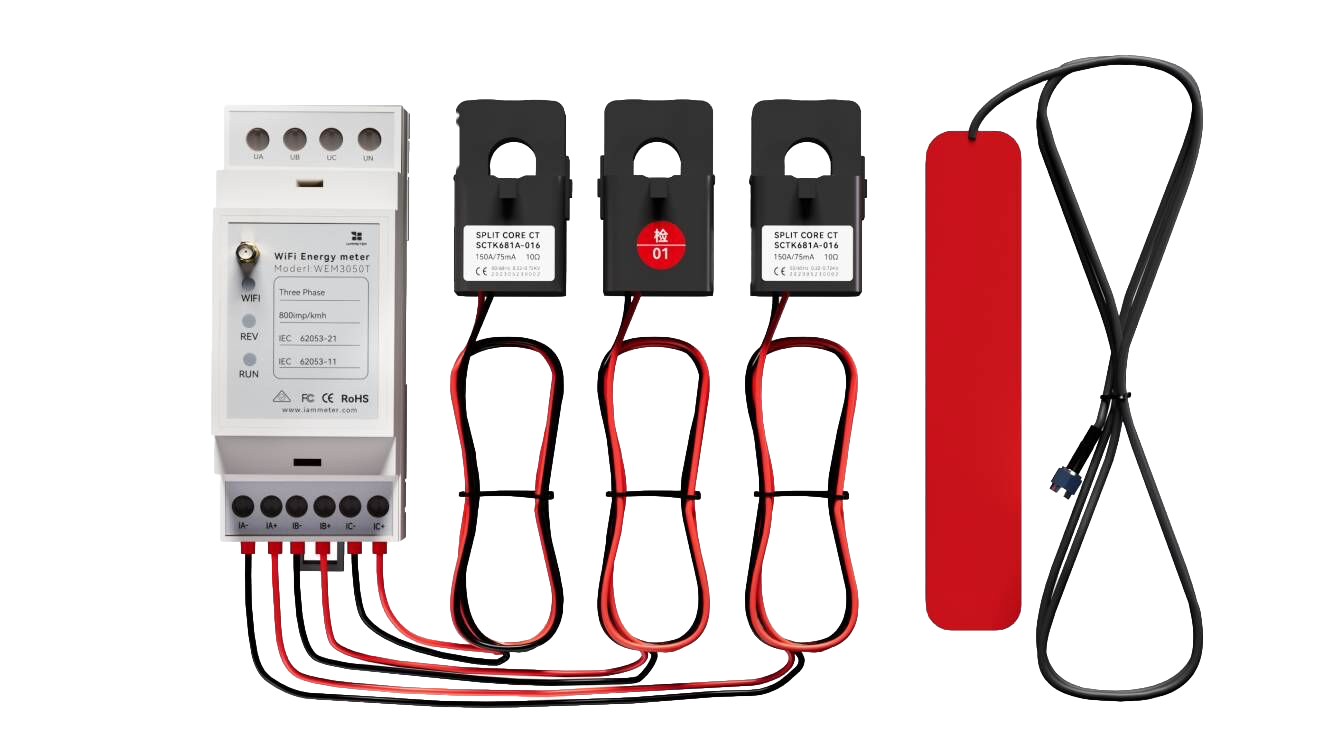
| WEM3050T | Three phase or split phase | Three measurement channels |
| WEM3080TD | Three-phase/three-wire and special wiring | Interpret entities according to the wiring mode |
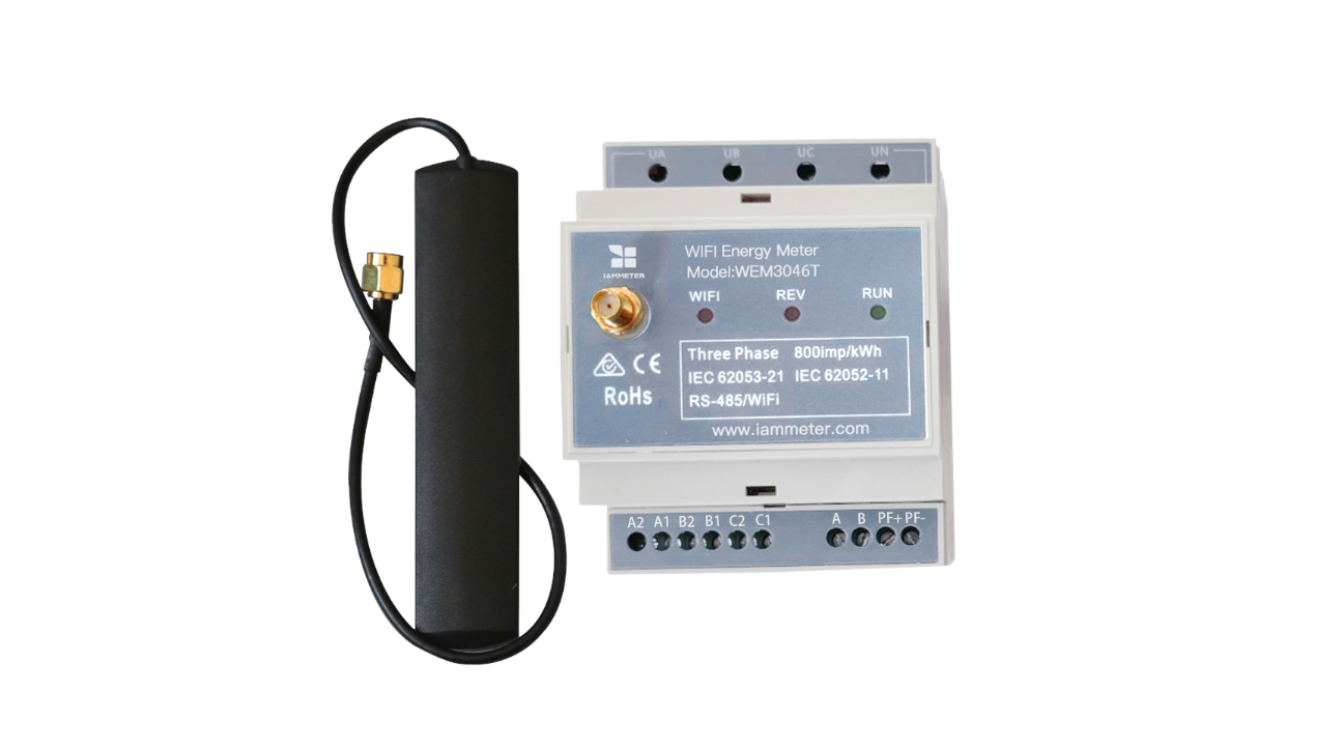
| WEM3046T / WEM3046TE | External 5 A CT input | Apply the external CT ratio |
WEM3046T and WEM3046TE measure the 5 A secondary output of an external current transformer. To obtain the actual primary-side current, power, and energy, the correct CT ratio must be applied. This is a characteristic of the 5 A CT metering system, not a Home Assistant or Modbus compatibility limitation.
Can Modbus and IAMMETER Cloud work at the same time?
Yes. Home Assistant reads Modbus TCP locally while the meter can continue uploading to IAMMETER Cloud. You do not need to change the meter to MQTT upload mode to use Modbus.
This gives you two complementary views:
- fast local data and automations in Home Assistant;
- long-term reports, electricity-cost analysis, solar analysis, and remote access in IAMMETER Cloud.
Avoid multiple high-frequency Modbus clients
Use one active Modbus TCP polling client per meter as the safe deployment model. Do not configure Home Assistant, Node-RED, a PLC, and another logger to poll the same meter independently at high frequency.
If several systems need the same live measurements, let one system read Modbus and redistribute the data, or use an MQTT architecture where multiple consumers subscribe to a broker.
Troubleshooting
Home Assistant cannot connect to port 502
- Confirm that Home Assistant and the meter are on the same reachable network.
- Verify the meter IP address and reserve it in the router.
- Check that TCP port
502is not blocked by a firewall or VLAN rule. - Make sure another Modbus client is not holding or repeatedly reopening the connection.
Entities are unavailable or values do not change
- Confirm the selected meter/phase type in the HACS integration.
- With YAML, verify the slave ID, register address, data type, scale, and word order.
- Increase the scan interval temporarily to rule out overly aggressive polling.
- Restart the integration after changing the meter's IP address.
Values are implausibly high or low
- Check the register scaling and data type.
- For WEM3046T/WEM3046TE, verify the external CT ratio.
- Confirm that the entity corresponds to the expected phase or measurement channel.
Energy entities do not appear in the Energy Dashboard
- Use cumulative imported/exported energy in kWh.
- Confirm
device_class: energy. - Confirm
state_class: total_increasing. - Do not use a power entity in watts.
Build automations with real-time power data
Once the Modbus entities are working, Home Assistant can use active power or grid-export power to control other devices. Examples include:
- control a relay from real-time Modbus power data;
- charge an EV when solar export exceeds a threshold;
- heat water with available solar surplus;
- notify the user when household demand exceeds a limit;
- reduce a controllable load before importing expensive peak-rate electricity.
Keep the integration guide focused on establishing reliable data first. Add control logic only after checking the sign convention, units, update interval, and behavior when the meter becomes unavailable.