


New IAMMETER Web Simulator: Explore Meters and Open Interfaces
The previous IAMMETER Simulator ran as a standalone application or a Docker deployment. Now, the new web-based IAMMETER Simulator is available: open your browser and start exploring, without installing software or deploying a Docker container.
Even without a physical meter, you can explore the device interface, read simulated measurements, and test APIs, Modbus/TCP and integrations with third-party services.
Open the new IAMMETER Simulator →
1. Explore the Product Interface
Use the simulator to get familiar with the local web interface of an IAMMETER energy meter. View simulated voltage, current, power and cumulative energy readings, and explore the available settings.
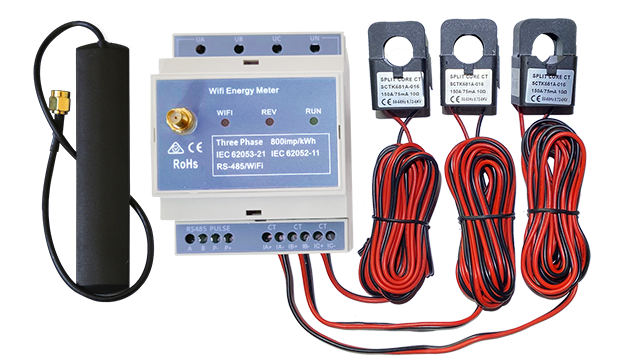
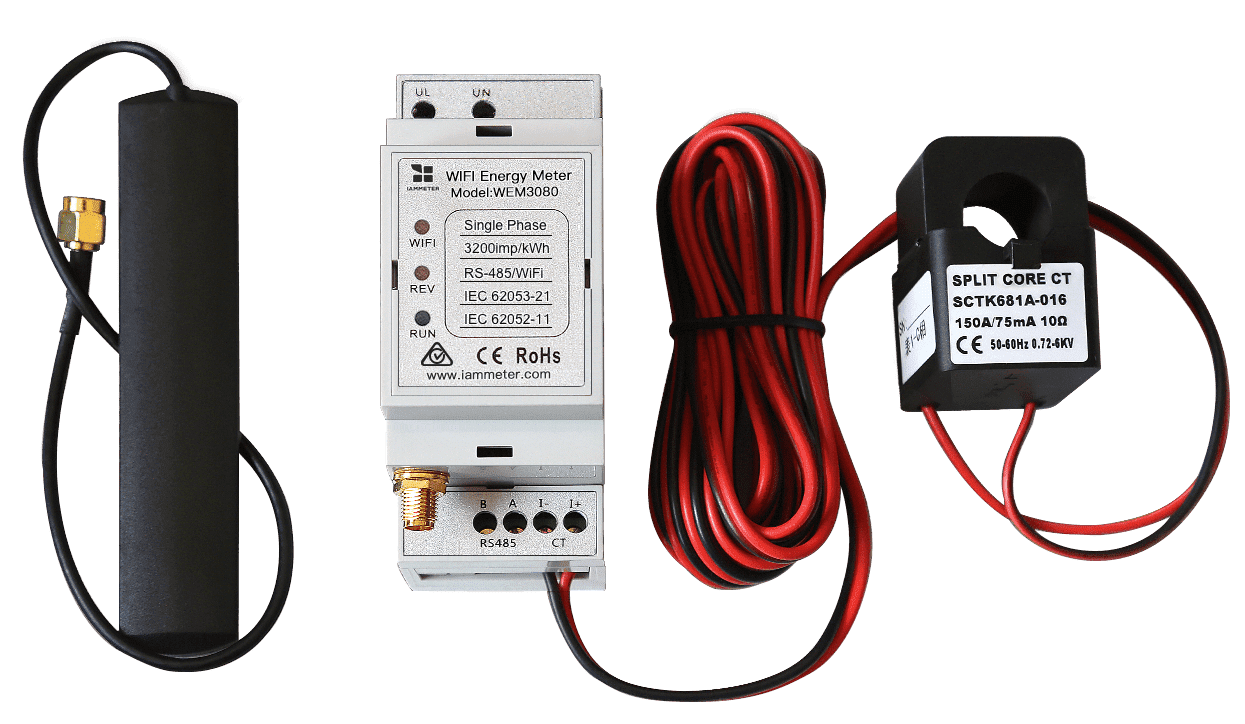
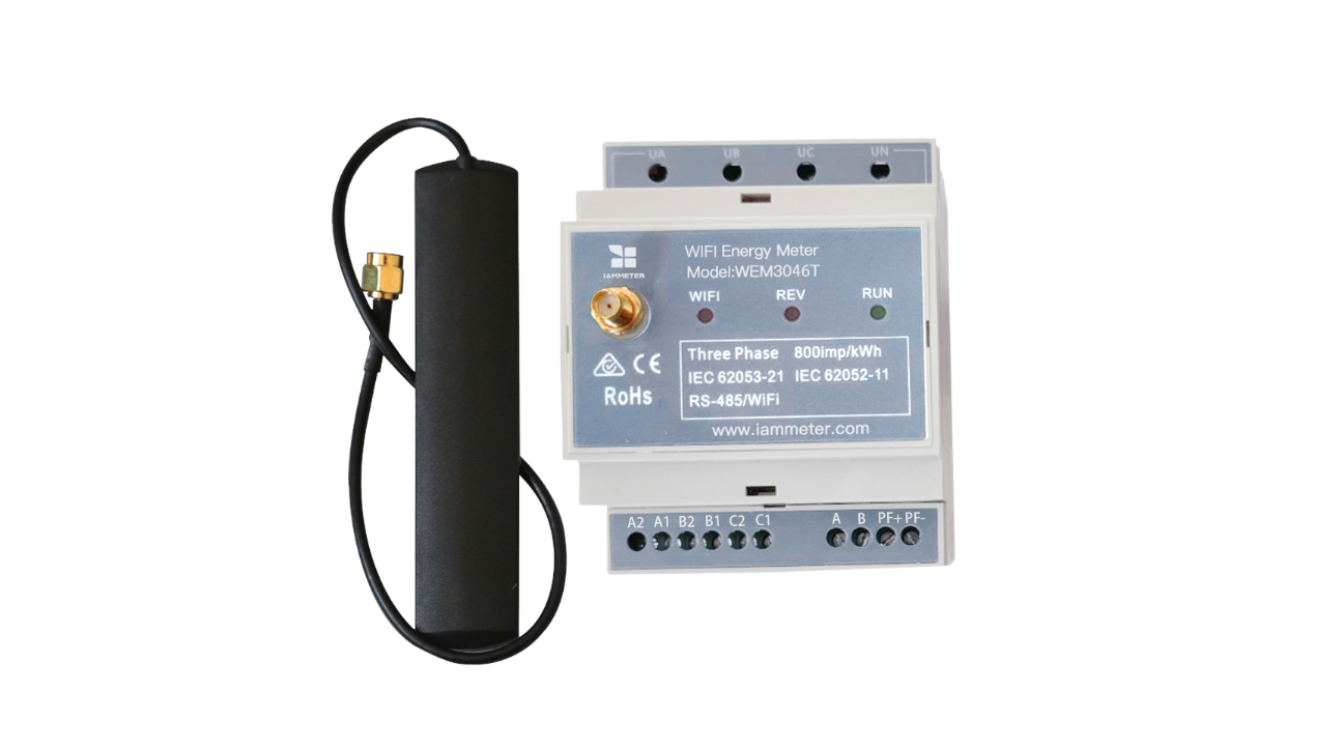
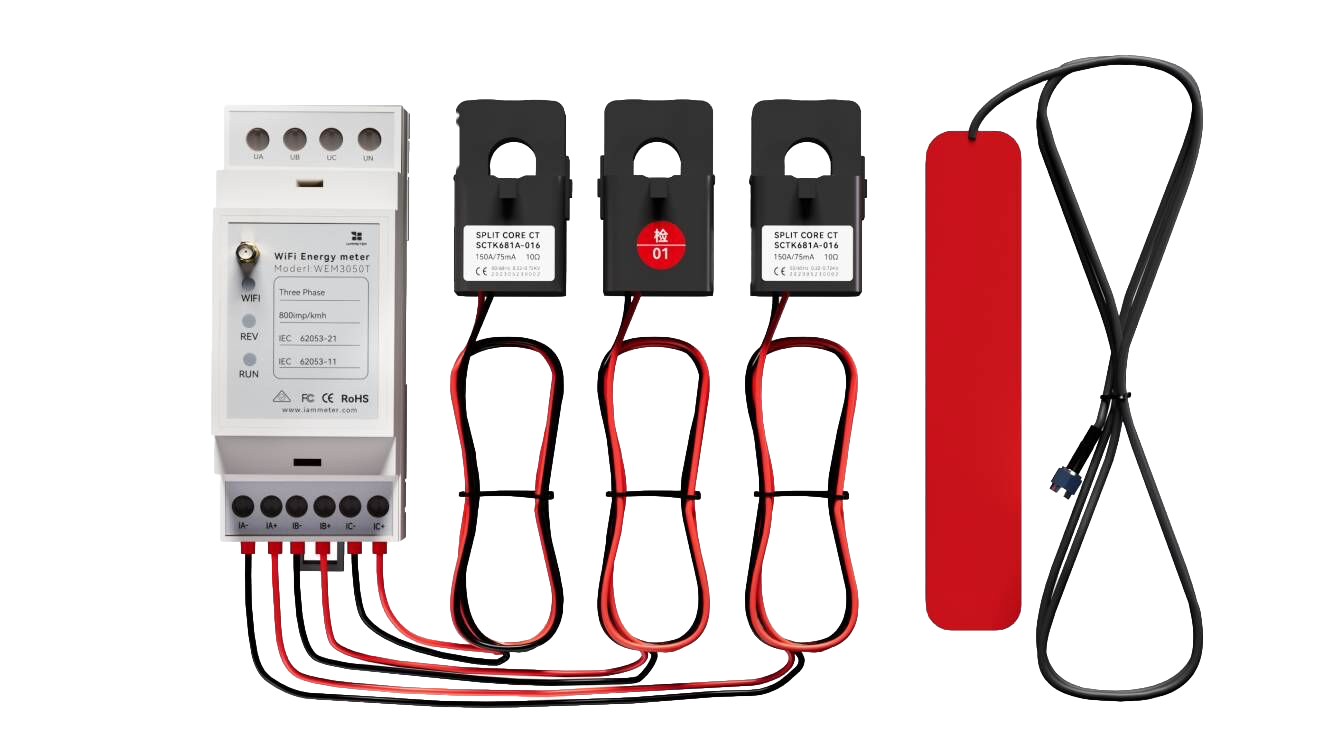
Three models are currently available. Select a model below to open its simulator:
| Model | Measurement Channels | Try It Online |
|---|---|---|
| WEM3080 | One channel | Try WEM3080 |
| WEM2067 | Two channels | Try WEM2067 |
| WEM3050T | Three channels | Try WEM3050T |
2. Test the API and Modbus/TCP Interfaces
The simulator provides working interfaces that developers can connect to without physical hardware:
- Local HTTP API: Send requests, inspect JSON responses, and understand the measurement fields and data structure. Read the Local API reference →
- Modbus/TCP: Use your own client to read simulated registers and verify connections and data decoding. Follow the Modbus/TCP testing guide →
- Application integration: Use simulated readings in Home Assistant, Node-RED, Python applications or your own energy monitoring system.
The readings change with the simulated scenario, helping you test dashboard displays and automation logic.
3. Test Third-Party Integrations via MQTT/MQTTS and HTTP/HTTPS
IAMMETER energy meters can upload measurements to third-party services. The new simulator lets you test this data flow and validate your receiver before installing a physical device.
Configure the simulated meter's settings to:
- Use MQTT/MQTTS: Connect to your own broker and receive measurement data published by the simulated meter.
- Use HTTP/HTTPS: Upload simulated readings to your server to test data reception, parsing and storage.
Your receiver must be reachable from the simulator backend. A broker or server that is accessible only on your local network generally cannot receive uploads directly from the public simulator.
Follow the MQTT/MQTTS testing guide →
Simulated Data Based on a Home Solar Profile
By default, the simulator generates meter readings from a Home Solar Profile: a daily pattern of solar generation and household electricity demand. It models changes in solar production, household consumption, and grid import and export, so you can test dashboards and automation logic with data that represents a home solar scenario.
In the default Inverter and grid scenario, the channels have the following roles:
| Channel | Simulated Measurement | Meaning |
|---|---|---|
| A | Solar inverter generation | Follows the solar curve during the day; generation is zero at night. |
| B | Grid exchange | Positive power means importing from the grid; negative power means exporting to the grid. |
| C | Disconnected | Readings are zero in this scenario. |
WEM3080 returns channel A, WEM2067 returns channels A and B, and WEM3050T returns channels A, B and C. The shared Modbus/TCP service exposes the full three-channel register map, regardless of the model selected on the web page.
For example, when daytime solar generation exceeds household demand, channel B shows export to the grid. When generation is insufficient or it is nighttime, it shows import from the grid. Use these changes to test solar-surplus notifications, power alerts and related control logic.
Read the scenario data selection guide →
Explore the A/B/C channel definitions and 24-hour curves →
Connect to Home Assistant Without a Physical Meter
If you use Home Assistant, follow the guide to connect through the HACS IAMMETER HTTP or HACS IAMMETER Modbus TCP integration. Check entity readings, build a dashboard and test energy-related automations.
For example, you can:
- Display solar generation and grid exchange power.
- Send a test notification when power is exported to the grid.
- Trigger an alert when consumption exceeds a chosen power level.
- Use simulated readings to verify automation trigger conditions.
Follow the Home Assistant integration testing guide →
Start Exploring
The readings come from simulated scenarios, not measurements from a real home. The simulator implements only a subset of physical-device features; Wi-Fi scanning, device security changes and firmware upgrades are display-only.
When moving to a physical meter, check the connection parameters, register scaling and entity configuration for the model and firmware you use.
Choose a model to explore its interface, read simulated measurements, or connect it to Home Assistant and your third-party system.